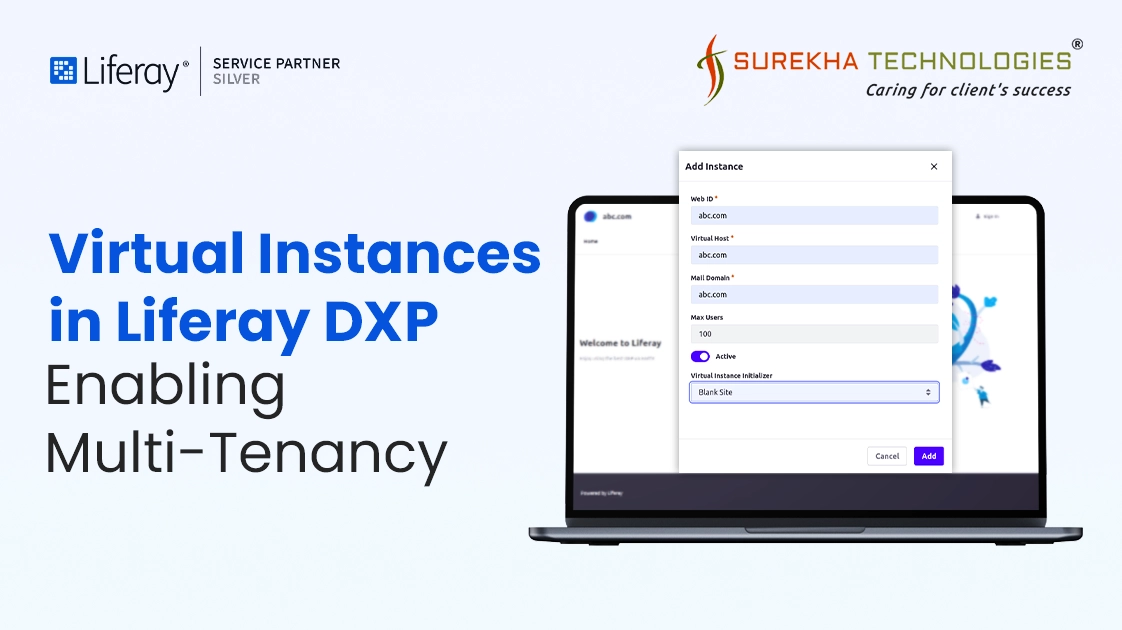
Today, most organizations handle more than one digital presence. They might run a corporate website, a customer support portal, an internal communication platform, and several regional or brand-based sites. Managing all of these separately can become expensive and difficult to maintain. This is where Virtual Instances in Liferay prove their worth. They give companies the ability to host and manage multiple independent portals from one single installation. Businesses often rely on them for multi-tenancy, regional websites, brand portals, or department-specific platforms without setting up separate servers.
What is a Virtual Instances in Liferay?
A Virtual Instance in Liferay DXP is like having several independent portals under one roof / installations. Each instance functions as its own environment, with a unique domain, a separate group of users, sites, and configuration settings. Although all instances share the same base installation, their data and operations remain completely independent.
When someone visits a particular domain, Liferay automatically identifies which instance to display. This setup gives every department or brand the flexibility to run its own portal while the organization maintains a single infrastructure in the background.
Why Use Virtual Instances?
There are several reasons companies prefer Liferay Virtual Instances when planning their portal architecture. The most common ones include:
- Data and user separation: Every instance holds its own data, users, and permissions, making it easier to keep information secure and organized.
- Reduced operational costs: Running all portals from one Liferay installation saves hardware and maintenance costs.
- Effortless maintenance and growth: Administrators can apply updates, modules, or design changes once and extend them across instances with minimal effort.
- Ideal for multiple brands or regions: Companies that manage different regions, business units, or product lines can maintain separate identities while using the same system.
How Virtual Instances Work
The way Virtual Instances in Liferay function is both simple and efficient. Liferay is installed once on a server, and new instances are created directly through the Control Panel under Configuration. Each one is given its own domain, email configuration, and unique Web ID.
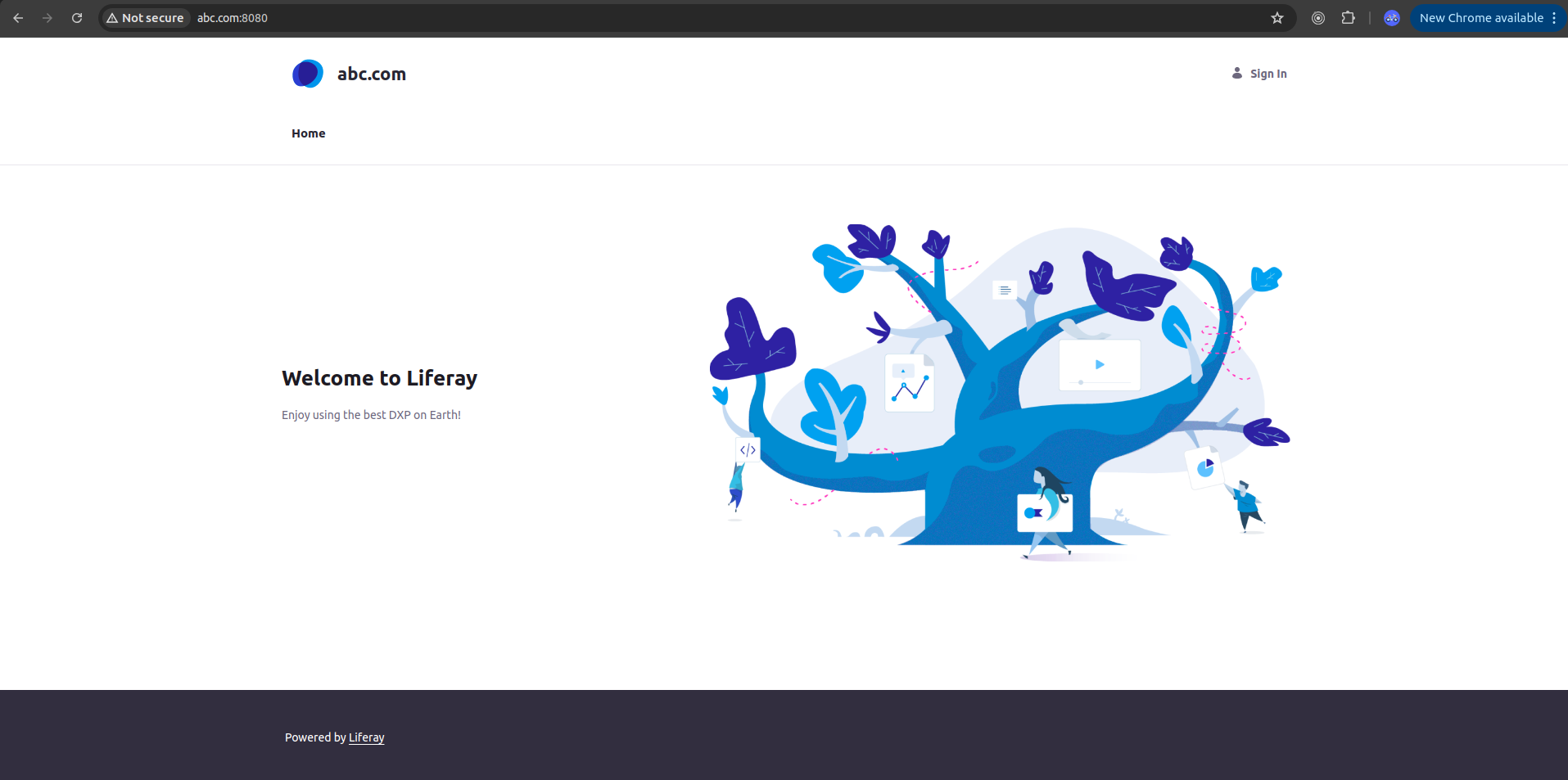
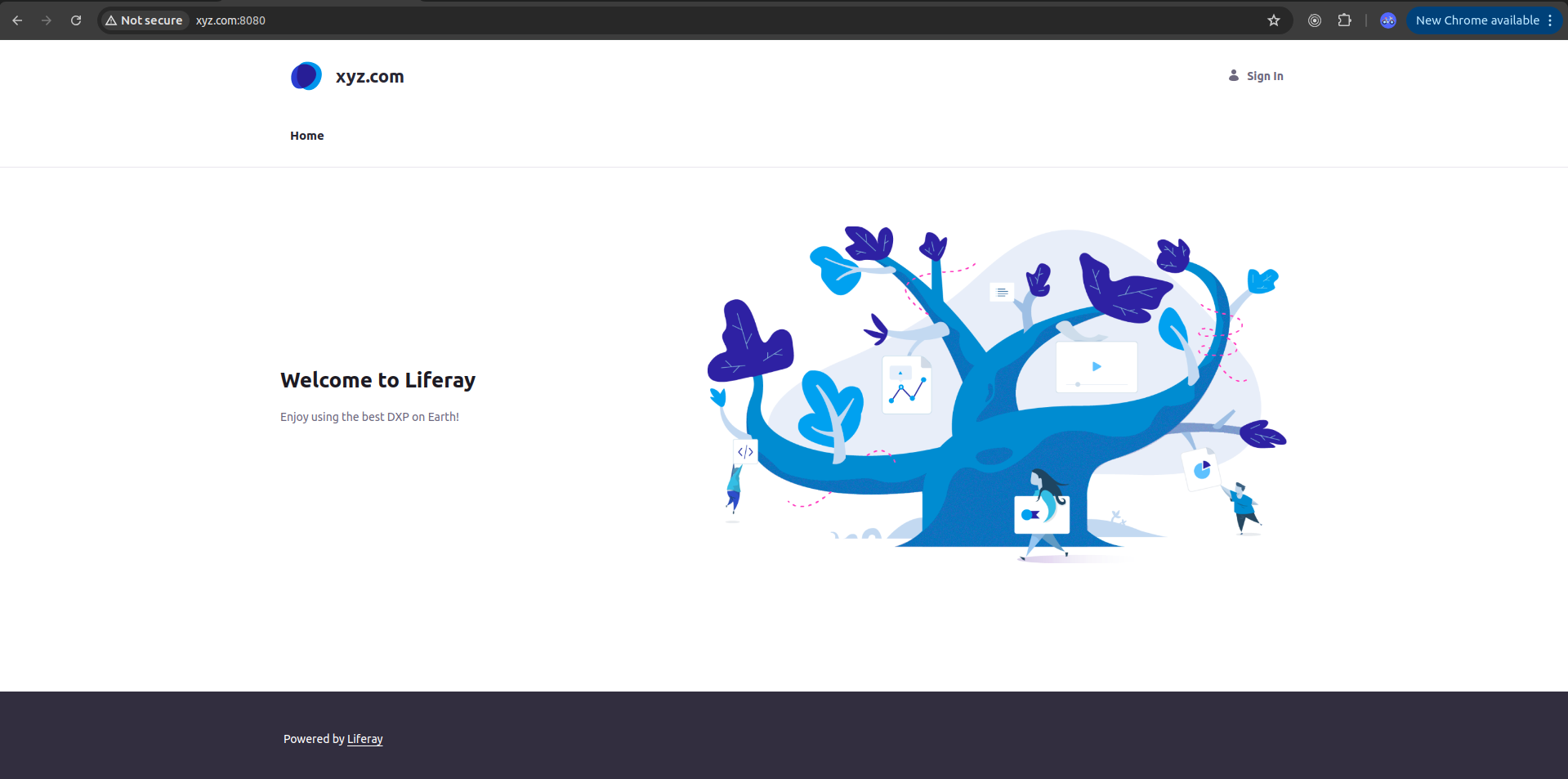
All instances share the same core application, but each keeps its own set of users, pages, and permissions. Liferay uses domain mapping so that when a visitor enters brandA.company.com or regionB.company.com, the system automatically serves the correct portal. Even email and branding can differ from one instance to another.
Setting Up a Virtual Instance in Liferay
Setting up a Virtual Instance in Liferay DXP takes only a few steps:
1. Open the Control Panel and select Configuration.
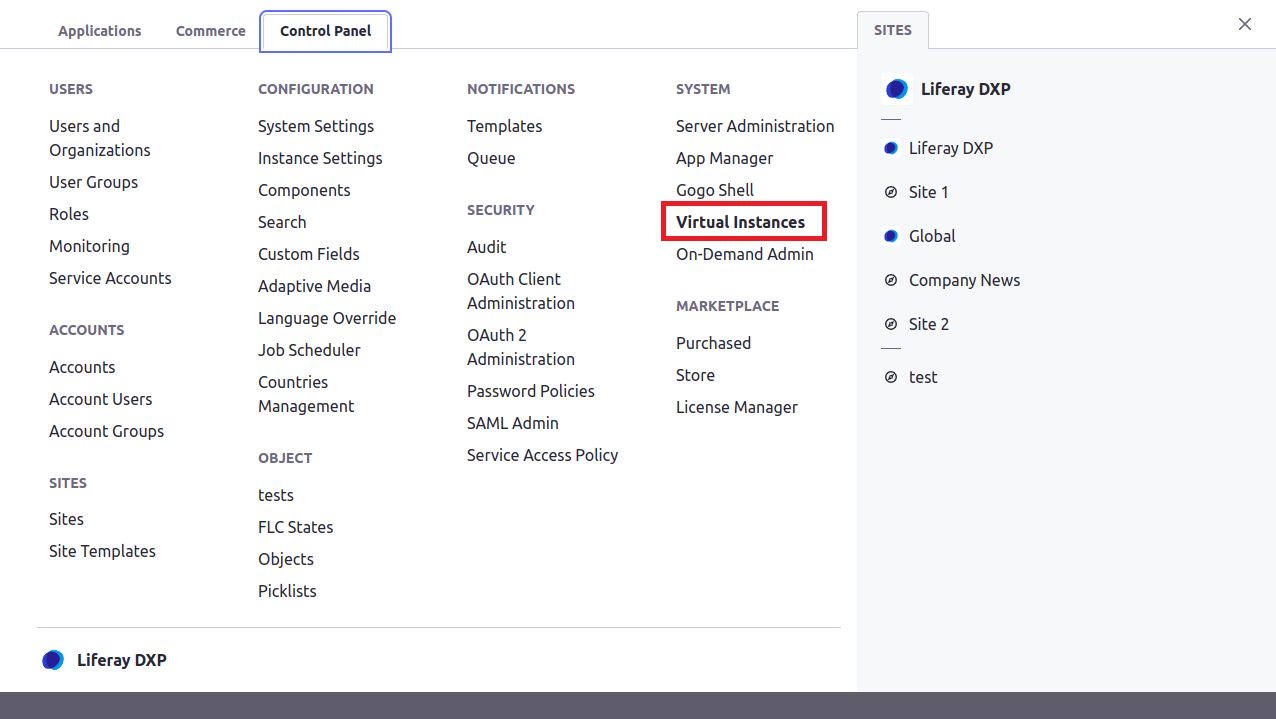
2. Click the Add button. This opens the New Instance form.
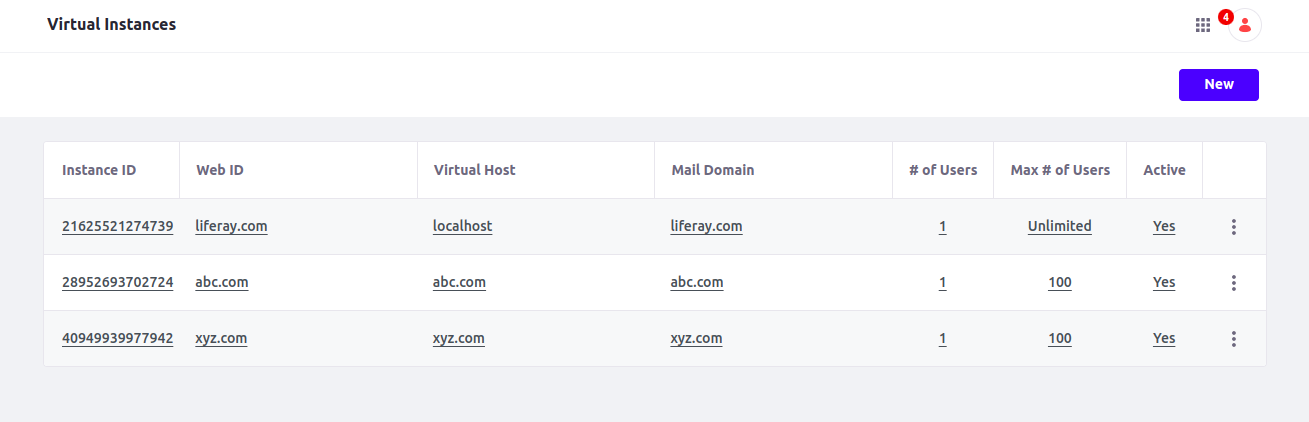
3. Complete the New Instance form as follows:
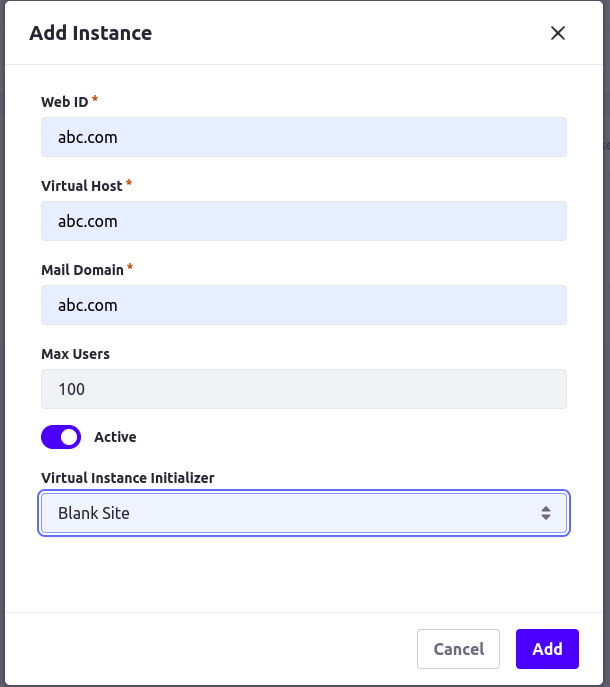
Web ID: Specify the instance ID. Using the domain name is a common convention.
Virtual Host: Set the domain name you configured in your network. When people use the domain name, they are directed automatically to this instance.
Mail Domain: Enter the mail host’s domain name for the virtual instance. Email notifications are sent from the instance using this domain.
Max Users: Set the maximum number of users accounts for the virtual instance support. Enter 0 to support unlimited users.
Active: Set the virtual instance to be active or inactive. Inactive virtual instances aren’t accessible to anyone, even the administrator.
Click Save when you’re done filling out the form.
Exclusively for The Developers
Set Up a Local Host Entry
When working with virtual instances in a local Liferay DXP setup, it’s helpful to use a custom URL instead of localhost.
You can do this by adding a simple entry to your system’s hosts file:
127.0.0.1 brandA.company.com
After saving the file, you can access your site at: http://brandA.company.com:8080
This setup makes your local environment behave more like production. It’s especially useful when testing domain-specific configurations, cookies, or SSO integrations.
Best Practices
- Assign a distinct domain name to each instance.
- Use meaningful Web ID names that make identification easier.
- Create separate administrator accounts for every instance.
- Maintain a consistent configuration template across all instances.
Read More: Client Extension Framework in Liferay DXP - Everything You Need to Know
Managing and Maintaining Instances
Once set up, each virtual instance can be managed separately. Local administrators can oversee users, sites, and content for their own portals, while a system-level Omni Admin can view and control all instances together.
This dual structure allows local freedom and central supervision at the same time. Teams can make independent updates, and the IT department can ensure stability and compliance across the organization. Adding new instances later is also quick, making it easy to scale as business needs grow.
Common Challenges and Best Practices
Although Liferay Virtual Instances are efficient, they require mindful management. A few challenges that administrators commonly face include:
- Balancing server resources: Since all instances share the same environment, resource usage must be monitored to prevent overload.
- Keeping data separate: Proper configuration ensures that user information and content never mix between instances.
- Maintaining consistency: Using a unified setup template makes upgrades and troubleshooting much smoother.
- Ensuring security and regular backups: Each instance should have strong access controls and routine backups to avoid data loss.

Conclusion
Virtual Instances in Liferay give organizations a simple yet powerful way to manage several portals from one place. They combine independence with efficiency, allowing teams to create custom experiences for different audiences while keeping overall management easy and cost effective. With careful setup and thoughtful governance, virtual instances can become a reliable part of a long-term digital strategy.
We help businesses build scalable digital solutions using Liferay DXP. Our team has hands-on experience in designing and implementing Virtual Instances that support multi-brand, multi-region, and multi-tenant structures.
FAQs
1. What is a Virtual Instance in Liferay?
A virtual instance is an independent portal environment within one Liferay installation. Each has its own domain, users, sites, and settings while sharing the same base platform.
2. Can I use the same domain or virtual host for two different virtual instances?
No. Each virtual host or domain must be unique across all instances of the installation. If two instances try to use the same virtual host name, it can cause routing errors.
3. Do virtual instances share all data and configuration settings?
Not entirely. They share the application server, plugins and system-scoped configurations, but each instance keeps its own user data, sites, permissions and instance-level settings.
4. Will a busy virtual instance slow down the others on the same server?
Yes. Because all instances share the same infrastructure and database, a heavy-load instance can impact the performance of others if resources are not monitored and allocated properly.
5. How can I create a new virtual instance?
Go to Control Panel → Configuration → Virtual Instances, add a new domain, fill out details, and save.