When a business records financial transactions in its accounting system, those records need to match what the bank actually shows. The bank may have transactions that are not yet recorded in the books, and the books may have entries that have not yet cleared the bank. Bank reconciliation is the process of comparing these two sources and making sure they align.
In Odoo 19, the reconciliation process has been redesigned with a new interface called the Bank Matching View. Earlier versions required users to work inside a transaction form and add counterpart lines manually. Odoo 19 removes that complexity - it brings everything into a single list view, shows suggested matches on each transaction line, and handles a large portion of the matching automatically based on the data it already has.
What is Bank Reconciliation?
Bank reconciliation means matching each transaction on your bank statement with a corresponding entry in your accounting records.
Here is a simple way to understand it. When a customer pays you, two things should happen: the money arrives in your bank account, and a payment entry gets recorded in Odoo against the invoice. Reconciliation is the step that connects these two - it confirms that the bank credit you see on the statement is the same money that settled on on the customer's invoice.
Without reconciliation, the bank account balance in Odoo and the actual bank balance stay out of sync. Reports become unreliable; outstanding invoices may appear as unpaid even after payment has been received, and it becomes harder to track where money actually is.
Why reconciliation matters:
- Your bank account balance in Odoo reflects the real position at any point in time.
- Customer invoices and vendor bills are correctly marked as paid when money is received or sent.
- Bank charges, interest, and other bank-originated transactions are recorded in the right expense or income accounts.
- Any error or unauthorized transaction is identified early.
- Financial statements - profit & loss, balance sheet - remain accurate for reporting and tax purposes.
What Changed in Odoo 19?
- New Bank Matching View - Instead of opening each bank transaction in a separate form view and manually adding counterpart lines, Odoo 19 presents all transactions in a single list. Each transaction can be expanded inline to see suggested matches and take action - without opening a separate screen.
- Context-Aware Action Buttons - On each transaction line, Odoo shows action buttons based on what information is available. If a matching invoice is found, a Reconcile button appears. If no match is found but a partner is identified, options like Receivable or Payable appear for a quick write-off. If nothing is identified at all, Set Account appears to let you manually select where to post the transaction. The buttons adapt to the situation.
- Improved Automatic Matching Logic - Odoo 19 matches transactions automatically using a sequence of conditions - exact amount match, early payment discount match, amount within 3% tolerance, currency-adjusted match, and amount found in the transaction label. This means that many transactions are reconciled without any manual input from the user.
- Auto-Reconcile Feature - A new Auto-reconcile function lets you specify a date range and accounts, and Odoo processes all eligible transactions as a batch - creating and posting all required journal entries at once.
- QIF File Import Support - Odoo 19 adds support for QIF format bank statement files alongside the existing OFX, QFX, CSV, and CAMT formats.
Configuration - Setting Everything Up Before You Start
Before any reconciliation can happen, the bank account and journal must be properly configured in Odoo. This section covers every step.
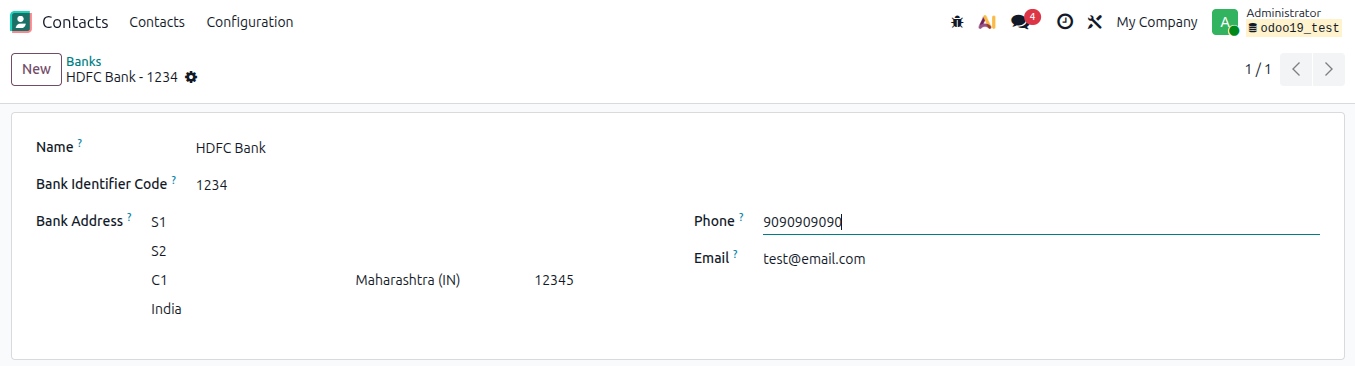
Configure a Bank in Odoo
Before creating a bank account and bank journal, the actual bank needs to exist in Odoo. This is the bank that will be linked to your bank account.
To add a bank account:
- Go to Contact > Configuration > Banks.
- Click New.
- Fill in the following fields:
- Name - Enter your full bank name
- Bank Identifier Code - Add your Bank Identifier Code (e.g. Swift or BIC)
- Bank Address - Address of your bank
- Phone - Phone number of the bank
- Email - Email of the bank
- Click Save.
Configure a Bank Account in Odoo
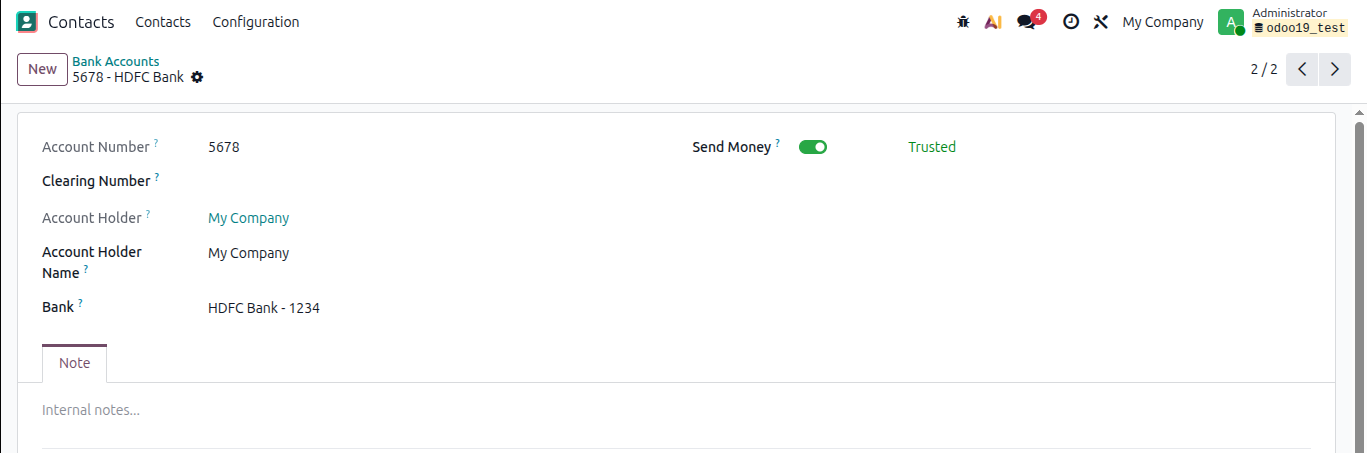
Before creating a bank journal, the actual bank account number needs to exist in Odoo. This is the account that will be linked to your journal.
To add a bank account:
- Go to Contacts > Configuration > Bank Accounts.
- Click New.
- Fill in the following fields:
- Account Number - Enter your full bank account number (e.g., IBAN or local account number depending on your country).
- Bank - Select your bank from the list. If your bank is not listed, click Create and Edit to add it. You will be asked for the bank name, BIC/SWIFT code, and address.
- Account Holder - This is the company name or individual who owns the account. It should match what the bank has on record.
- Send Money - Enable this to ensure this is the valid bank account number and you can send money from this bank account
- Click Save.
Create a New Bank Journal
Each bank account you use in your business needs a Journal in Odoo. The journal is what connects your bank account to accounting entries. All transactions recorded against this bank will go through this journal.
To create a bank journal:
- Go to Accounting > Configuration > Journals.
- Click New.
- Fill in the fields:
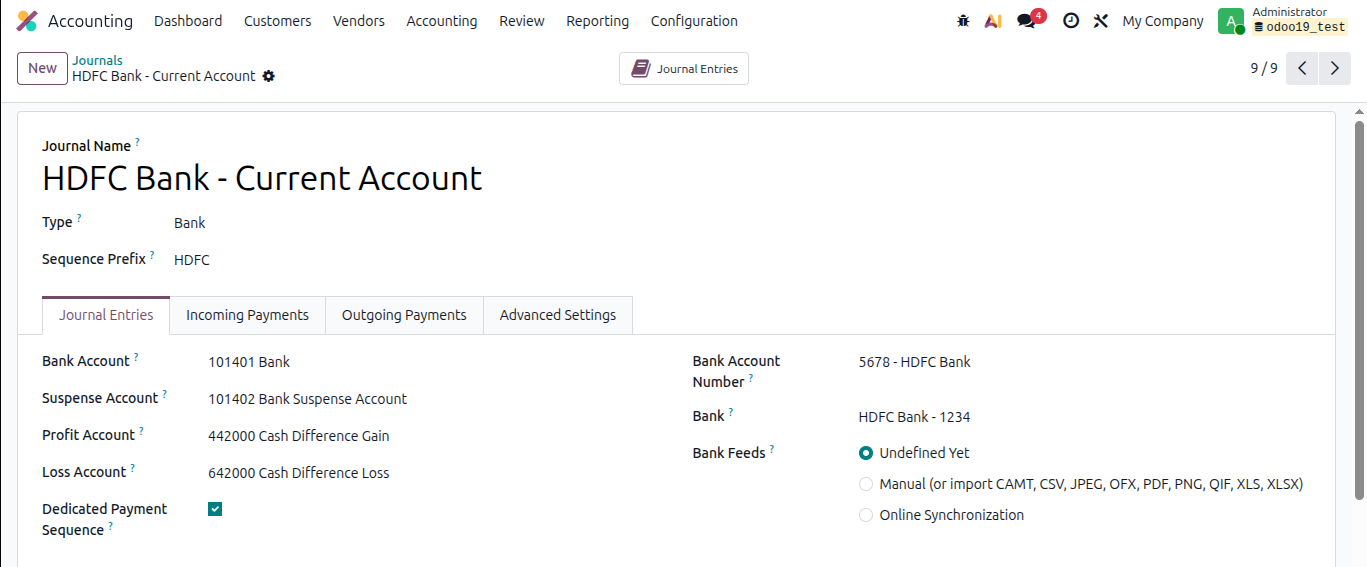
- Journal Name - Give it a clear name. For example: HDFC Bank - Current Account or Main Operating Account. This name appears on the Accounting Dashboard.
- Type - Select Bank. This is important - selecting the wrong type will disable reconciliation features.
- Short Code - A 2-5 character code used in journal entry references (e.g., BNK1, HDFC). This gets prefixed to entry numbers like BNK1/2025/0001.
- Under the Journal Entries tab, configure the accounts:
- Bank Account - Select the chart of account for this Journal.
- Suspense Account - This is a temporary holding account. When a bank transaction is imported into Odoo but not yet reconciled, the amount is temporarily placed in this suspense account. Once reconciliation is complete, Odoo replaces the suspense account entry with the correct income or expense account. Odoo pre-fills a default suspense account - you can keep the default unless your accountant specifies a different one.
- Outstanding Receipts Account - Odoo uses this account to hold incoming payments that are registered in the system but not yet matched to a bank transaction. This is used when you record a payment manually (see section 4.4.3).
- Outstanding Payments Account - Same concept for outgoing payments registered before the bank confirms them.
- Profit Account & Loss Account - Used to post minor differences that arise during reconciliation (e.g., rounding differences of ₹1 or ₹2). These are usually pre-configured by Odoo.
- Bank Account Number - Select the bank account you created in step 4.2.
- Bank - Select the bank account you created in step 4.1.
- Bank Feeds - Select how the bank statements will be registered in odoo
- Manual - By manually importing the bank statement.
- Online Synchronization - Connect the bank account with Odoo and Odoo will fetch transactions automatically.
- Click Save.
How to Get Bank Transactions into Odoo
Before you can reconcile, the bank transactions need to be inside Odoo. There are three ways to do this. You only need to use one method depending on what your bank supports and your workflow.
Option A - Bank Synchronization (Auto-Sync)
If your bank supports it, Odoo can connect directly to your bank and fetch transactions automatically on a regular schedule - no manual import is needed.
To set up bank sync:
- Open the Accounting Dashboard.
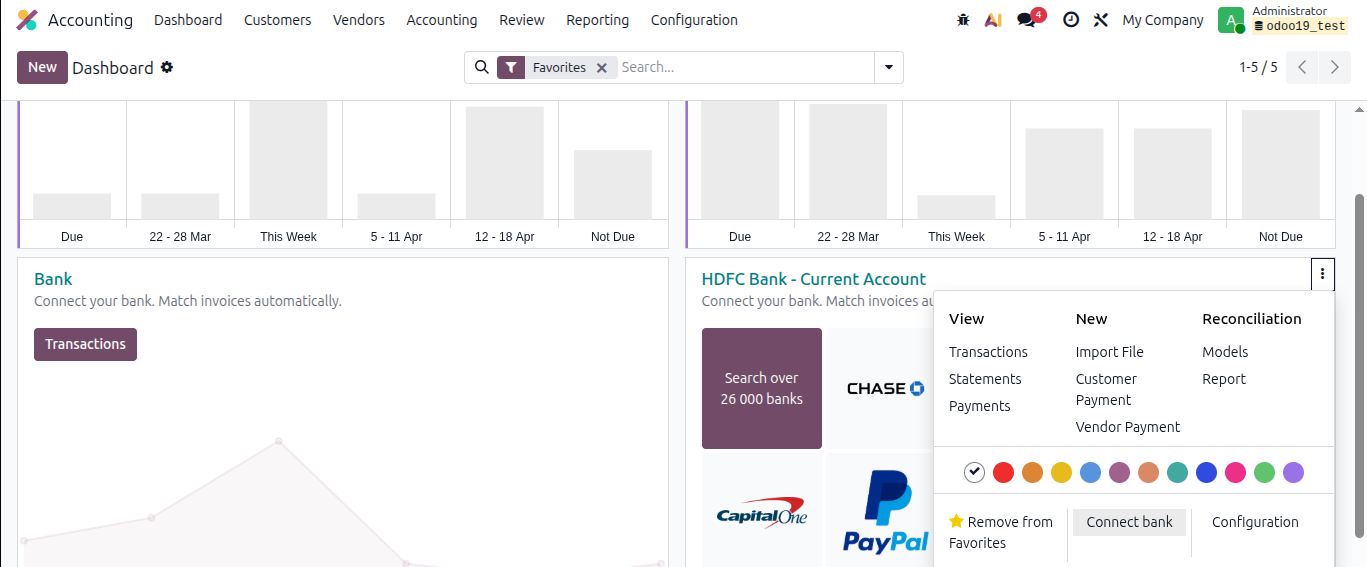
- If you want to connect to an existing journal, open the respective bank journal and click on the three dots (⋮) menu and select connect bank. Alternatively, you can click on the New button on the dashboard and select the Bank option to create a new journal.
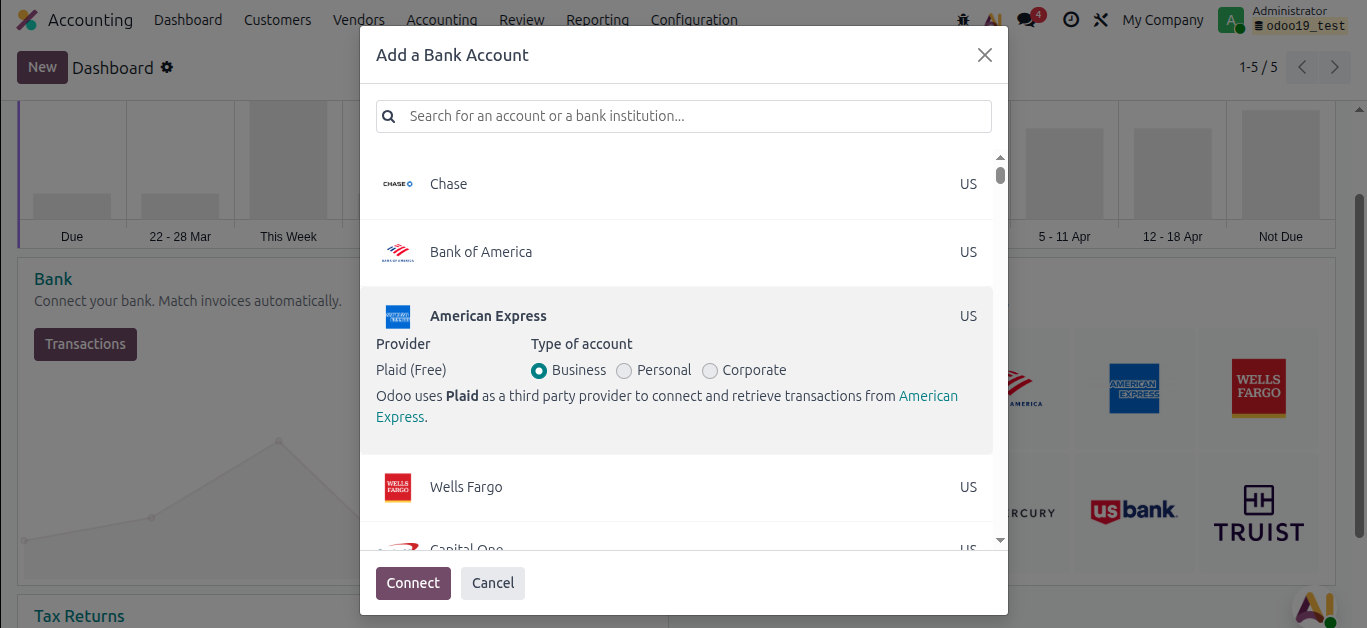
- Odoo opens a setup wizard. Select your bank from the list.
- Odoo uses a provider (such as Ponto for European banks, or other regional providers) to establish the connection. You will be redirected to authenticate with your bank's online portal.
- Once authenticated, Odoo fetches the transactions automatically. You can see the bank account in the Accounting > Configuration > Online Synchronization menu as connected
Note: Bank sync availability depends on your country and bank. Not all banks support this feature. If yours does not appear in the list, use Option B or Option C below.

Option B - Import a Bank Statement File
If bank sync is not available, you can download your bank statement from your bank's internet banking portal and import it into Odoo.
Supported file formats:
- OFX / QFX
- CAMT.053 (XML)
- CSV
- QIF (requires enabling first - see below)
To enable QIF import (if needed):
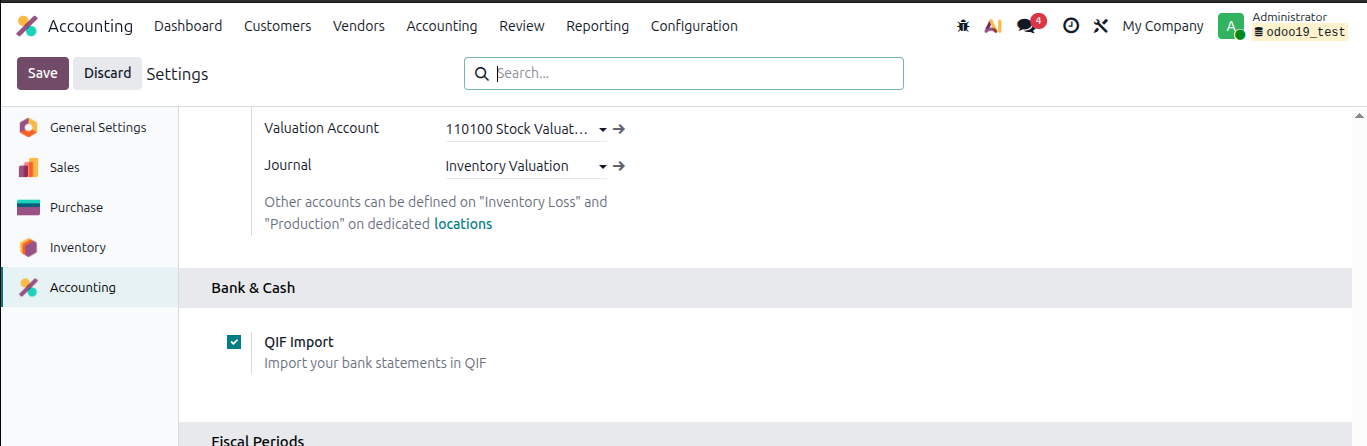
- Go to Accounting > Settings.
- Scroll to the Bank & Cash section.
- Turn on the QIF Import toggle.
- Click Save.
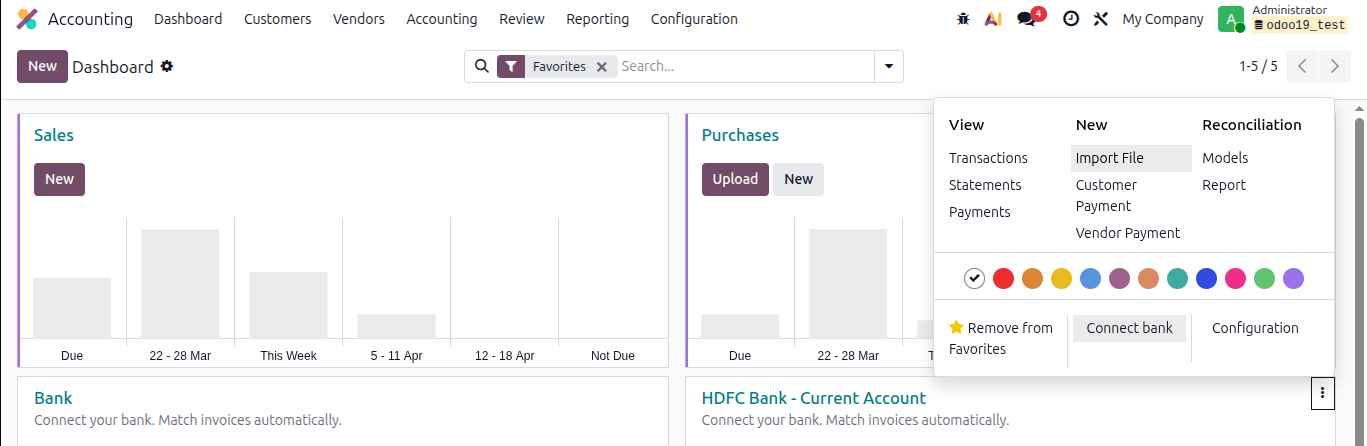
To import a bank statement:
- Open the Accounting Dashboard.
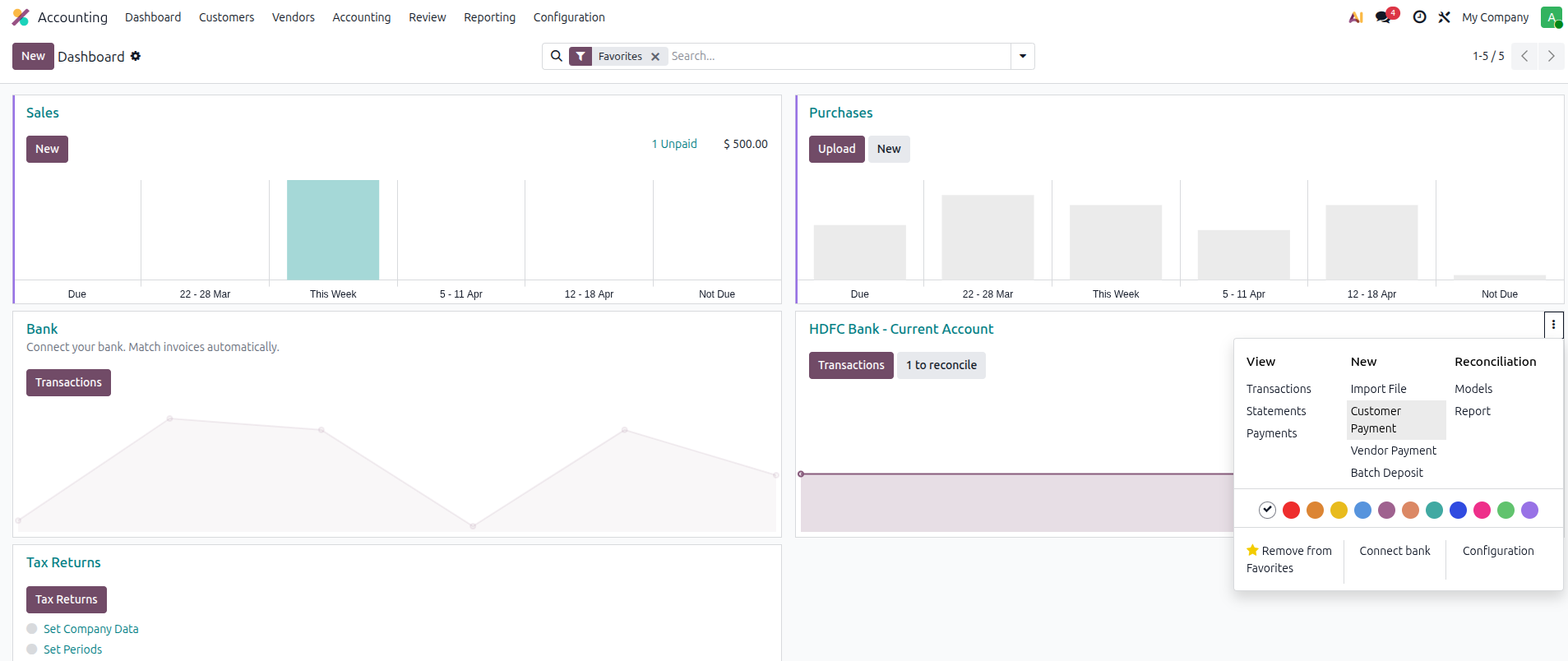
- On your bank journal card, click the Import File button.
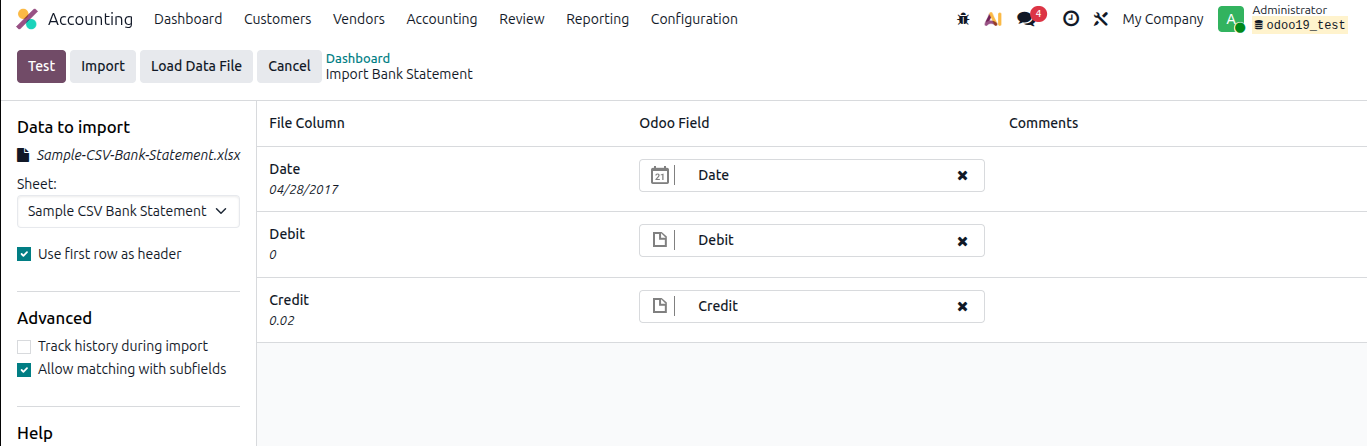
- Upload the file downloaded from your bank.
- Odoo reads the file and displays a preview of the transactions it found.
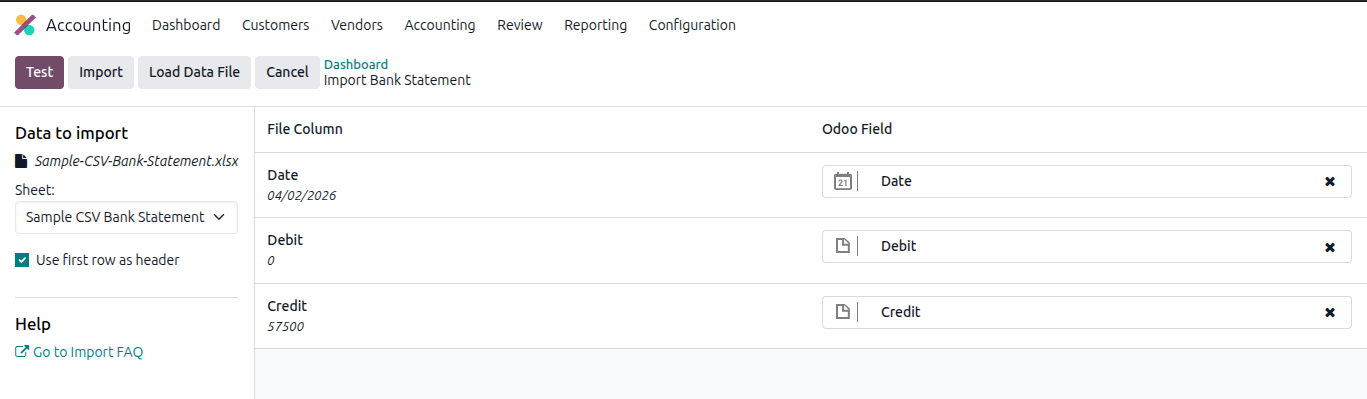
- Match the columns if prompted (for CSV files, Odoo may ask you to confirm which column is Date, which is Amount, etc.).
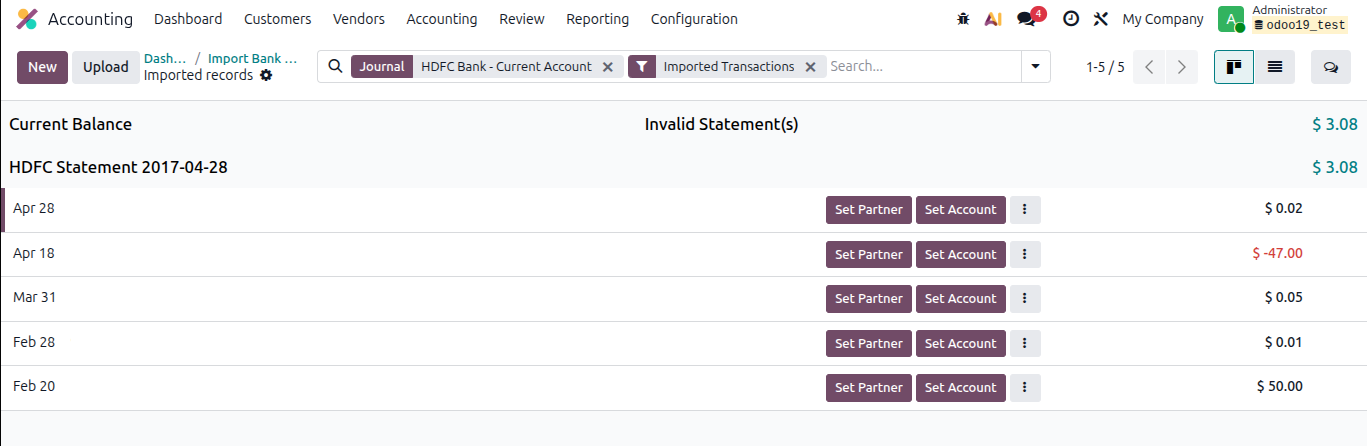
- Click Import. The transactions are now in Odoo and visible in the Bank Matching View.
Note: After import, transactions appear in the Bank Matching View with a status of Not Matched. No journal entries are fully posted yet - Odoo is holding them in the suspense account until reconciliation is done.
Option C - Enter Transactions Manually
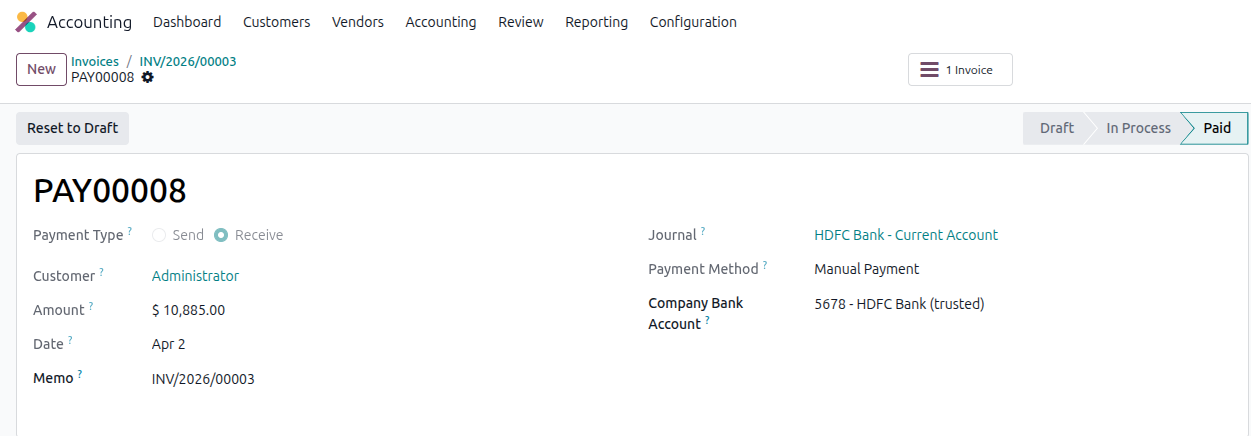
If you are not using bank sync and do not have a statement file, or if you want to record a specific transaction directly, you can create bank transactions manually in Odoo. This is also the approach used when you record a payment against an invoice or a bill through the normal payment flow.
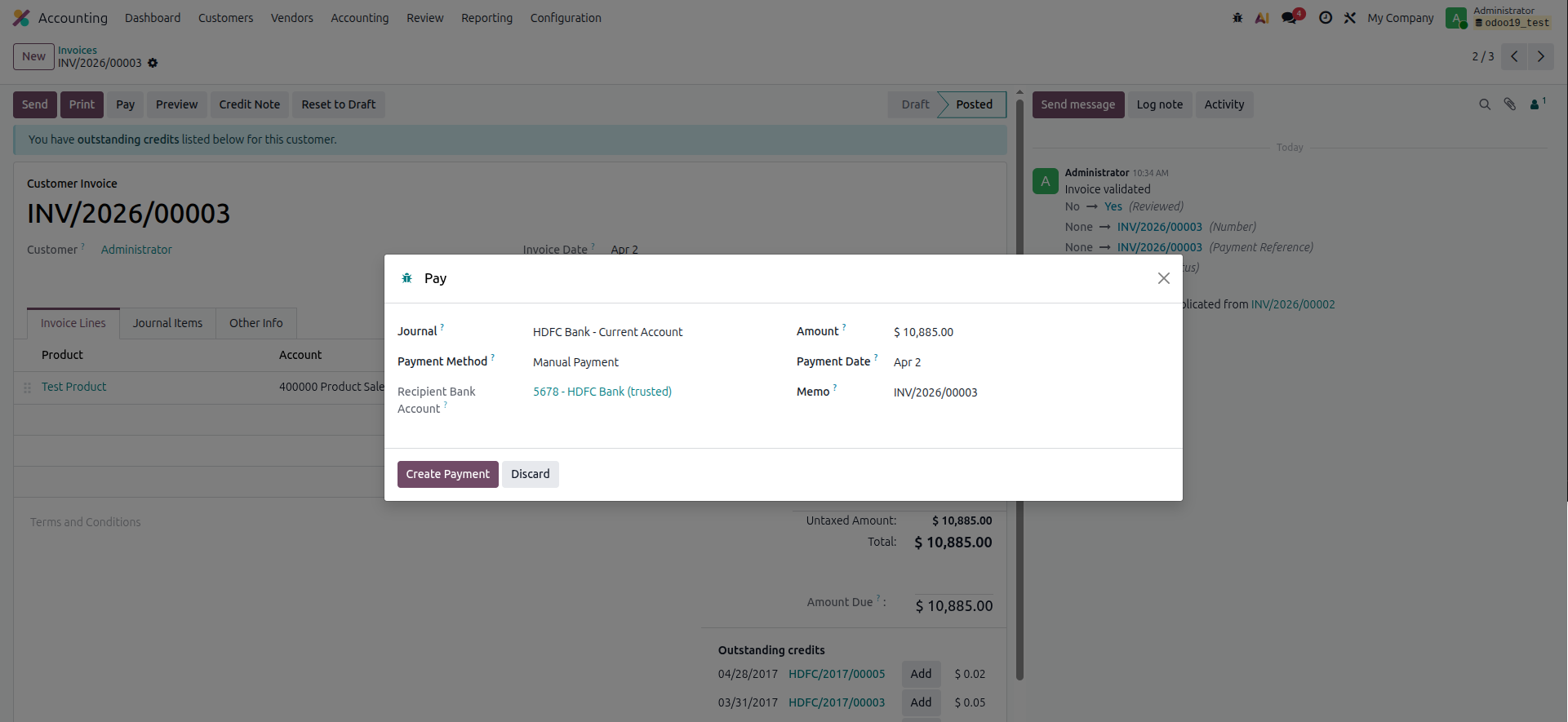
For a Customer Invoice Payment:
- Go to Accounting > Customers > Invoices and open the invoice.
- Click the Register Payment button at the top.
- A dialog box opens. Fill in:
- Journal - Select your bank journal (e.g., HDFC Bank - Current Account).
- Payment Date - The date the payment was received.
- Amount - Defaults to the invoice amount. Change it if it was a partial payment.
- Memo - Optional reference note.
- Click Create Payment.
For a Vendor Bill Payment:
- Go to Accounting > Vendors > Bills and open the bill.
- Click Register Payment.
- Select the bank journal, confirm the amount and date, and click Pay.
Now,
- Open the Accounting Dashboard.
- On your bank journal card, click on the Transactions button.
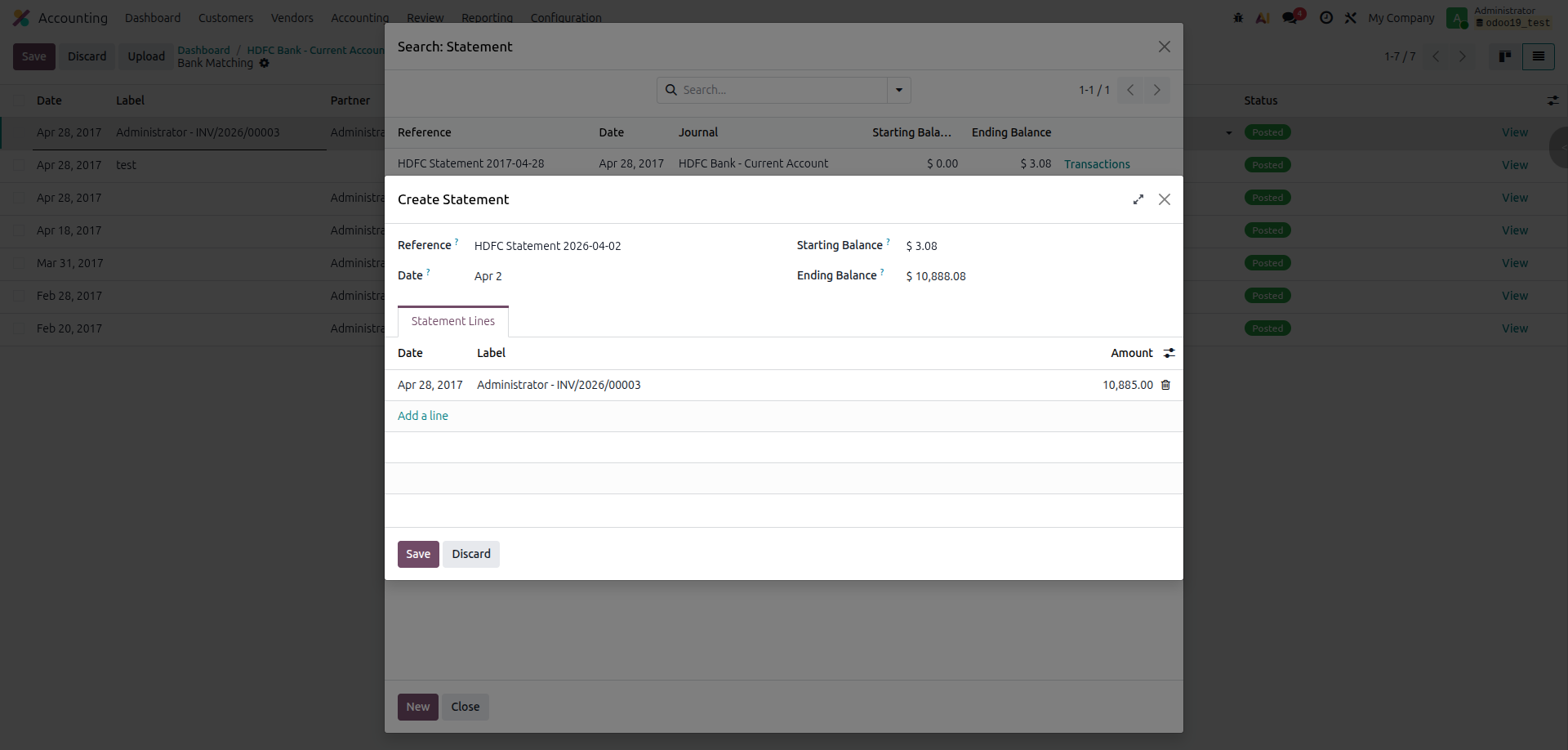
- Click on the New button to create a new transaction.
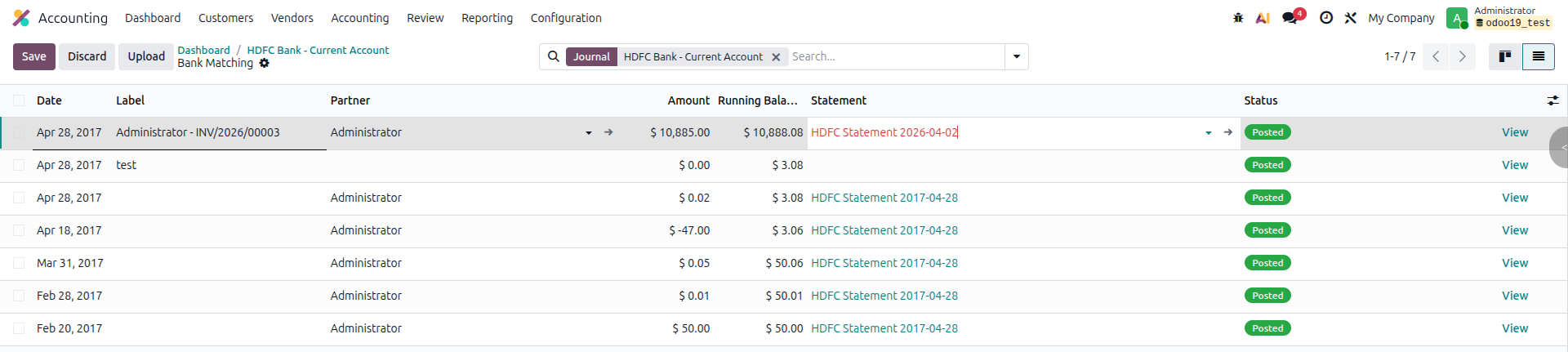
- Enter the required details such as date, label, partner (if related to a specific partner), amount, and statement (You can either select an existing statement or create a new one).
- Once all details are added, click Save to record the transaction.
The transaction now appears in the Bank Matching View and can be reconciled like any other transaction.
Bank Matching View in Odoo
The Bank Matching View is the place where all of this comes together - it's where you connect your bank transactions to the invoices and payments already recorded in Odoo.
How to Open the Bank Matching View
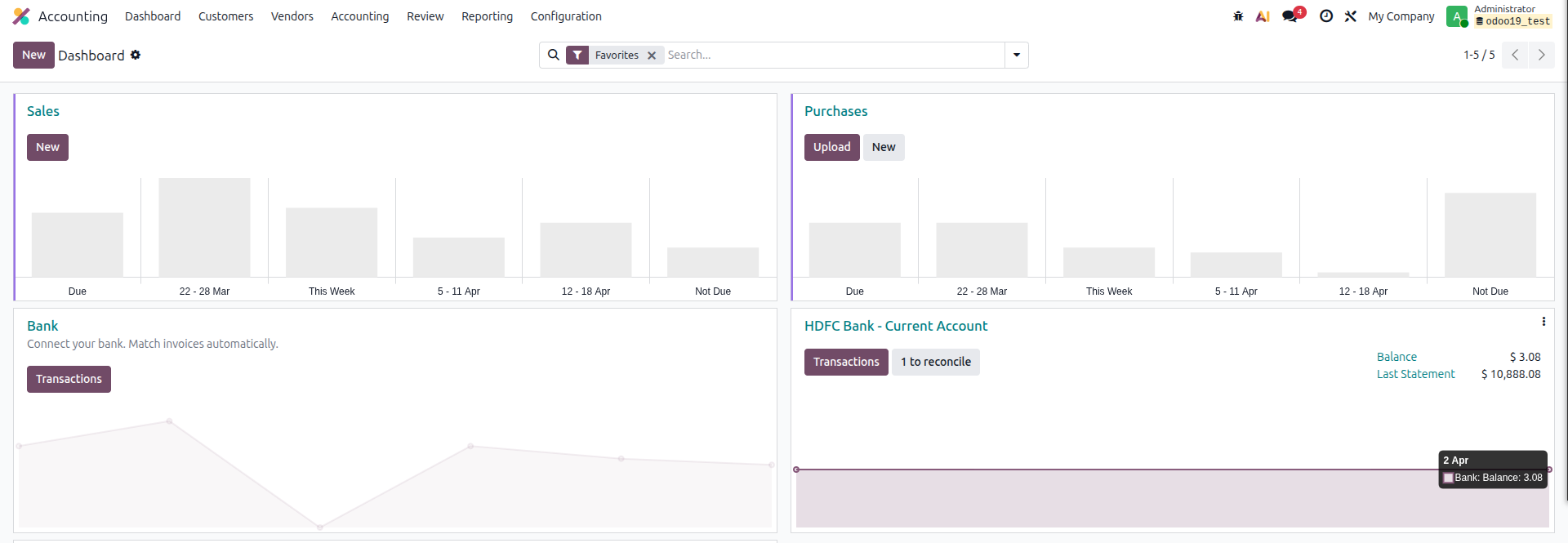
- Go to the Accounting Dashboard.
- Locate your Bank Journal card.
- Click on the button that shows pending items (for example,"1 to reconcile").
Note: The "to reconcile" button is only visible when there are transactions that still need to be reconciled.

What You See in the View
Each row in this view is one bank transaction. Here's what each row tells you:
- Date - When the transaction happened at the bank
- Label - The description text that came from your bank statement
- Partner - If Odoo was able to figure out a customer or vendor name from the data
- Amount - How much the transaction was for
- Action Buttons - Quick actions based on what Odoo found for that transaction
If you click the three-dot menu (⋮) on any row, you get more detail and the full list of options.
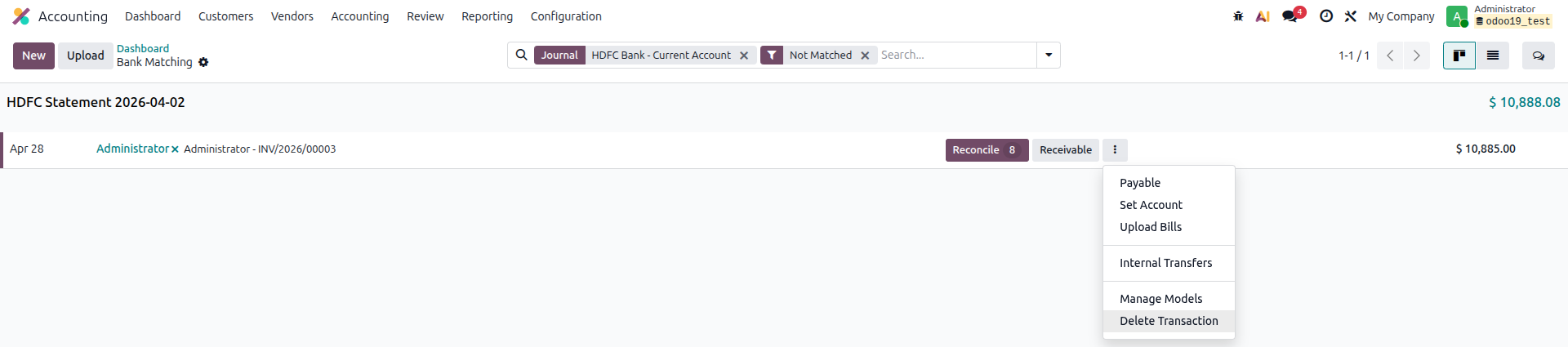
Action Buttons - What each one does
The action buttons are the most important thing in the Bank Matching View. Here is a complete explanation of each button and what it does.
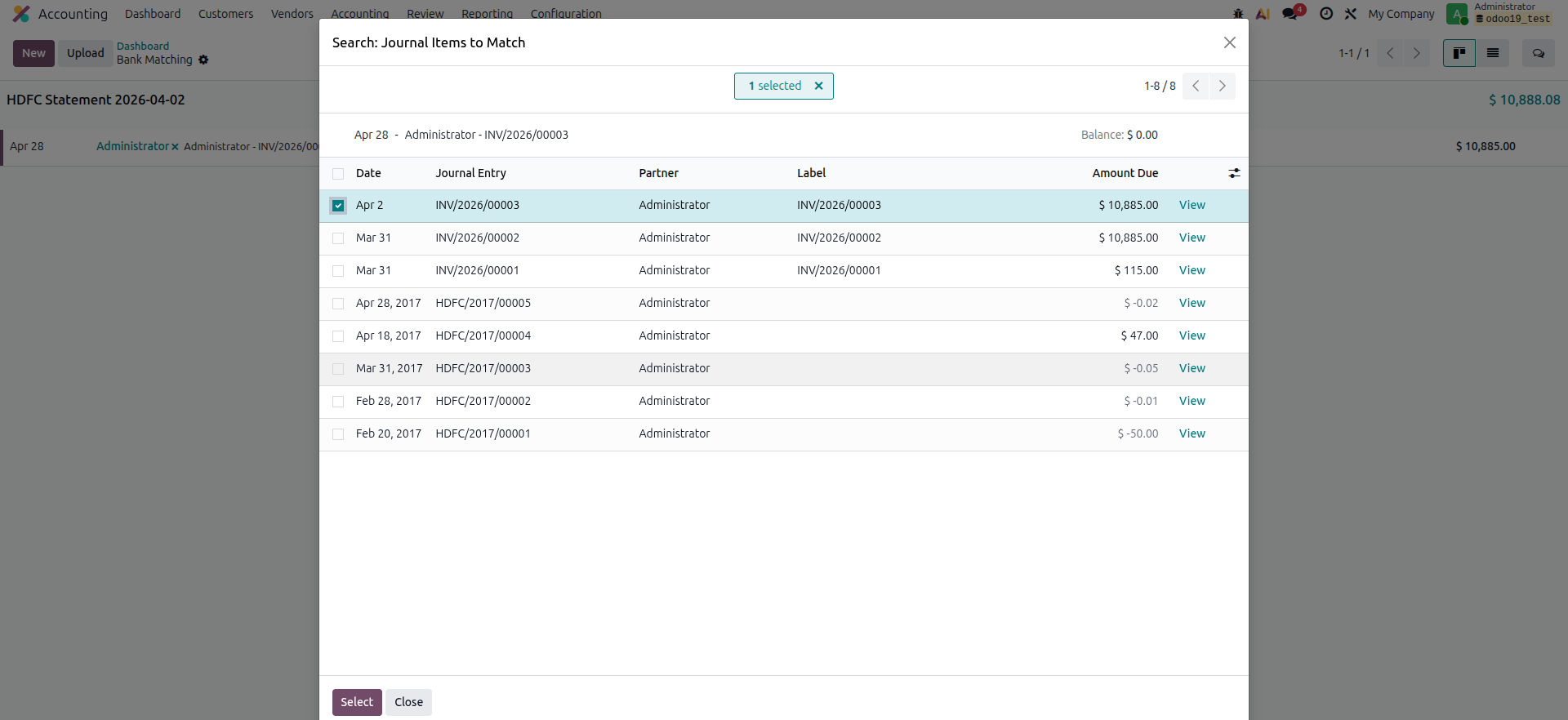
Reconcile
This shows when Odoo has already found something that looks like a match - an invoice, a bill, or a registered payment.
Click it and a dialog opens showing the possible matches. Look through the list, pick the right one, and click Select.
That links the bank transaction to the record, clears the suspense account, and marks the invoice or bill as paid.
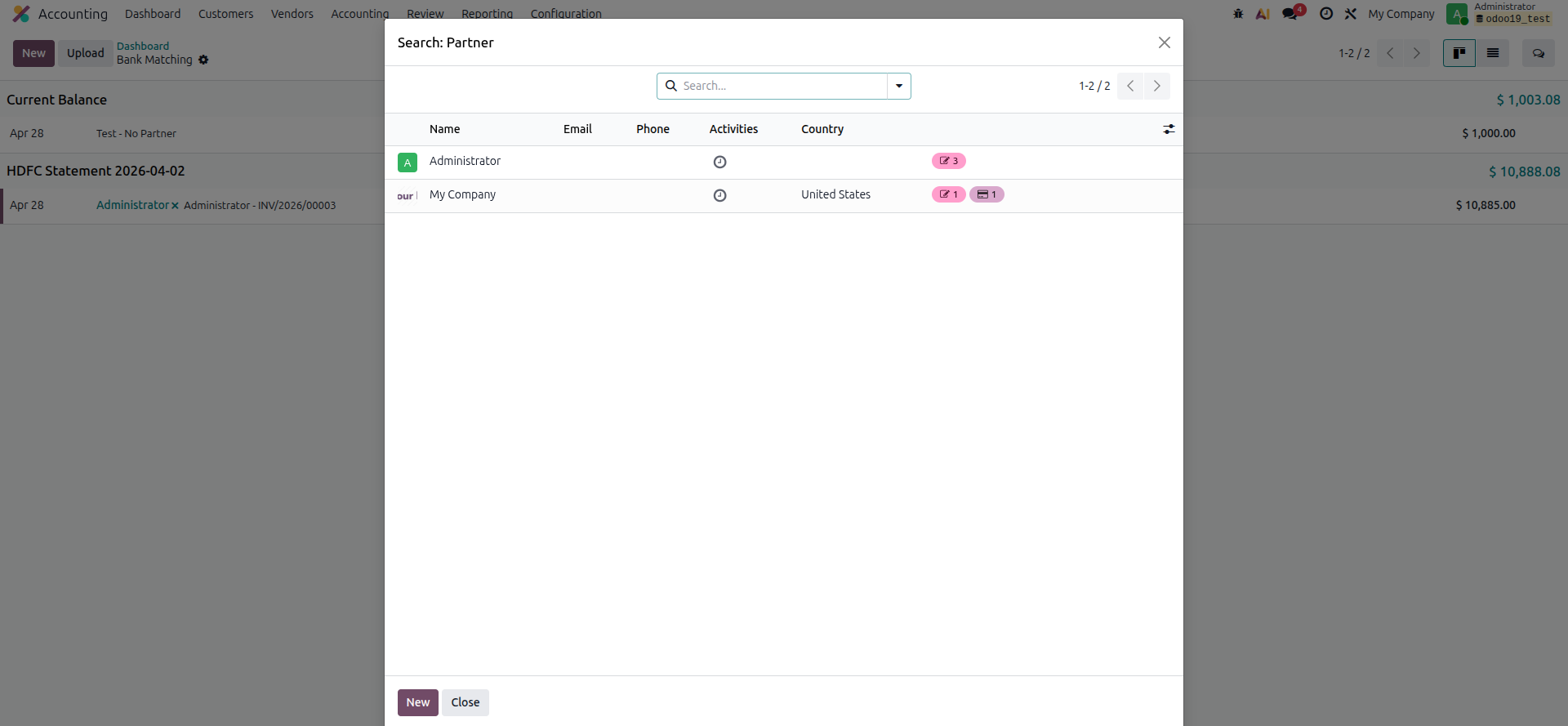
Set Partner
If a transaction came in without a recognizable partner name, this button lets you manually assign one.
Clicking this button lets you manually assign a customer or vendor to this transaction.

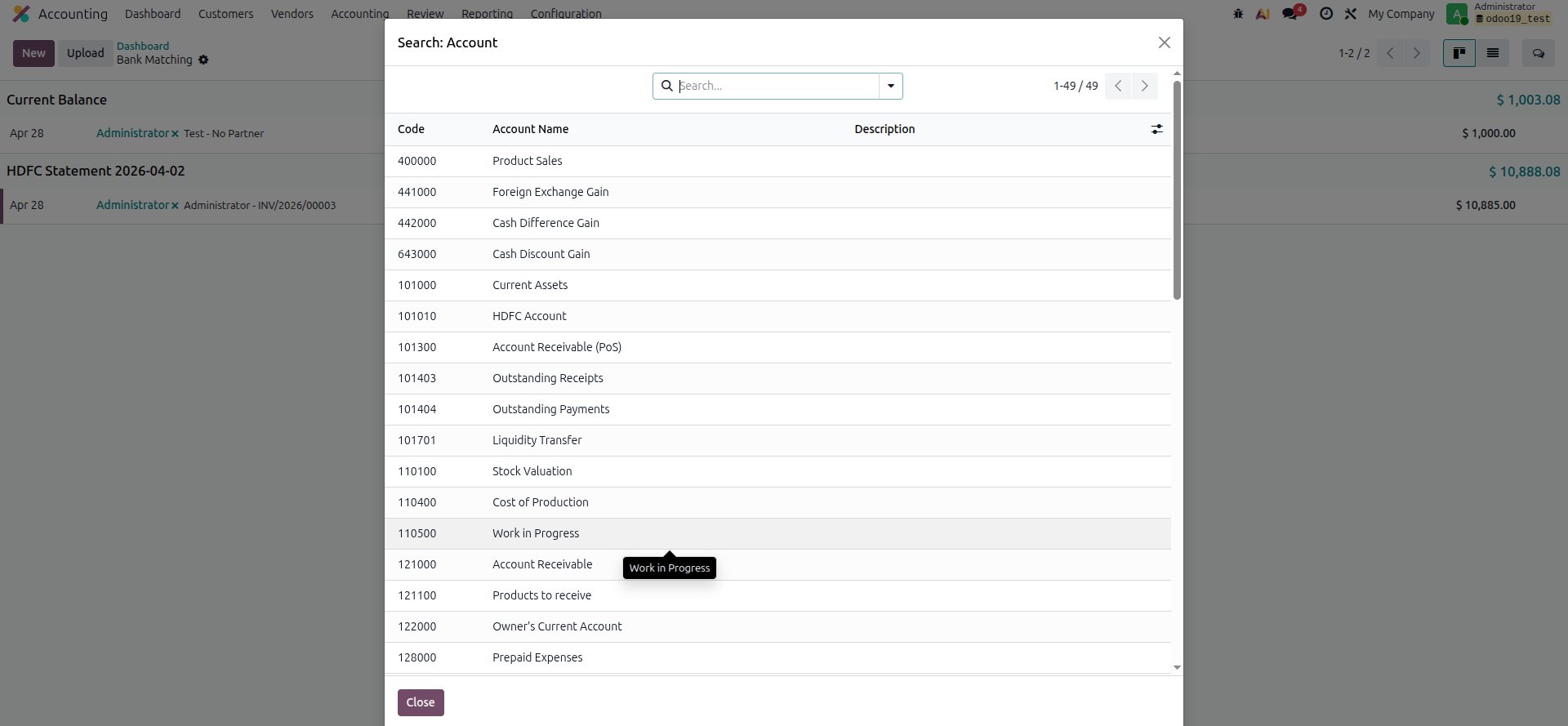
Set Account
Use this when a transaction doesn't belong to any invoice or payment - things like bank charges or tax refunds.
Clicking this lets you pick the right account to post it to. Once you validate, Odoo creates the journal entry and marks the transaction as reconciled.
Receivable
A quick shortcut to post a transaction directly to a partner's Accounts Receivable.
This is handy for advance payments or deposits where you want to record the amount against a customer's account without tying it to a specific invoice.
Payable
This works the same way as Receivable, but posts to the partner's Accounts Payable account.
Sales
This one appears when Odoo spots that the partner has open sales orders that haven't been invoiced yet.
Clicking it lets you create an invoice for that order and link it to the bank transaction right then and there - helpful when a customer pays before you've raised an invoice.
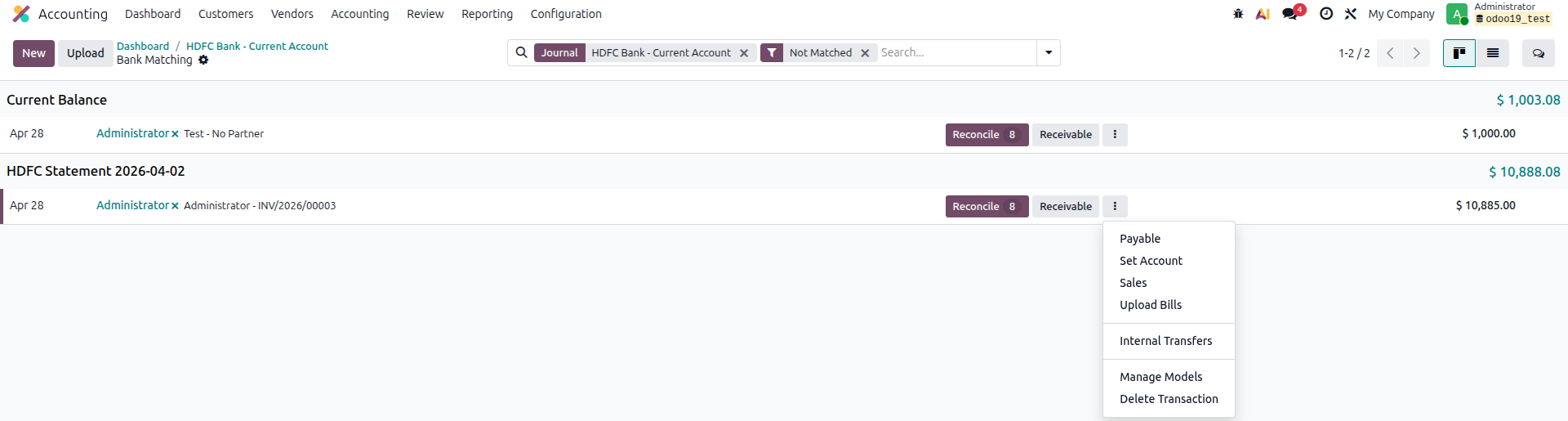

Upload Bills
Upload a vendor bill document (PDF, image) directly from here. Odoo sends it to its digitization queue, processes it, and creates a draft bill that can later be matched to this transaction.
Manage Models
Opens the Reconciliation Models configuration screen so you can create or edit automation rules without leaving the reconciliation flow.
Delete Transaction
This removes the bank transaction from Odoo entirely. Only use it if something was imported by mistake - it has no effect on your actual bank account.
Note: Odoo shows only the two most relevant action buttons by default to keep the interface clean. Always click on a three dot (⋮) to see all available options if the buttons you need are not immediately visible.
How Odoo Matches Transactions Automatically
When a bank transaction is imported or synced, Odoo runs a matching process to find the most suitable existing entry to pair it with. The matching process follows these conditions in order, from strictest to most flexible:
- Exact Match - Odoo will look for a record having the same amount, same partner, same currency, and same journal. When Odoo finds such a record, it will automatically reconcile the transaction, without requiring any further user action or confirmation.
- Early Payment Discount - If the transaction relates to an invoice/bill for which the customer/vendor was eligible for an early payment discount (for example, the customer was eligible for a 2% discount if they paid within 10 days of receipt of the invoice), and the amount the customer paid was for the discounted price amount, Odoo will successfully find a match.
- Within 3% Tolerance - Not all transactions will be "clean" as they may be sent through an intermediate bank that may impose a small fee charge, or there may be very small rounding differences. As a result, Odoo will allow for the transactions to match via a 3% tolerance.
- For example, if you send "a 10,000-rupee invoice" and the funds are transferred to you in an amount of 9800 rupees, Odoo will identify this transaction as a likely match.
- Currency Conversion - If you do a currency transfer from one currency to a different currency, Odoo will convert the currency using the applicable rate of exchange and apply the 3% tolerance, thus allowing for currency transactions to be matched, even though the converted amount may not match 100%.
- Amount Found in the Label, Odoo reads the transaction's description text looking for a number that matches an open invoice.
- For instance, if the label states "Payment reference 12500 from Client X" and an open ₹12,500 invoice exists for that particular customer, Odoo would use this to recommend it as a match.
- If the partner does not exist, Odoo compares the label text to all open invoices, customer references, payment references, and bill references to find matches. If a partner has already been assigned, Odoo then looks only at the partner's records and goes through the same matching process.
Note: If Odoo is 100% sure in the match, the transaction will be automatically reconciled. If Odoo only suggests the match, the suggested match will appear in the bank matching view as highlighted but will require the user to click one time for the reconciliation to be final.
Reconciliation Models - Automating Recurring Transactions
Some transactions show up every single month without fail - bank charges, gateway fees, interest credits. Instead of handling these by hand each time, you can create a Reconciliation Model that tells Odoo exactly what to do when it sees them.
A model has two parts: a condition (what to look for) and an action (what to do about it).
How to Access Reconciliation Models:
From the Accounting Dashboard, click the three dots (⋮) on a bank journal and select Models under the Reconciliation section.
How to Create a New Reconciliation Model:
- Click New.
- Give it a name - something clear like Monthly Bank Charges or Payment Gateway Fees
- Set the Type:
- Manual - The model shows up as a button during reconciliation. You choose when to apply it.
- Automatic - Odoo applies it on its own whenever conditions are met. No action needed from you.
- Set a Next Activity if you need a follow-up task (or leave it blank)
- Under Conditions, tell Odoo what to look for:
- Journals - Limit this to specific journals if needed
- Partner - Restrict to a specific customer or vendor
- Amount - Set a range or cap (e.g., less than ₹500)
- Label - The most useful one. Choose Contains and type a keyword from the transaction description, like "bank charges" or "interest credit"
- Under Counterpart Items, tell Odoo what journal entry to create:
- Account - Where to post the amount (e.g., Bank Charges expense account).
- Amount Type - Fixed amount, percentage of balance, or percentage of the statement.
- Tax - Apply a tax if needed.
- Label - A description for the journal entry line.
- Click Save.
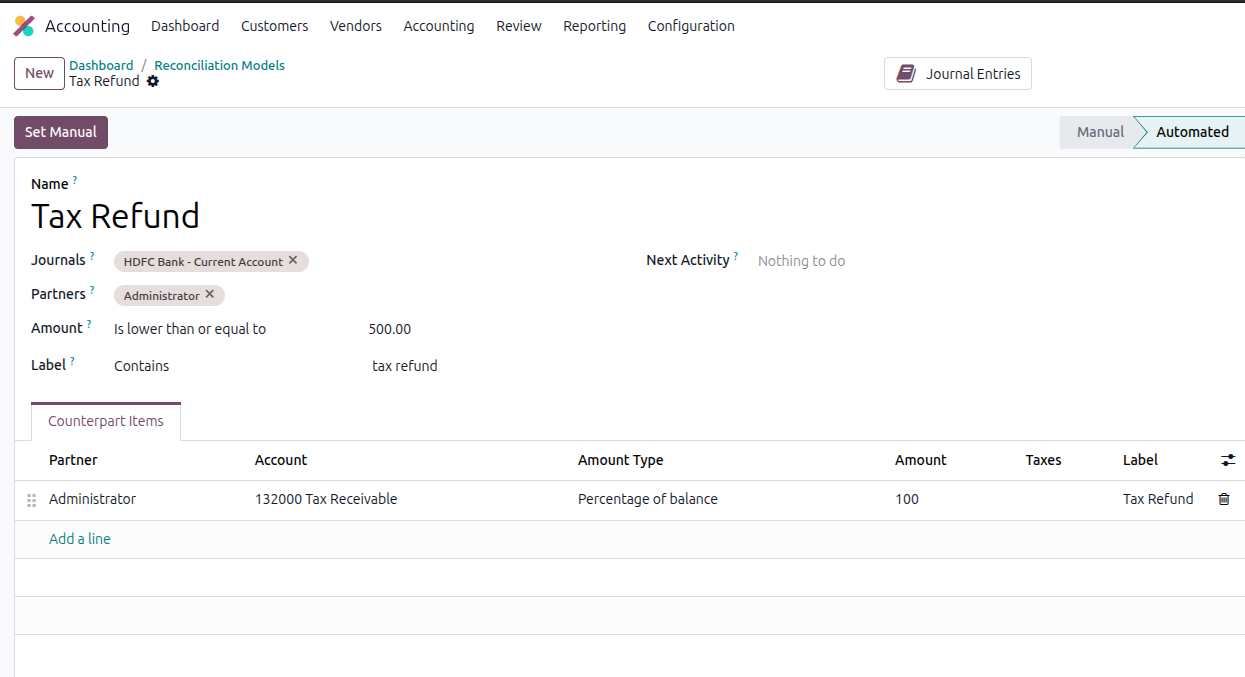
Example - Tax Refund Model:
| Field | Value |
| Name | Tax Refund |
| Type | Automatic |
| Label condition | Contains > "tax refund" |
| Counterpart Account | 132000 Tax Receivable |
| Amount Type | Percentage of Balance (100%) |
With this model, whenever a bank transaction contains the text "tax refund" in its label, Odoo automatically creates a journal entry posting the full amount to the 132000 Tax Receivable account and marks the transaction as reconciled - no manual action needed.

Step-by-Step Example
Setup:
- Company: My Company
- Customer: Account Test
- Bank: HDFC Bank - Current Account
- Month: April 2026
Step 1 - Create a Sale Order
- Go to Sales.
- Click New.
- Fill in the Quotation:
- Customer: Account Test
- In the order lines section, add a line:
- Product: Test Product
- Quantity: 50
- Unit Price: 1000
- Tax: 15%
- Review the quotation, confirm it, and validate the delivery. The total should show 57,500 (50,000 + 15% = 57,500).
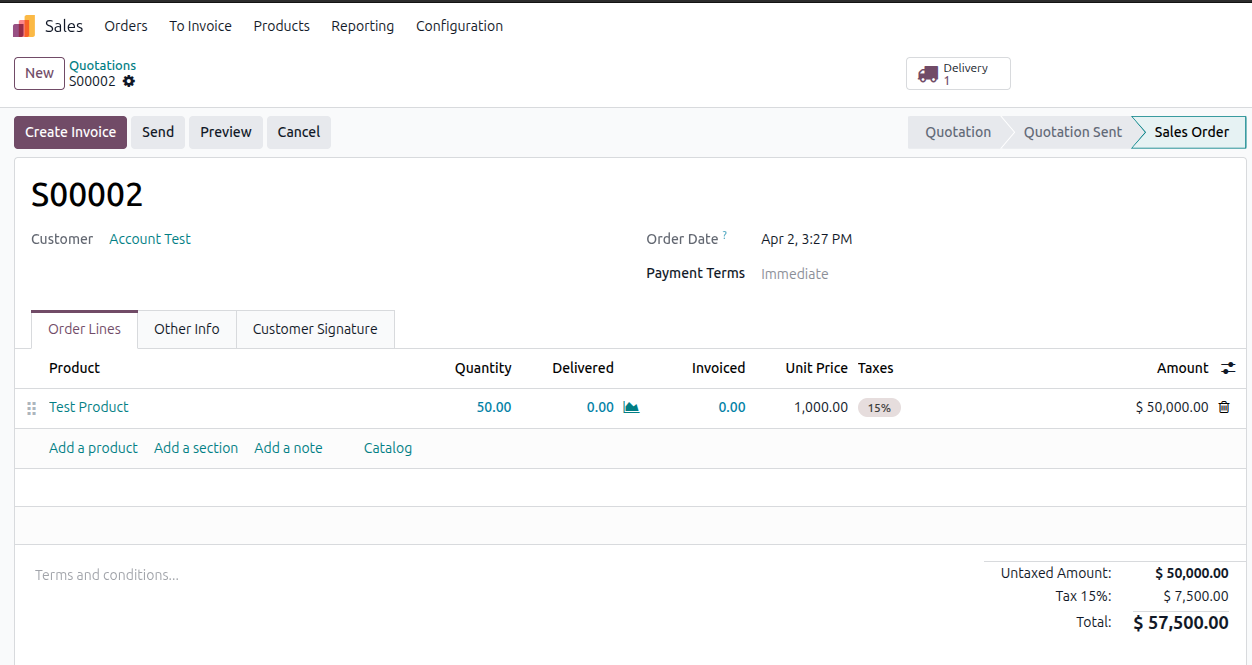
Step 2 - Create the Invoice
- Open the last created Sale Order.
- Click on the "Create Invoice" button
- Select the "Regular Invoice" and click on the "Create Draft" button
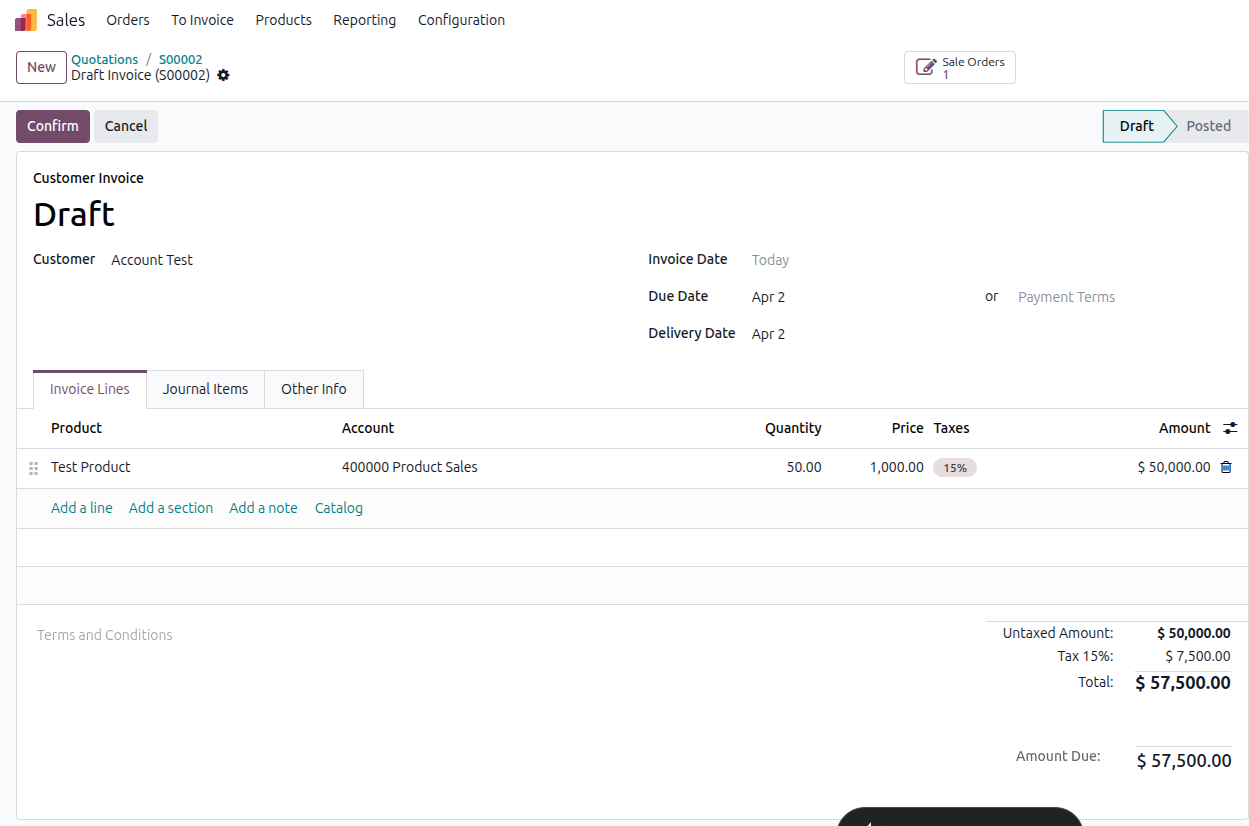
- Review the created Invoice
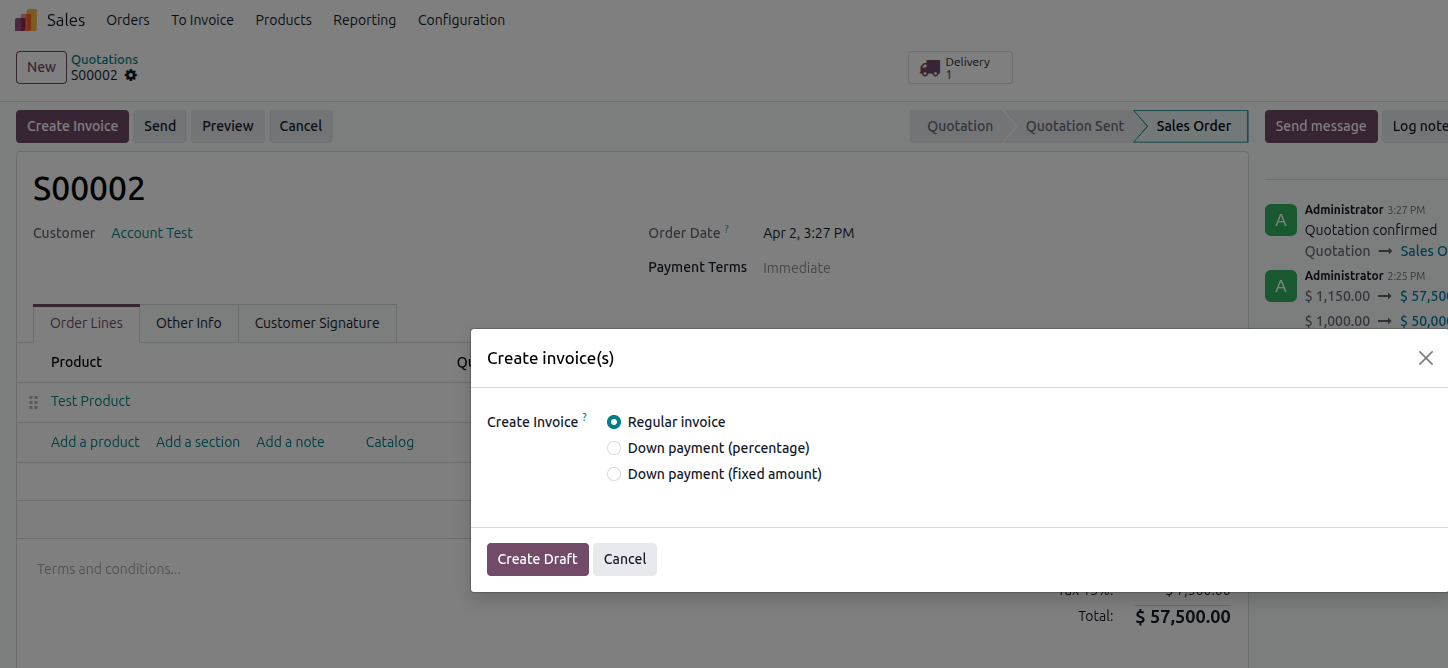
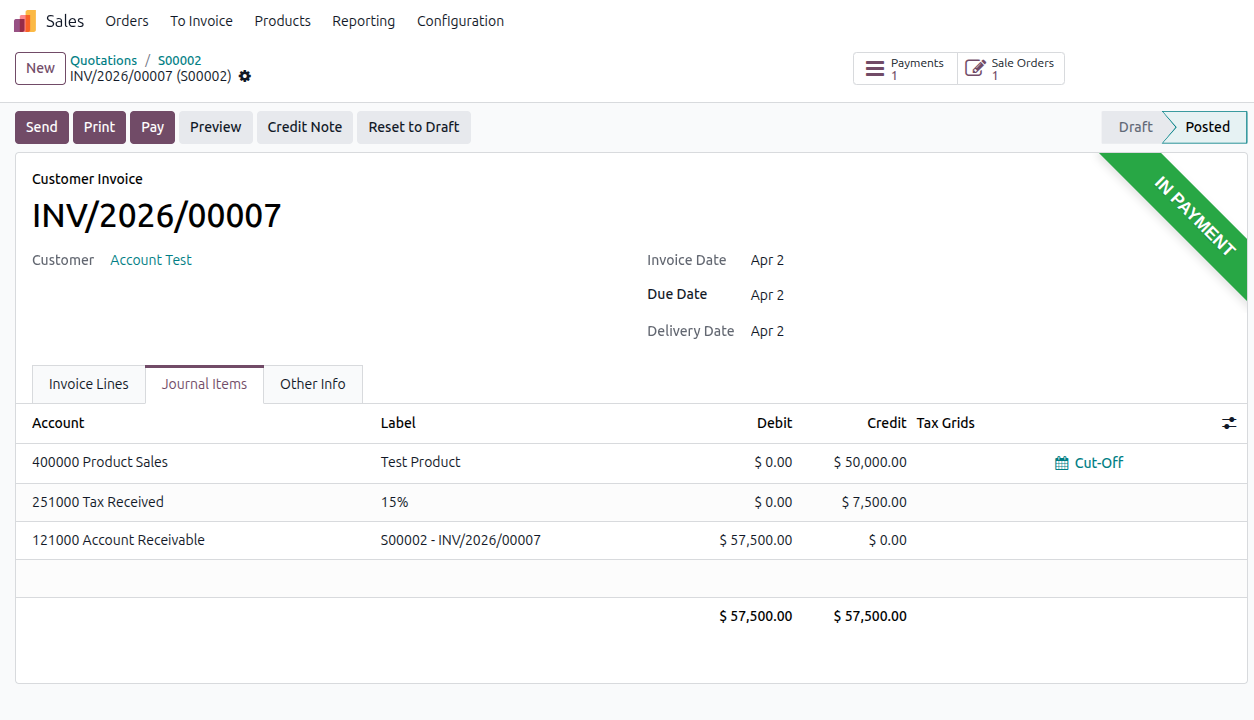
Step 3 - Post the Invoice
- Click Confirm at the top of the invoice.
- Odoo changes the invoice status from Draft to Posted.
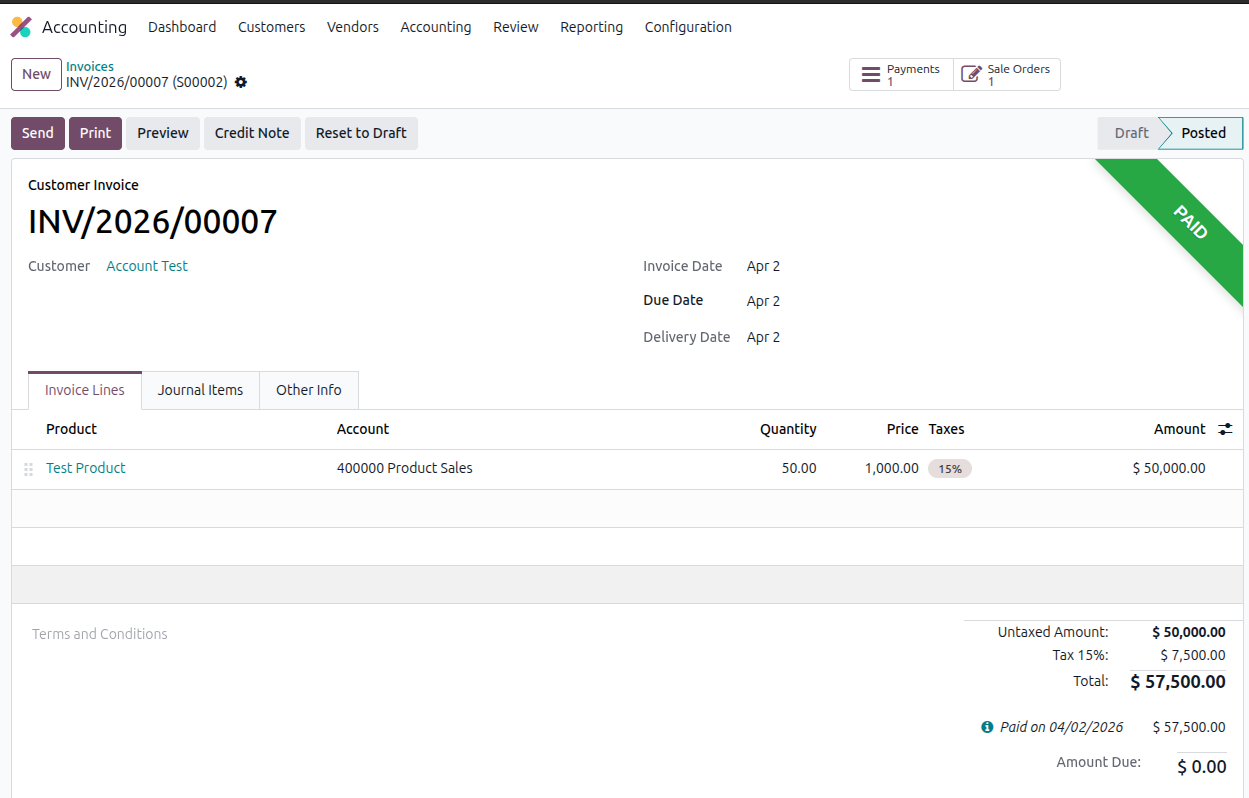
- A journal entry is automatically created in the background - it debits Accounts Receivable (57,500) and credits Product Sales (50,000) and Tax Received (7,500).
- The invoice is now an open, unpaid receivable in Odoo.
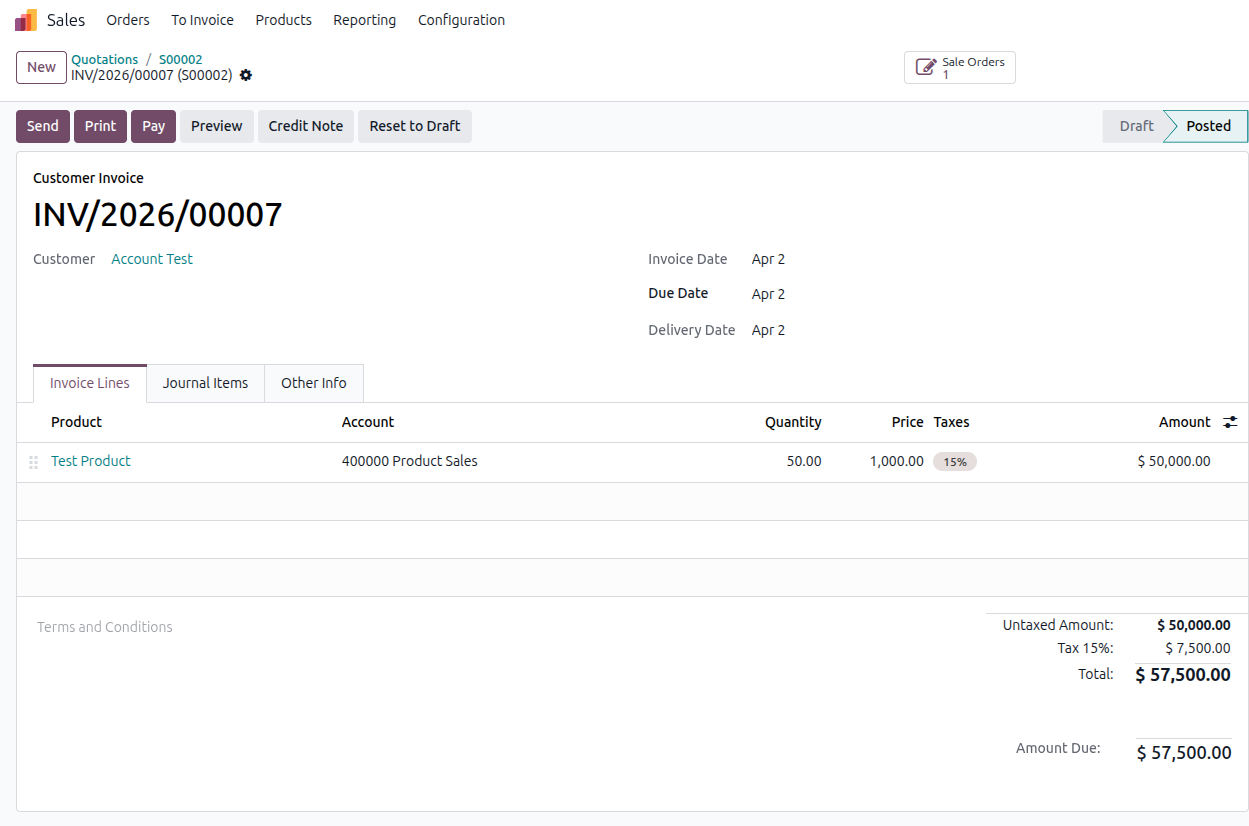
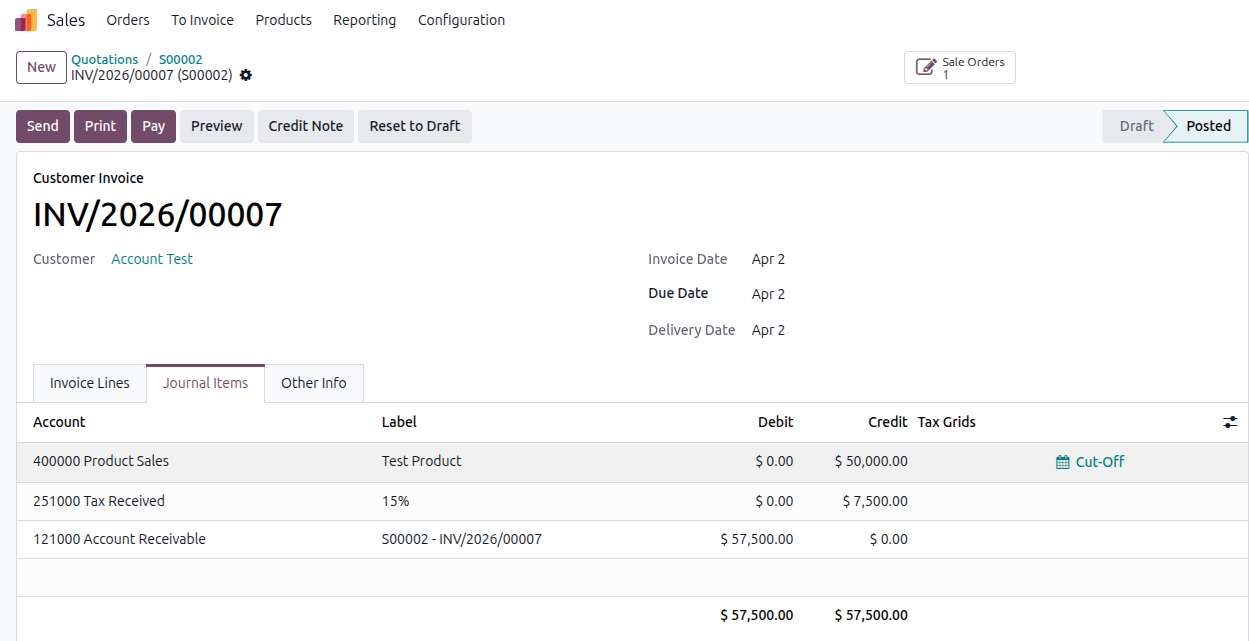
Note: An invoice must be in Posted (confirmed) status before a payment can be registered against it. Draft invoices cannot be paid.
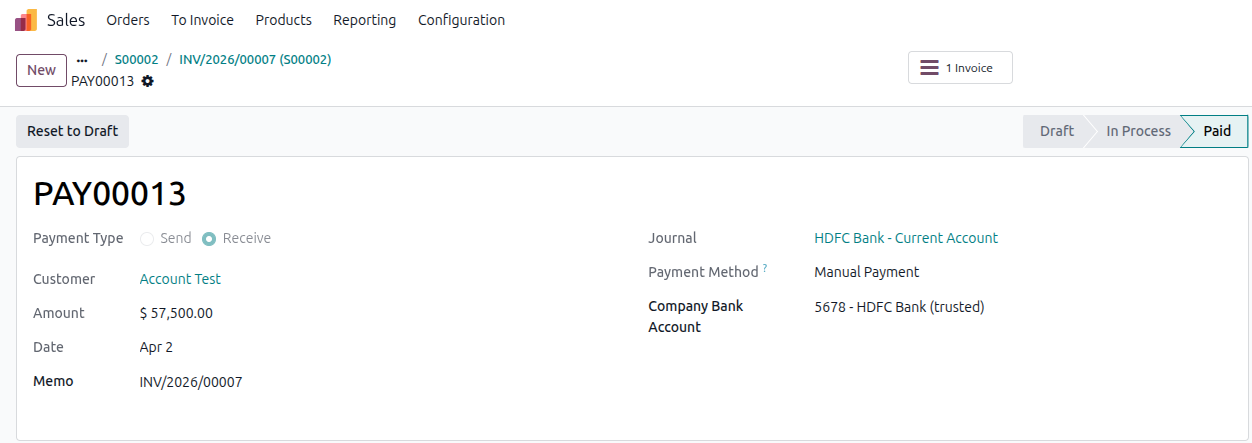
On 2nd April 2026, "Account Test" transfers 57,500 to My Company's HDFC bank account.
Step 4 - Register the Payment
- Open the invoice.
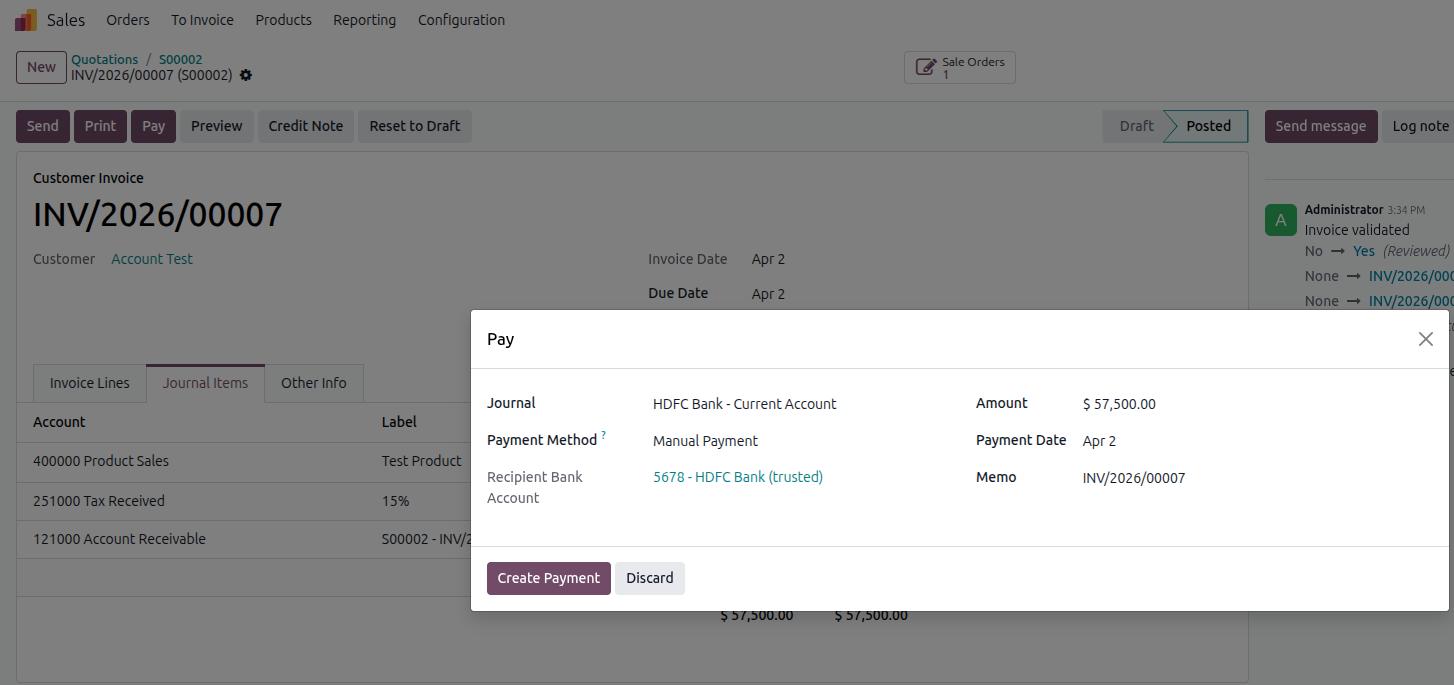
- Click Pay.
- A payment dialog opens. Fill in:
- Journal: HDFC Bank - Current Account
- Payment Date: 2nd April 2026
- Amount: 57,500 (should already be filled in as the invoice amount)
- Memo: INV/2026/00007 (adding the invoice number here helps Odoo match it later) (automatically filled in)
- Click Create Payment.
What happens after this:
- The invoice status changes to In Payment.
- Odoo creates a payment journal entry. The 57,500 is moved from Accounts Receivable to the Outstanding Receipts Account of the HDFC journal.
- However, the amount has not yet moved to the bank account itself in Odoo - it sits in the Outstanding Receipts account until the bank transaction is matched.
Note: The status "In Payment" means the payment has been recorded in Odoo but has not yet been confirmed by the bank statement. Once reconciled, it changes to "Paid".
Step 5 - Import the Bank Statement
- Go to Accounting Dashboard.
- On the HDFC Bank journal card, click Import File.
- Upload the bank statement file.
- Odoo reads the file and shows a preview. The transaction for 57,500 on 2nd April 2026 from Account Test appears in the list.
- Click Import.

Step 6 - Open the Bank Matching View
- On the Accounting Dashboard, click the "2 to reconcile" button on the HDFC Bank journal. The Bank Matching View opens showing the pending transactions.
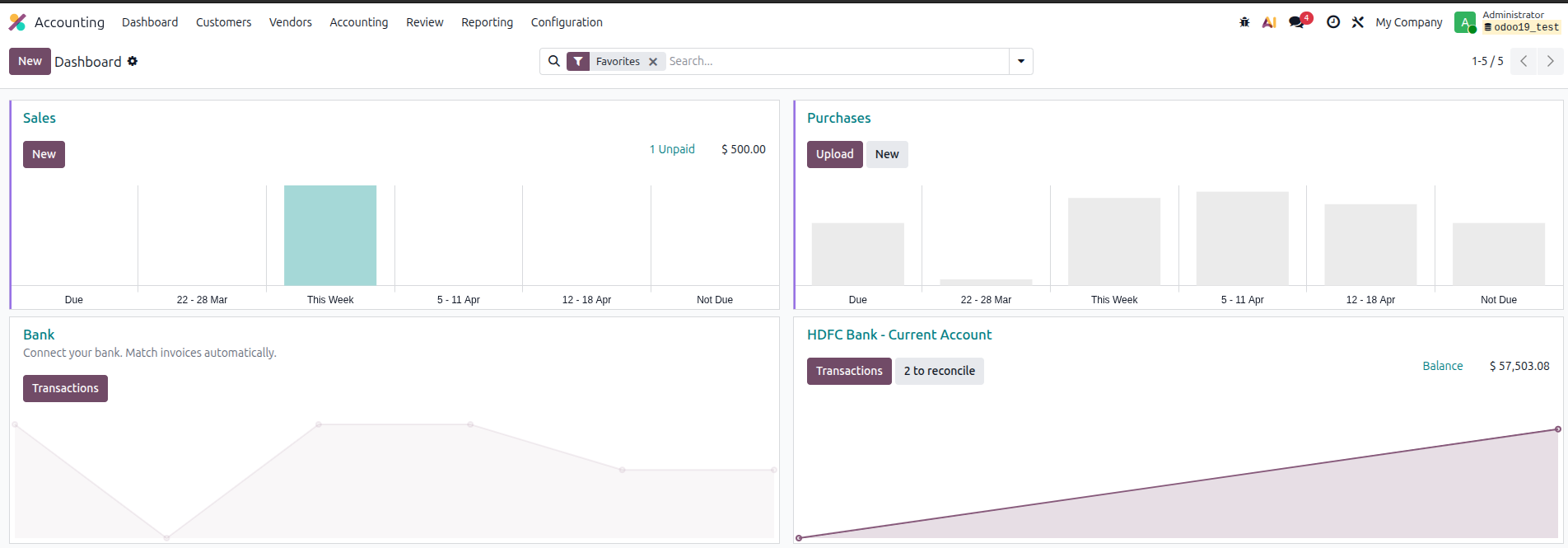

The bank statement amount is exactly matched with the invoice amount so it will be fully reconciled with that invoice automatically.
Result after reconciliation:
- The bank transaction is marked as Matched/Reconciled.
- The payment entry moves from the Outstanding Receipts account to the HDFC Bank account in Odoo.
- The HDFC Bank account balance in Odoo increases by 57,500.
- The invoice INV/2026/00007 changes status from In Payment to Paid.
- The suspense account for this transaction is cleared.
Conclusion
When you reconcile the bank, it means verifying that your business' bank transactions have been accurately recorded in Odoo. This ensures you maintain accurate accounting records. The Bank Matching View in Odoo 19 makes this process faster and more transparent - all pending transactions are visible in one place, action buttons guide you through each case, and automatic matching handles straightforward entries without manual input. Regular reconciliation keeps your books clean, your invoices properly closed, and your financial reporting reliable.
FAQ
What is a suspense account?
Suspense accounts temporarily hold bank transactions prior to their proper assignment to another account when you reconcile the bank transaction.
Can I reconcile one invoice with multiple payments?
Yes, you can.
What if I matched a transaction to the wrong invoice?
Just unreconcile it, and both the transaction and invoice will go back to open status.
My bank isn't listed for sync. Can I still use Odoo Bank Reconciliation?
Yes. You can import bank statements (OFX, CSV, CAMT, QIF) or enter transactions manually.
What does the 3% matching tolerance mean?
Odoo allows small differences (up to 3%) to handle things like bank fees or rounding.
Manual vs Automatic reconciliation models?
Manual models need you to apply them. Automatic ones are applied by Odoo when conditions match.
What does it mean when my invoice or bill displays a status of 'In Payment', instead of 'Paid'?
It means that Odoo has recorded a payment but not reconciled the corresponding bank transaction.
Can I delete an imported bank transaction?
Yes.
Do I need to reconcile every bank transaction?
Yes.