Inventory valuation is the process of calculating the financial value of inventory available in a warehouse. In ERP systems such as Odoo, inventory valuation directly impacts financial reports like the Balance Sheet and Profit & Loss statement.
Odoo 19 Inventory Valuation tightly integrates the Inventory and Accounting modules. When Automated Inventory Valuation is enabled, every stock movement automatically generates the corresponding accounting entries. Inventory is tracked in real time and financial records update without any manual intervention.
Costing Methods
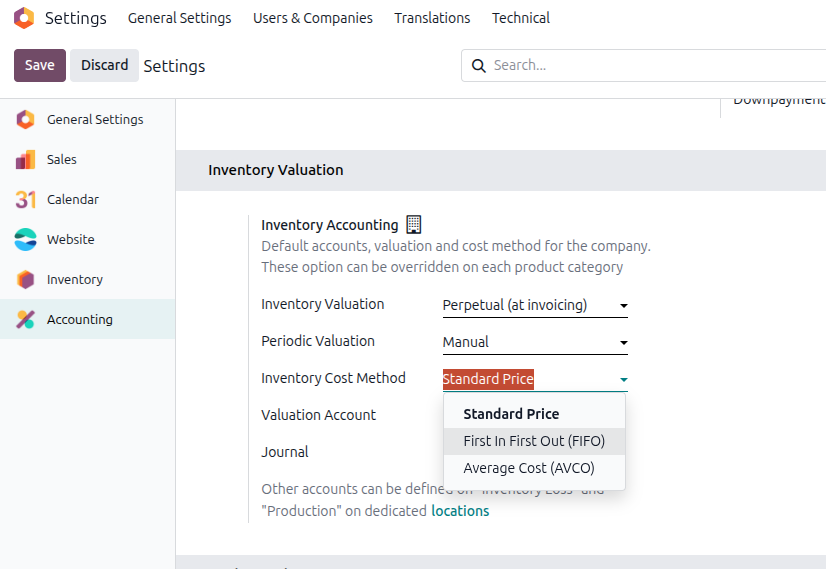
Odoo 19 supports three costing methods. These are configured globally in Accounting > Configuration > Settings and can optionally be set at the Product Category (Inventory > Configuration > Products > Categories) level if different products need different rules.
| Costing Method | How It Works | When the Cost Updates |
| Standard Price | You manually set a fixed cost on the product. It stays the same unless you change it. | Only when you manually update it |
| Average Cost (AVCO) | Every time new stock arrives, Odoo recalculates the average cost across all units on hand. | On every validated incoming receipt |
| First In, First Out (FIFO) | Stock is consumed in the order it arrived. Each incoming batch keeps its own original purchase cost. | Per batch, individually tracked |
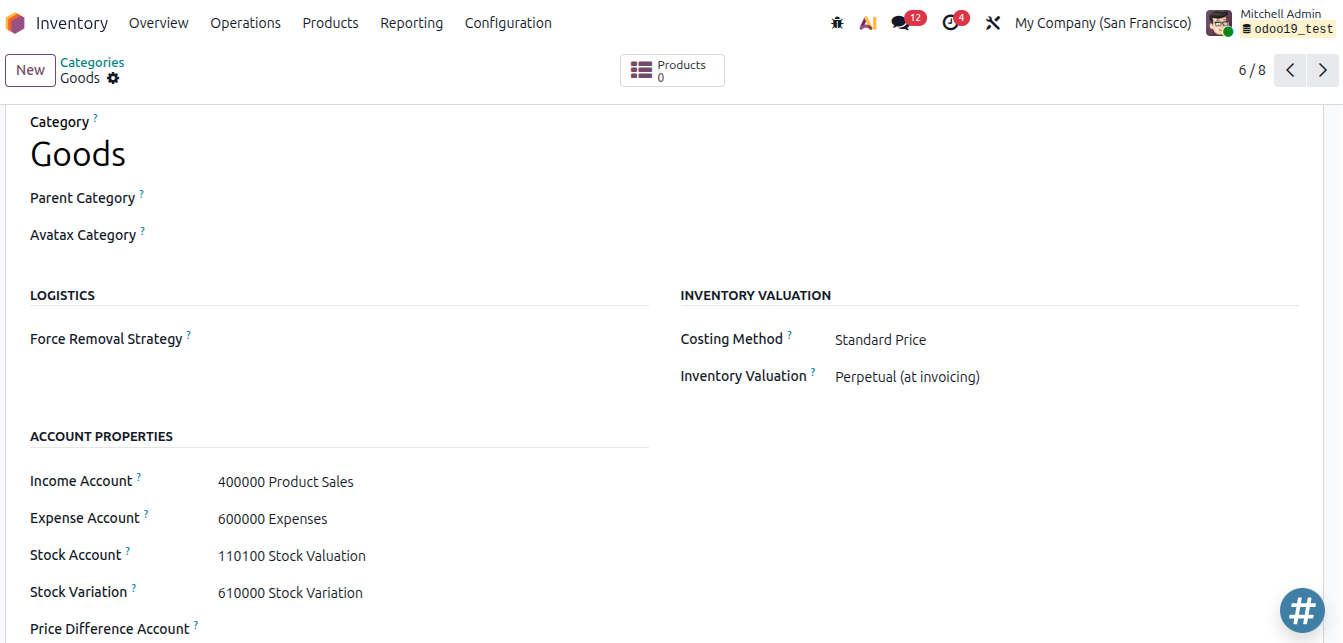
Changing the costing method on a product category that already has stock will affect existing valuations. Always consult your accountant before making this change, and ideally do it at the start of a financial period.
How AVCO Calculates the Moving Average Price – MAP (Cost of the Product)
Every time a new receipt comes in, Odoo uses this formula to recalculate the cost:
New MAP = ((Current MAP × Existing Qty) + (Purchase Price × Incoming Qty)) / (Existing Qty + Incoming Qty)
Here's a simple example:
| | Qty | Cost per Unit | Total Value |
| Existing Stock | 100 | $50.00 | $5,000 |
| Incoming Receipt | 50 | $70.00 | $3,500 |
| After Recalculation | 150 | $56.67 | $8,500 |
New MAP = ((100 × $50) + (50 × $70)) / 150 = $56.67
This updated cost is stored on the product and used for all outgoing stock movements going forward. The AVCO does not change when products leave the warehouse - only when new stock arrives.
Periodic vs. Perpetual Valuation
This is the most important choice in how Odoo 19 handles inventory valuation. You set this in Accounting > Configuration > Settings and can optionally be set at the Product Category (Inventory > Configuration > Products > Categories) under the Inventory Valuation section.
| Method | How It Works | Best For |
| Periodic | Vendor bills are posted as expenses. Stock valuation is updated once at period end through a closing entry that adjusts for the difference between what was invoiced and what was received or delivered. | Europe (Continental accounting practice) |
| Perpetual | Vendor bills are posted as assets (directly to the Stock Valuation account). COGS is recorded when the customer invoice is posted. Accounting stays in sync every time a bill or invoice is processed. | USA, India, and countries following Anglo-Saxon accounting practice |
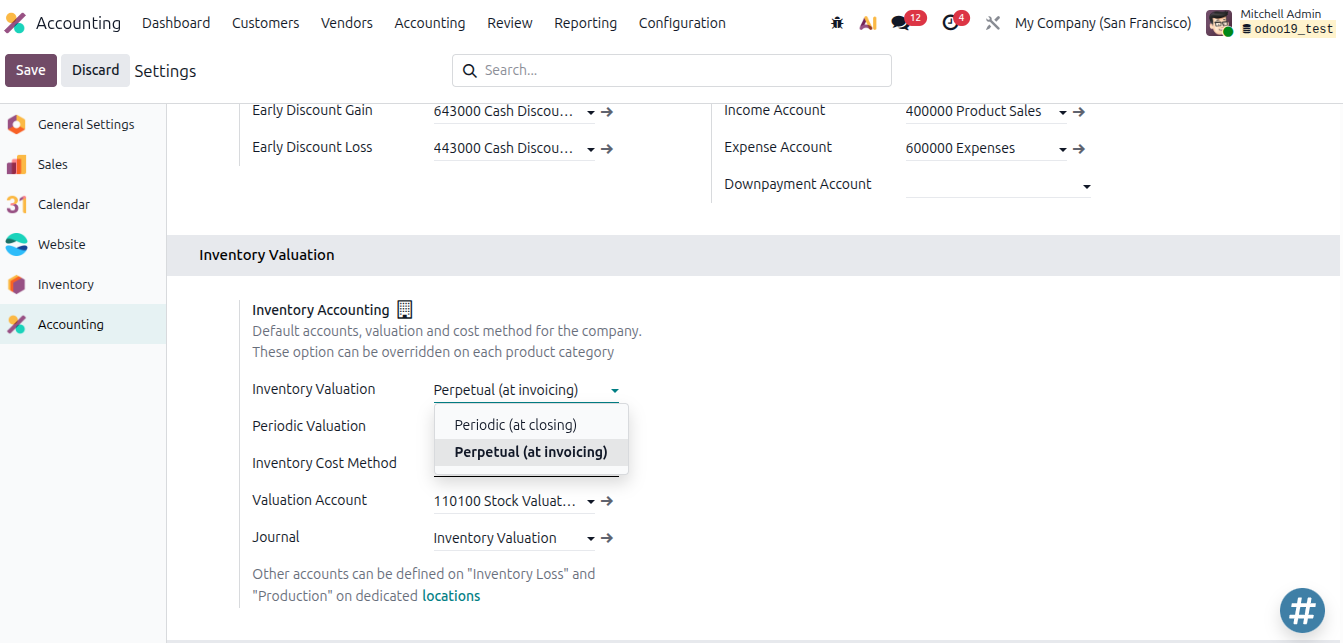
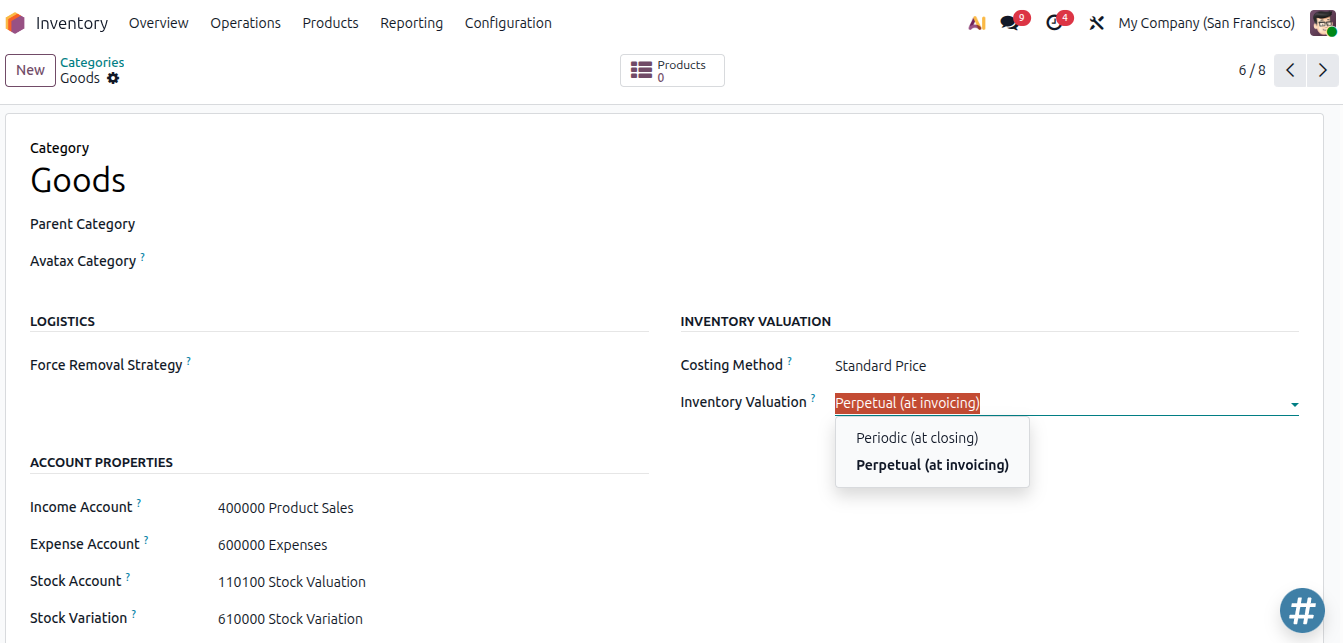
In both modes, the Inventory app tracks stock value in real time as goods move in and out. The difference is when the Accounting app gets updated - either at every bill/invoice (Perpetual) or at period end (Periodic).
How Valuation Is Tracked: Stock Moves
In Odoo 19, inventory valuation is stored directly on stock move records. Every validated warehouse receipt, delivery, return, or adjustment has the quantity, unit cost, and total value attached to it.
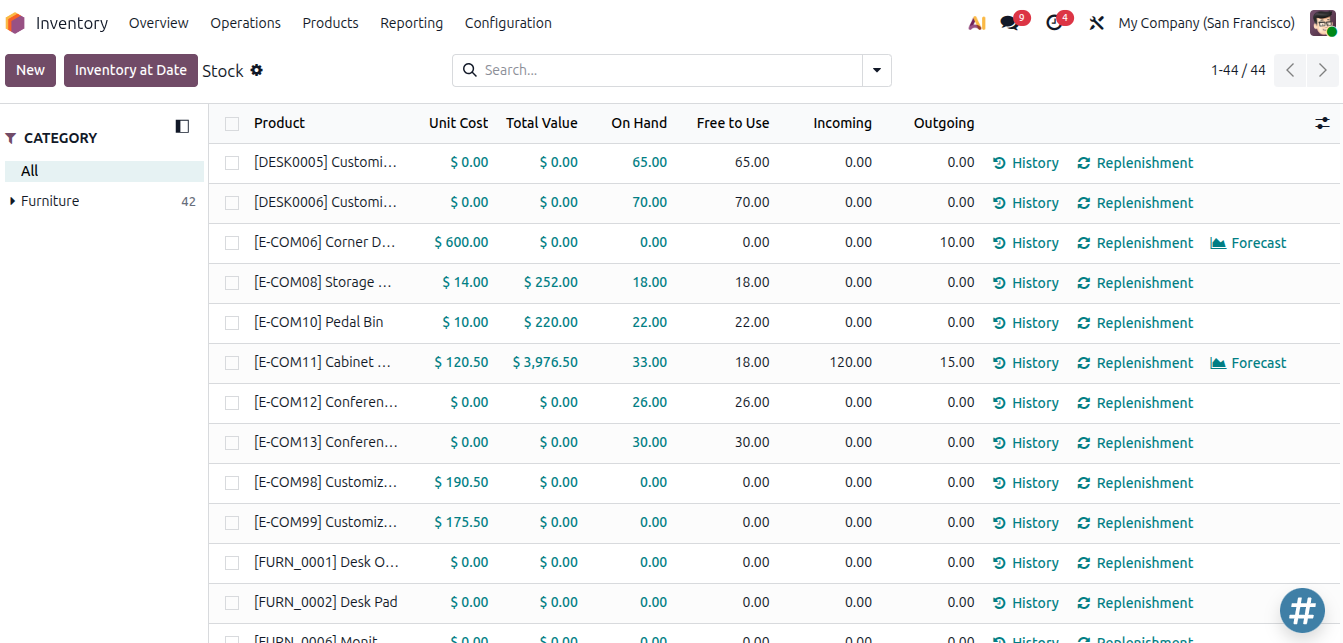
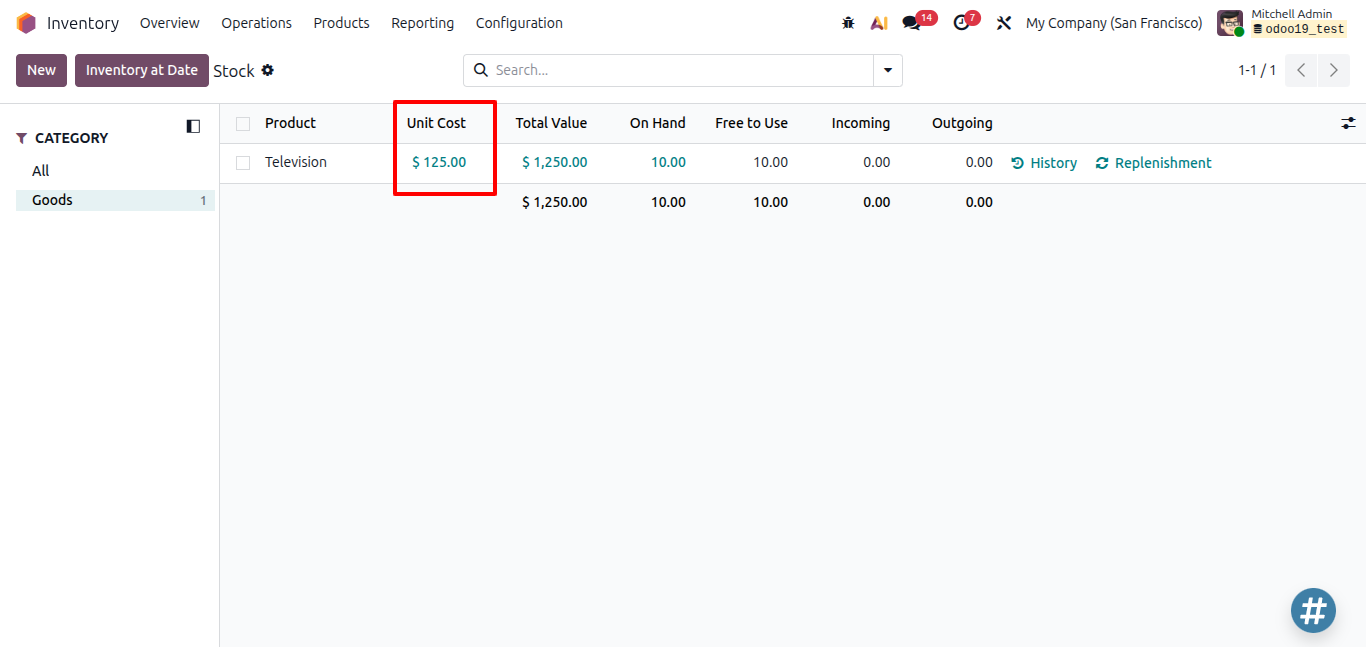
You can view all of this in Inventory > Reporting > Stock - this shows your current inventory level and valuation per product and lets you review historical data as of any previous date.
Configuration Steps
Step 1 - Set Up Valuation in Accounting Settings
Go to Accounting > Configuration > Settings and scroll to the Inventory Valuation section.
| Field | What It Does |
| Valuation Method | Choose Periodic or Perpetual |
| Periodic Valuation | Manual, Daily and Monthly |
| Inventory Cost Method | Standard Price, AVCO, or FIFO |
| Valuation Journal | The accounting journal used for all stock valuation entries |
| Valuation Account | Holds inventory asset value on the Balance Sheet. In Perpetual mode, it also temporarily holds the difference between inventory value and accounting value until bills/invoices are posted. |
For Periodic mode, also choose a Periodicity:
- Manual - accountants create the closing entry themselves when ready
- Daily - Odoo generates and posts entries automatically every day
- Monthly - Odoo generates and posts entries automatically each month
Step 2 - Configure Product Categories (Optional)
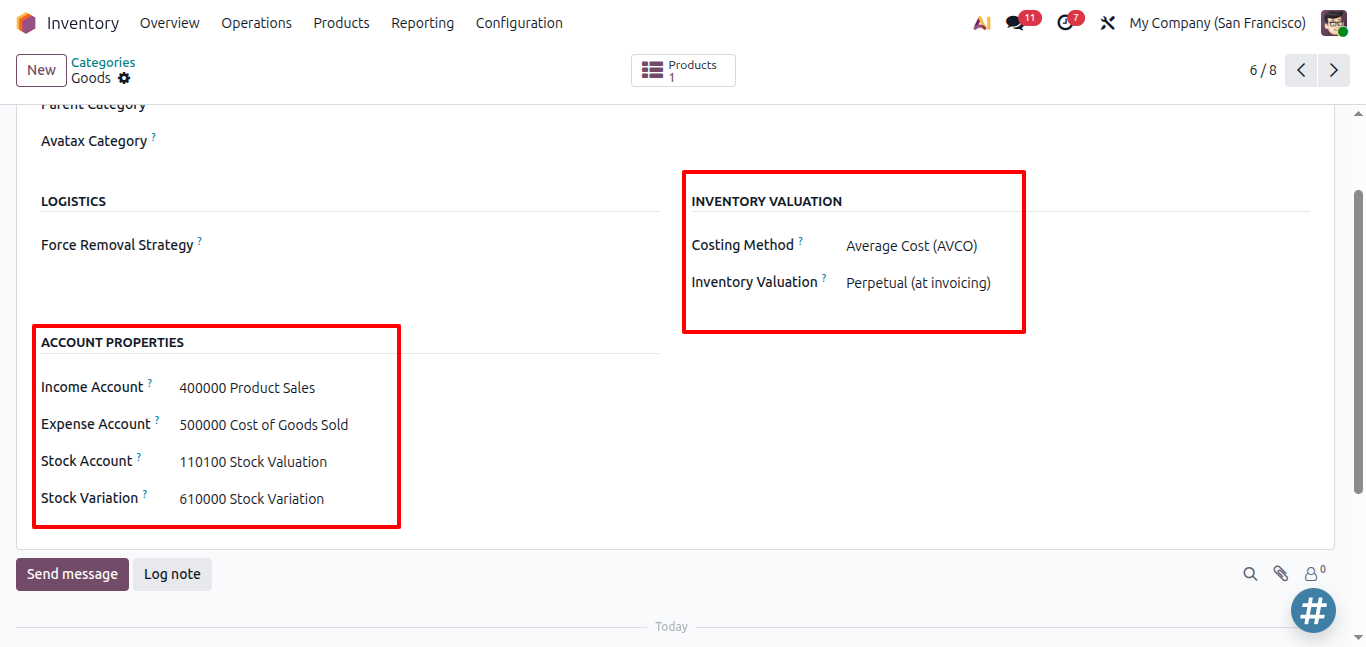
If different products need different costing rules, go to Inventory > Configuration > Products > Categories and set the Costing Method and Inventory Valuation per category. Otherwise, the global settings apply.
When Perpetual valuation is set on a product category, make sure the Inventory Valuation Journal is configured — if it's missing, inventory adjustments will fail with a validation error.
| Account Field | Purpose |
| Stock Valuation Account | Holds the current inventory asset value |
| Inventory Valuation Journal | Journal used for all inventory-related accounting entries |
Inventory Valuation - Real Scenarios
Let's walk through the complete life of a product to see exactly what happens at each step.
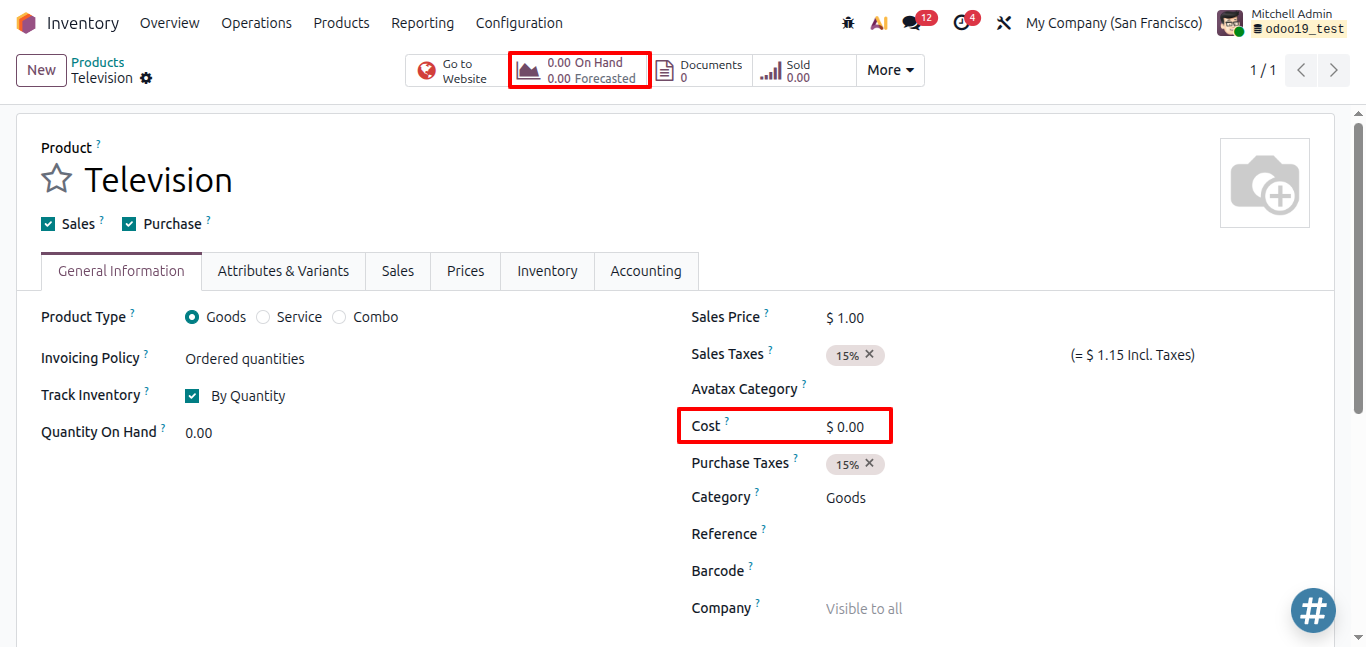
Product used in all examples:
| Parameter | Value |
| Product | Television |
| Costing Method | Average Cost (AVCO) |
| Valuation Method | Perpetual |
| Starting Stock | 0 units, $0 |
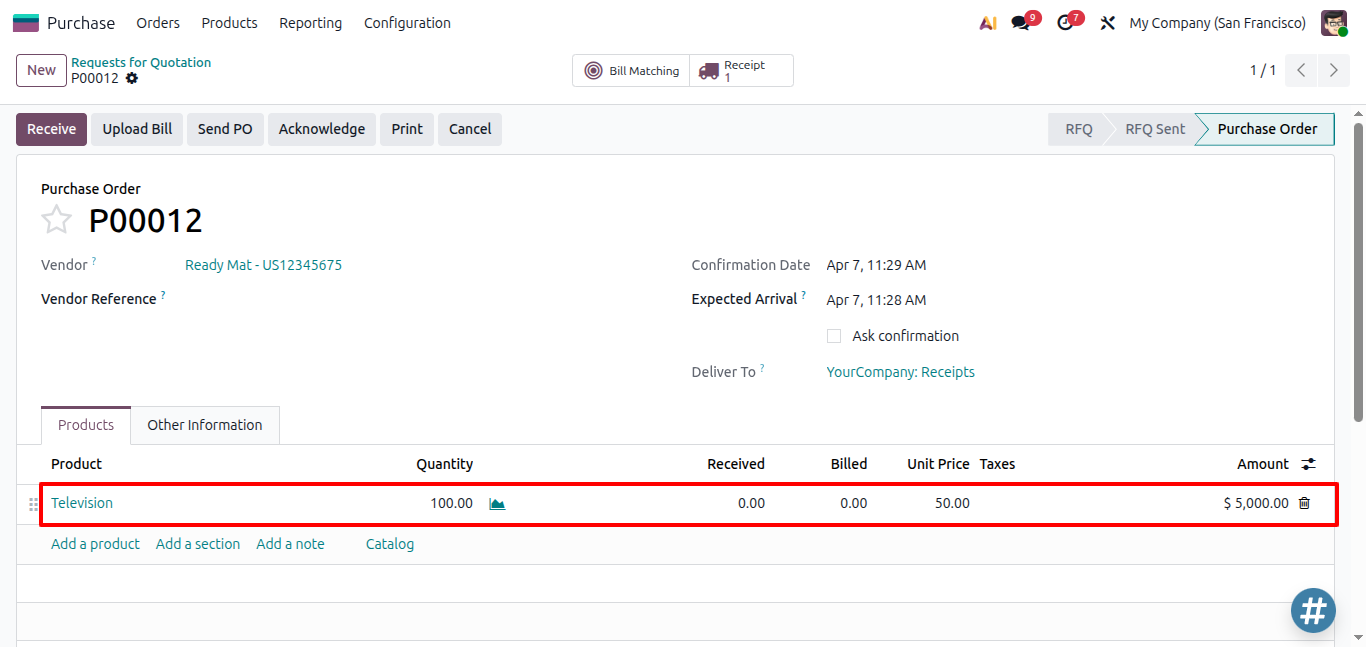
Scenario 1 - Purchase Order Created
Create a Purchase Order for 100 units at $50 each and confirm it. Nothing happens yet — no stock has moved, so no valuation is recorded anywhere.
| Product | Unit Price | Qty |
| Television | 50 | 100 |
| Check | Result |
| Stock movement | None |
| Accounting entry | None |
| Product cost | Still $0 |
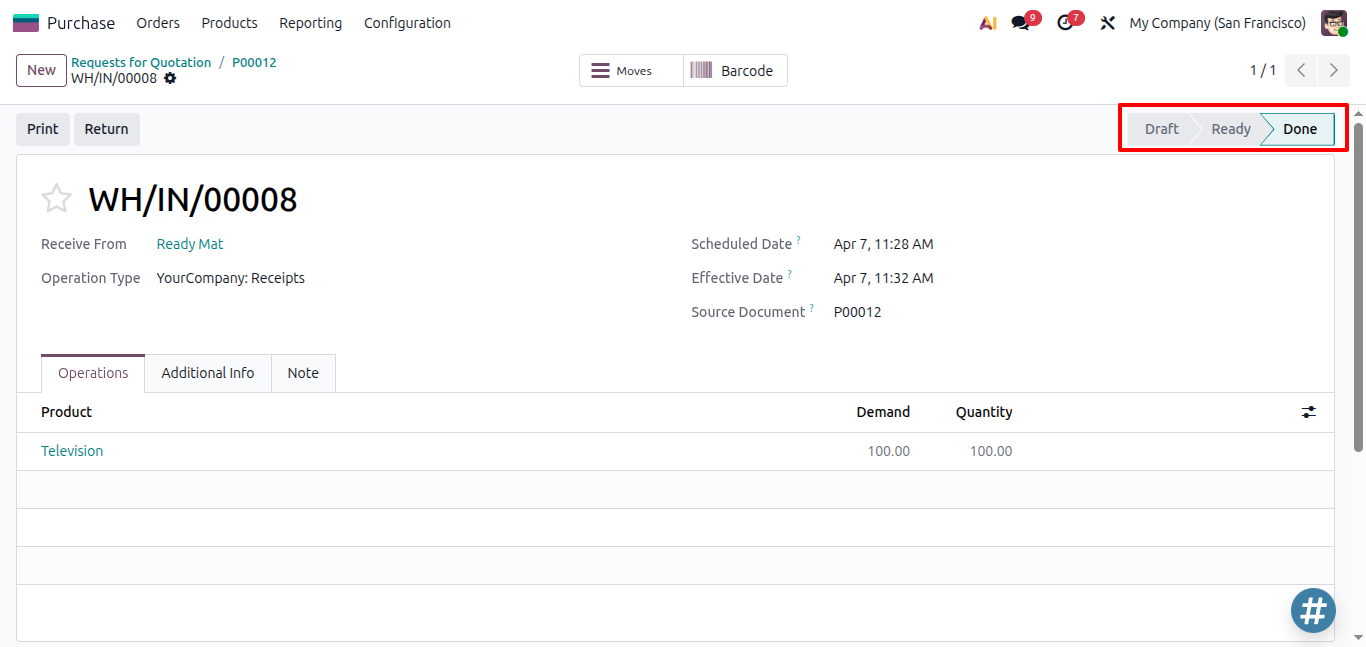
Scenario 2 - Validate the Incoming Receipt
You receive and validate the 100 units. The Inventory app immediately records the valuation on the stock move. The product cost updates to $50.
Stock Move Valuation (Inventory side):
| Field | Value |
| Product | Television |
| Quantity | +100 |
| Unit Cost | $50.00 |
| Total Value | $5,000 |
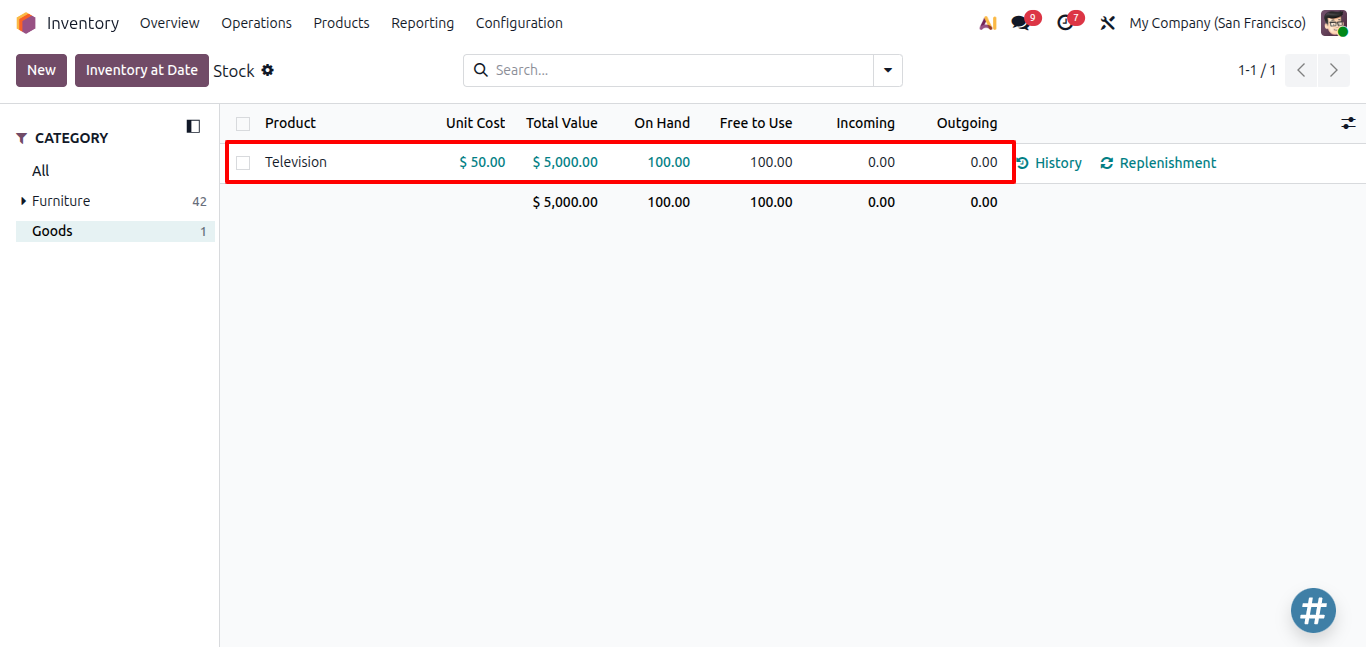
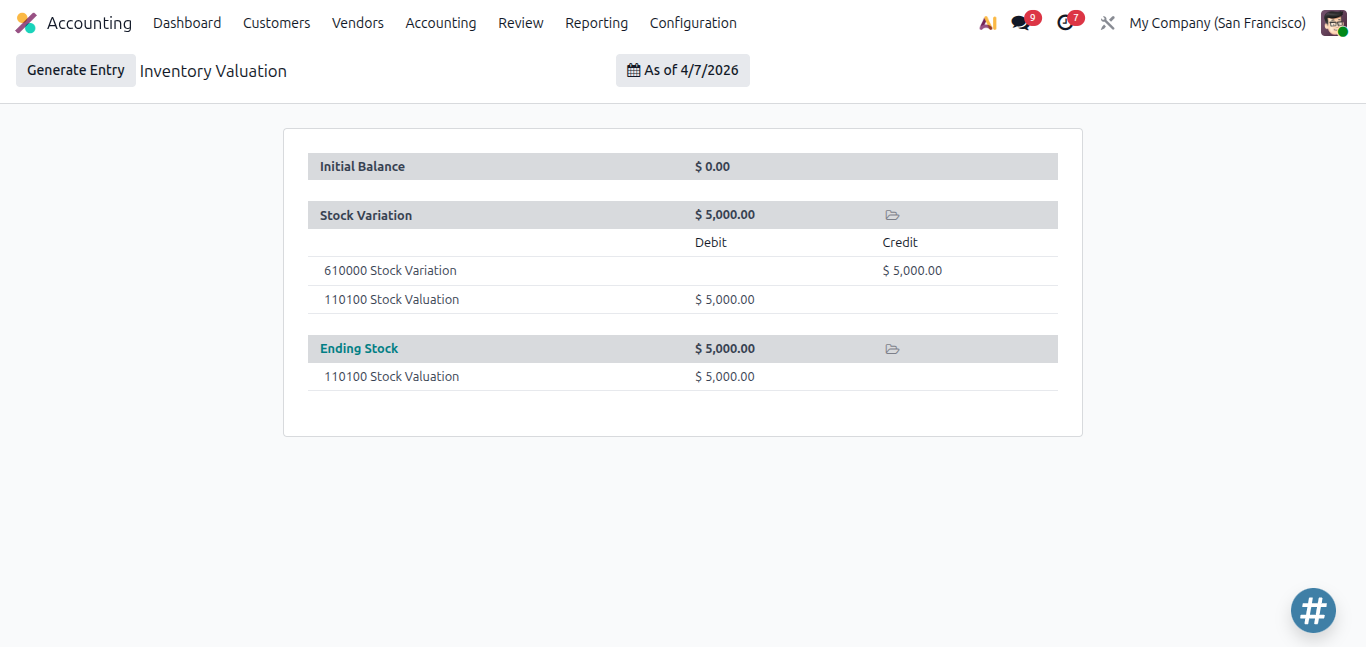
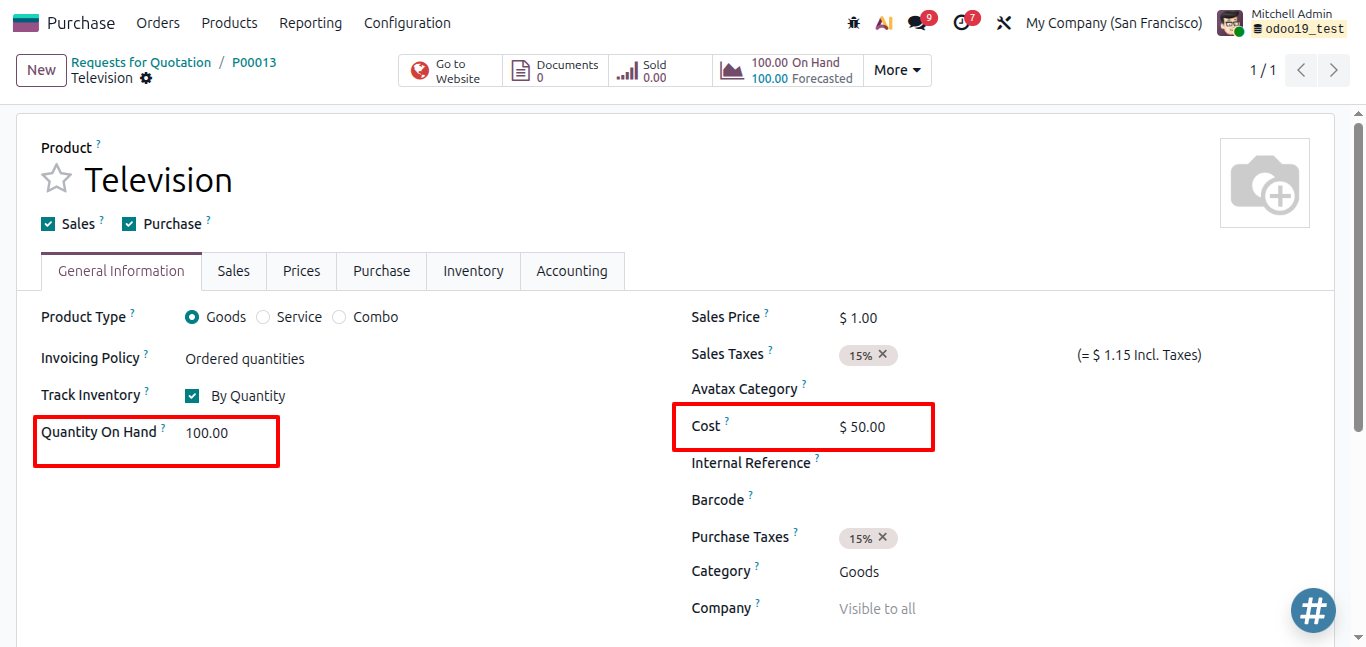
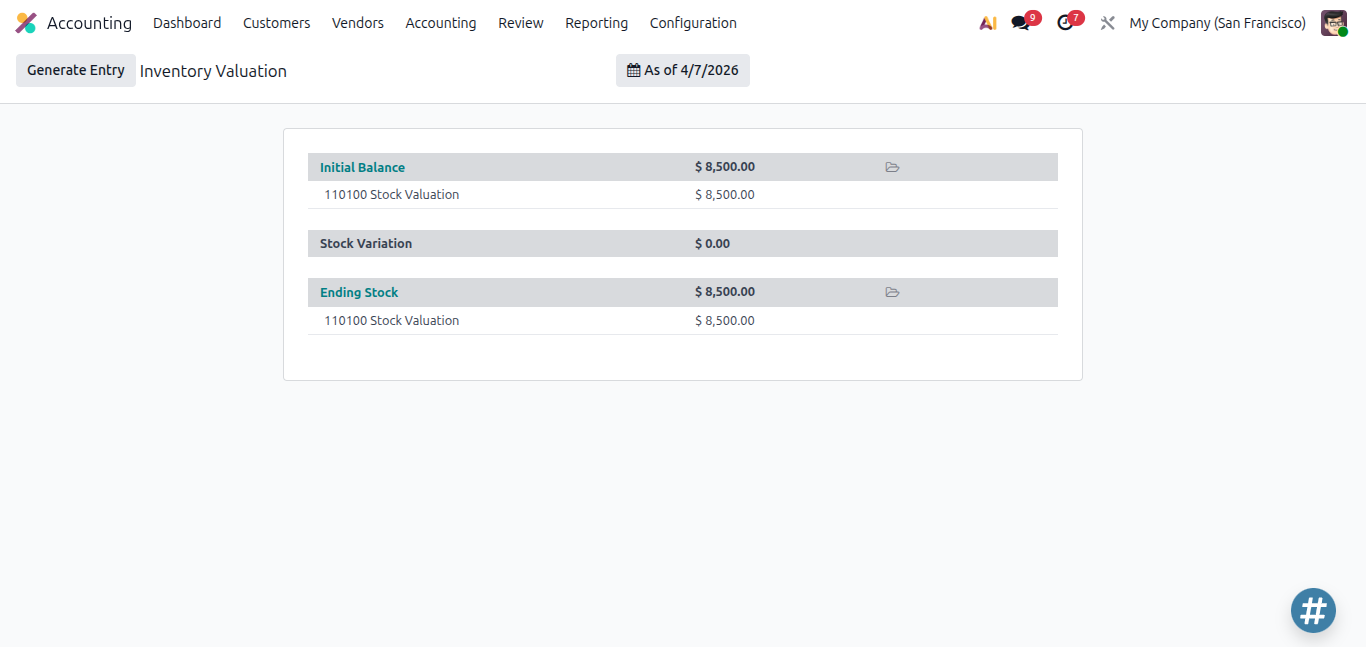
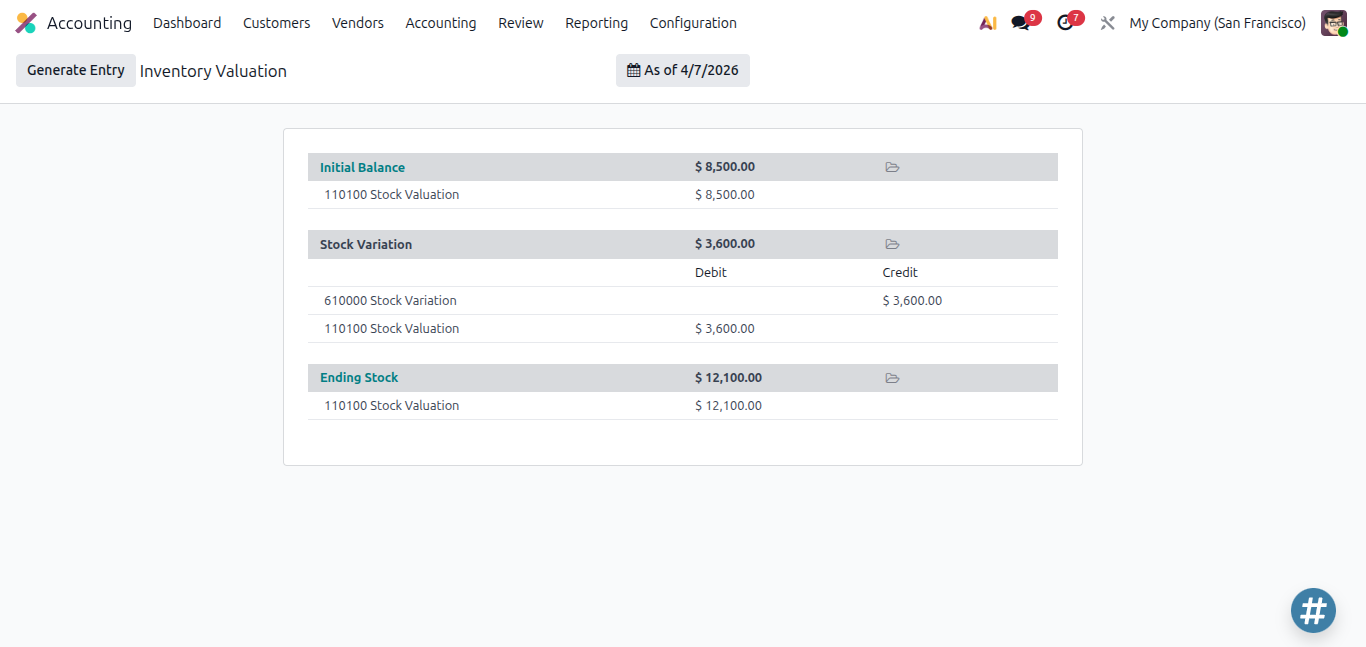
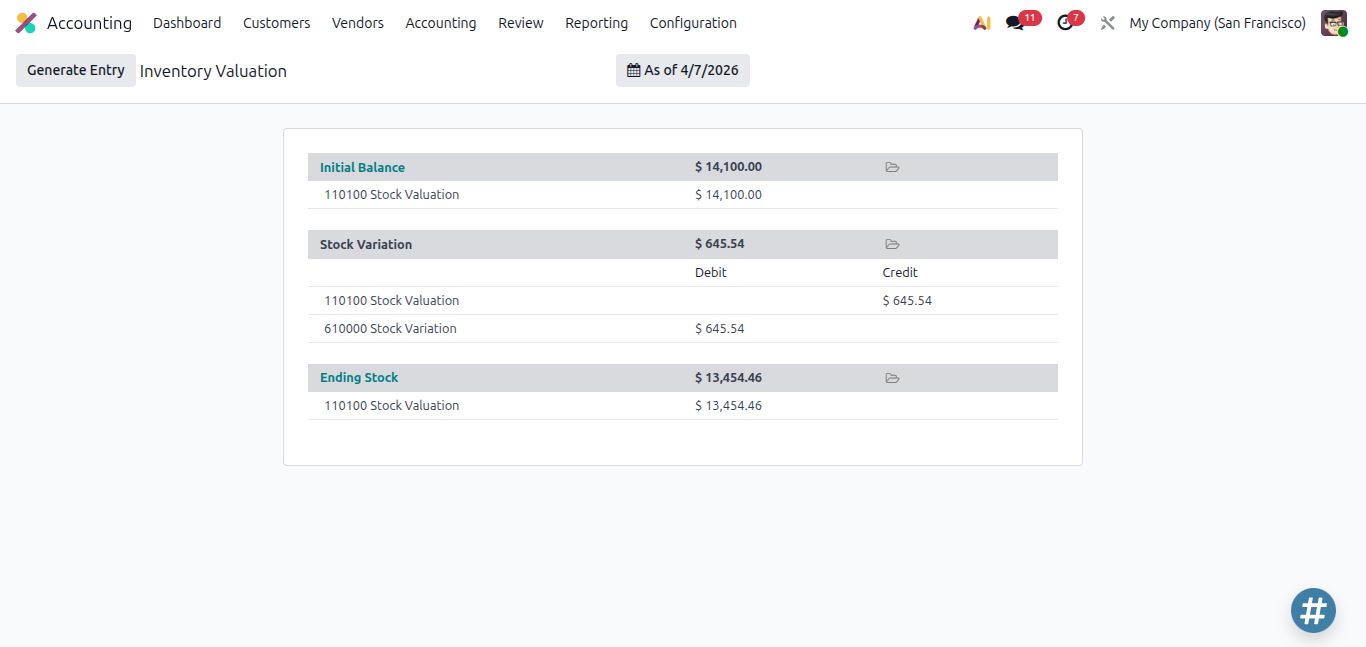
At this point, the Inventory app shows $5,000. The Accounting app shows $5,000 in the Stock Variation section. You can see this gap clearly in Accounting > Review > Inventory Valuation.
And the initial balance is $0.00.
No accounting journal entry is posted yet in Perpetual mode — that happens when the vendor bill is posted.
Scenario 3 - Post the Vendor Bill
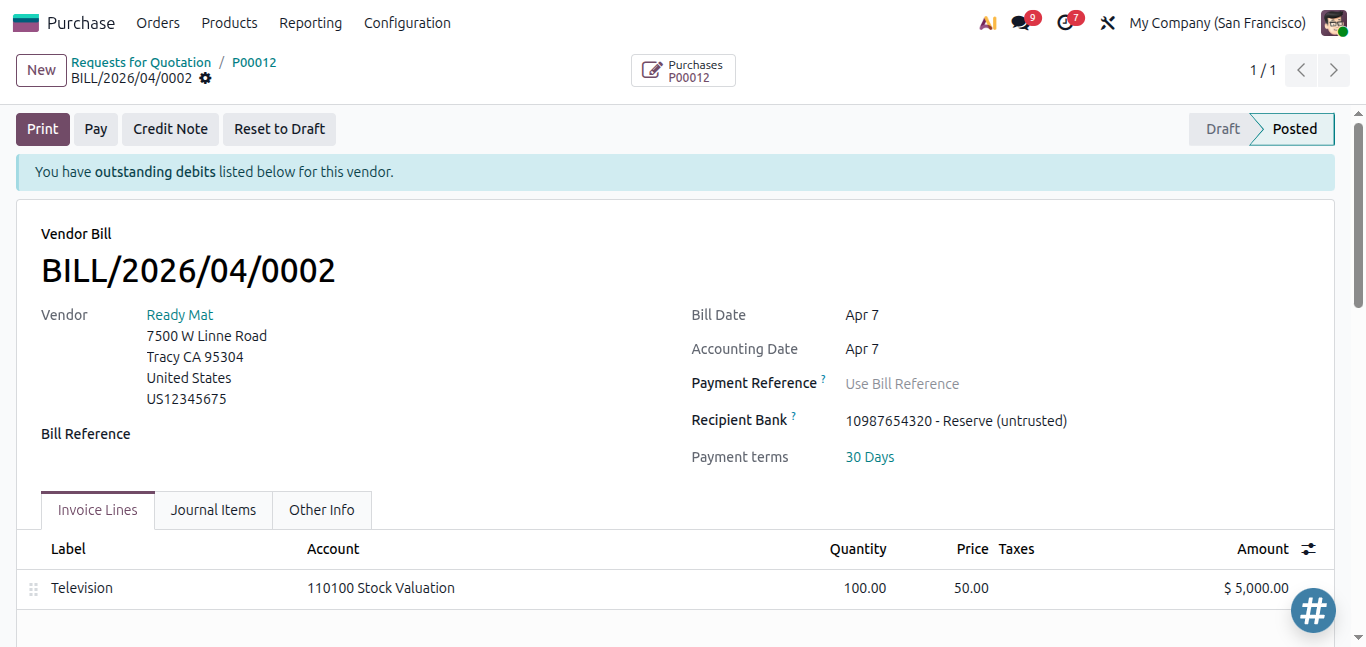
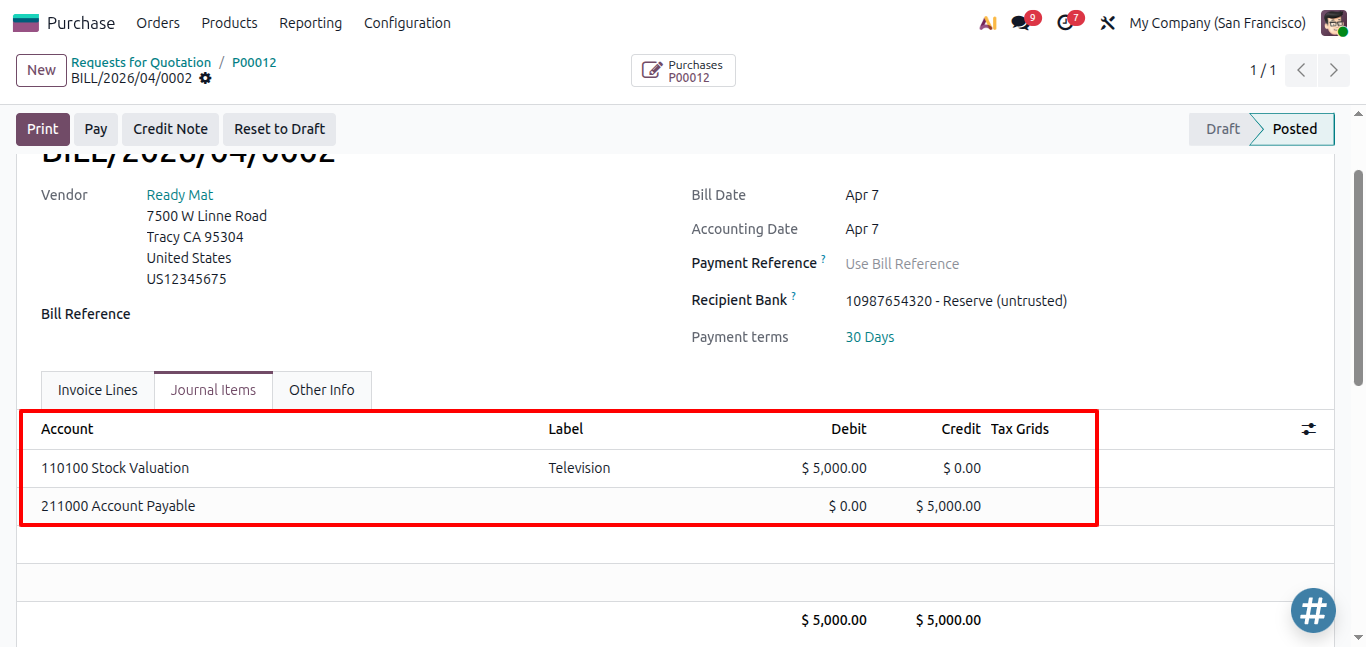
You receive and post the vendor bill for $5,000. This is the moment Odoo creates the accounting entry and both sides sync up.
Accounting Entry - Vendor Bill:
| Account | Debit ($) | Credit ($) |
| Stock Valuation Account | 5,000 | |
| Accounts Payable | | 5,000 |
Now, in the Inventory Valuation report, the Stock Variation will show as $0.00 and the $5,000 will be moved to the Initial Balance.
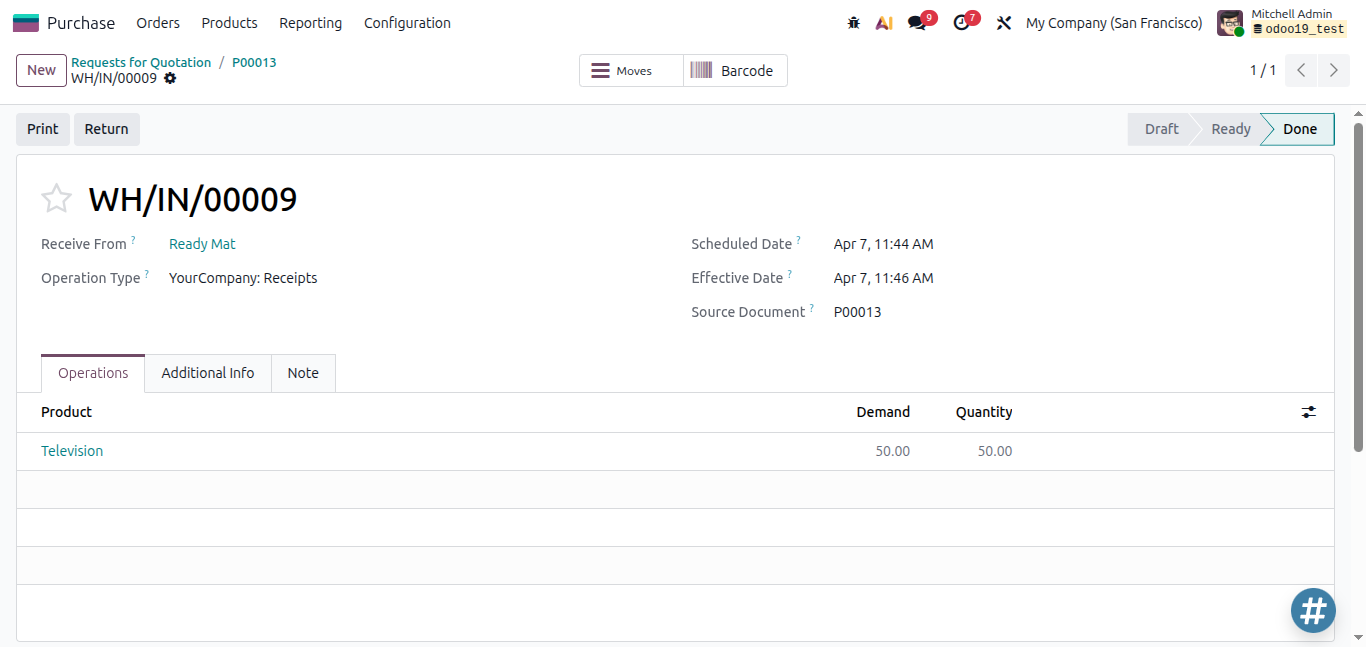
Scenario 4 - Second Receipt and AVCO Recalculation
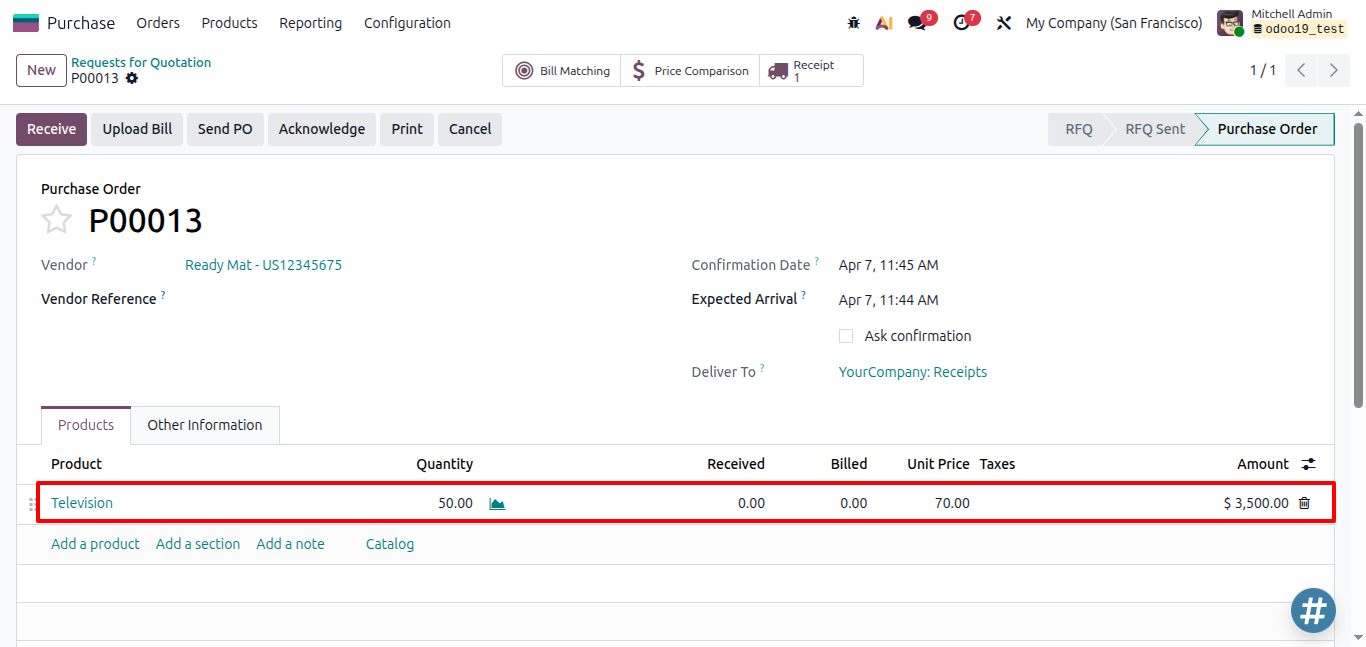
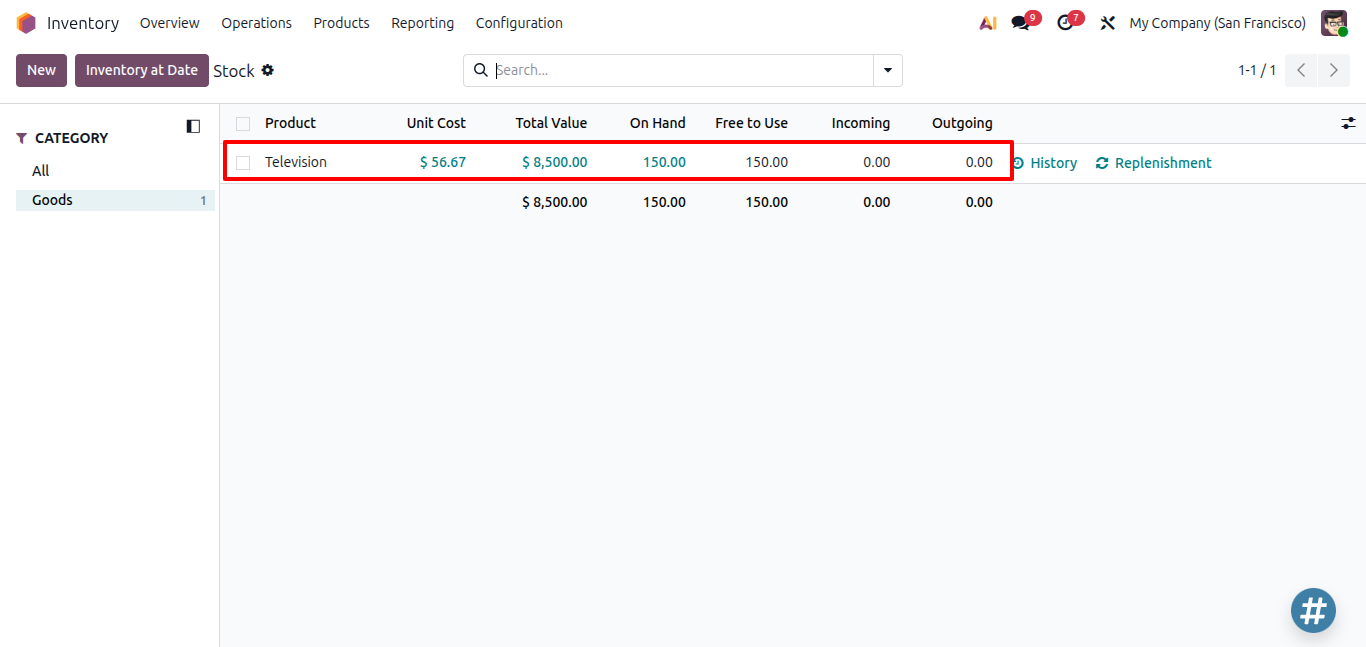
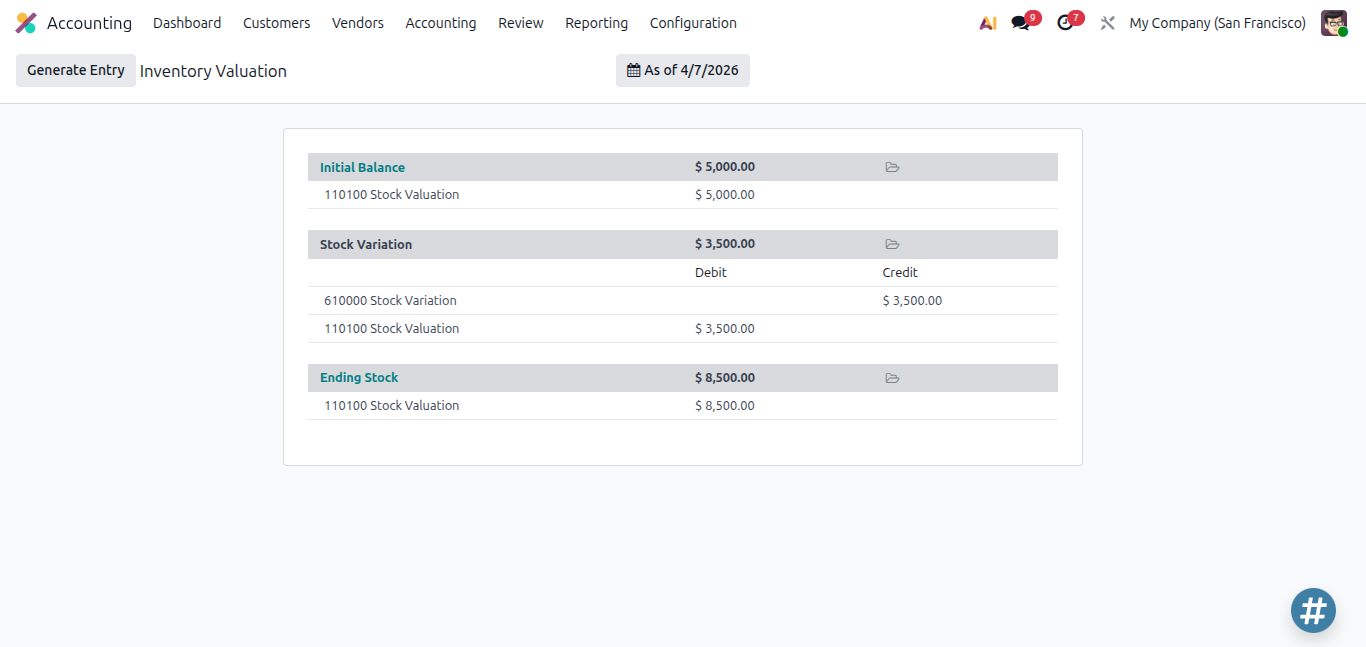
You receive a second batch: 50 units at $70. Odoo recalculates the Moving Average Price.
New MAP = ((100 × $50) + (50 × $70)) / 150 = $56.67
| | Qty | Cost per Unit | Total Value |
| Existing Stock | 100 | $50.00 | $5,000 |
| Incoming Receipt | 50 | $70.00 | $3,500 |
| After Recalculation | 150 | $56.67 | $8,500 |
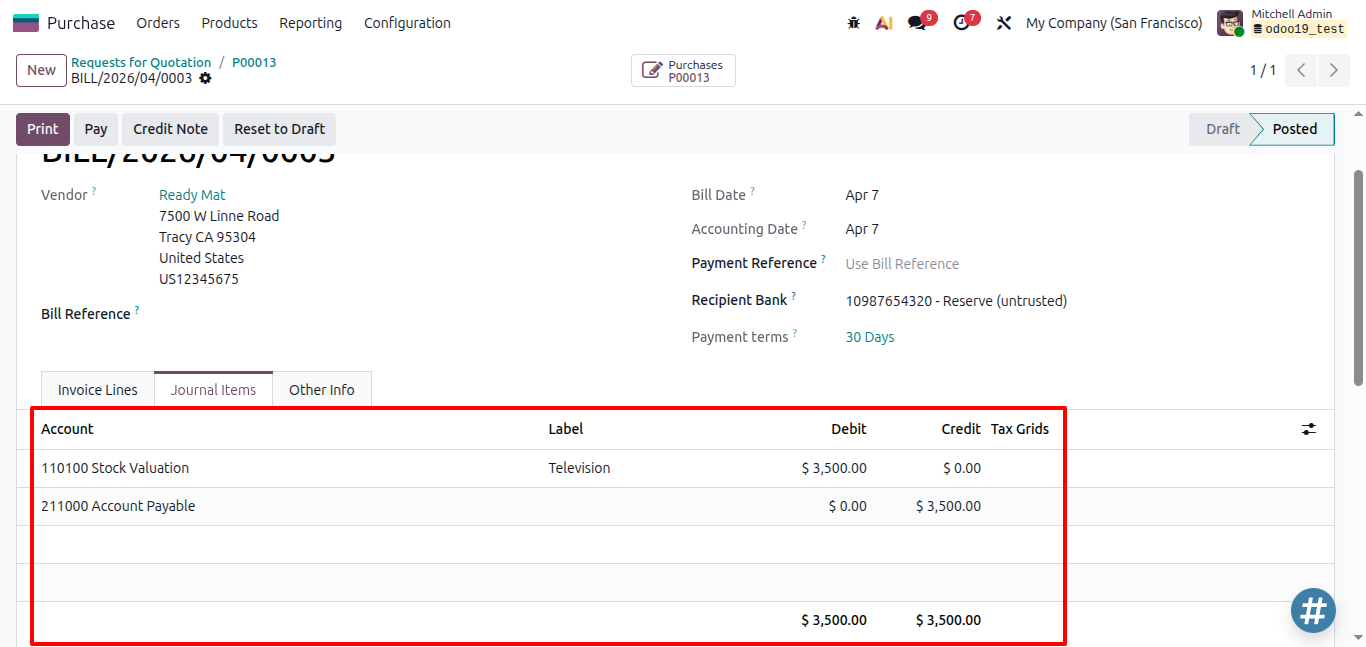
When the vendor bill for this second receipt is posted:
Accounting Entry - Second Vendor Bill:
| Account | Debit ($) | Credit ($) |
| Stock Valuation Account | 5,000 | |
| Accounts Payable | | 5,000 |
The product now shows a cost of $56.67. All future deliveries use this cost.
Scenario 5 - Partial Receipt
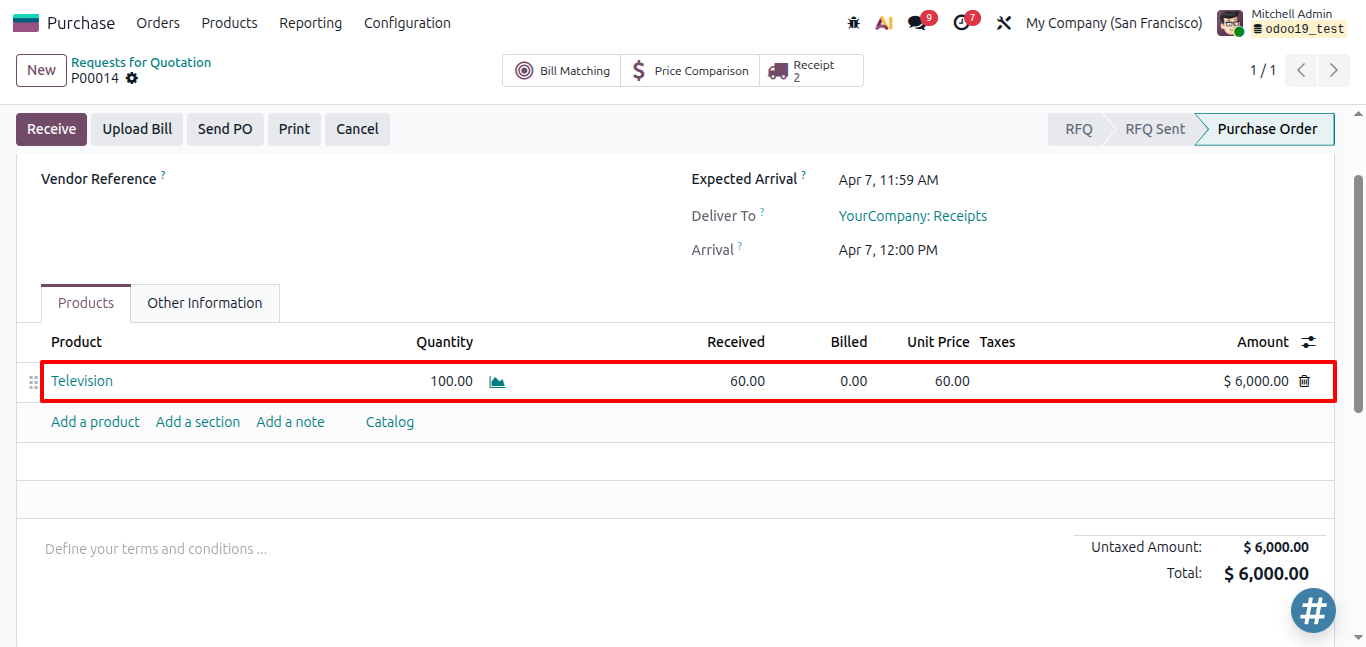
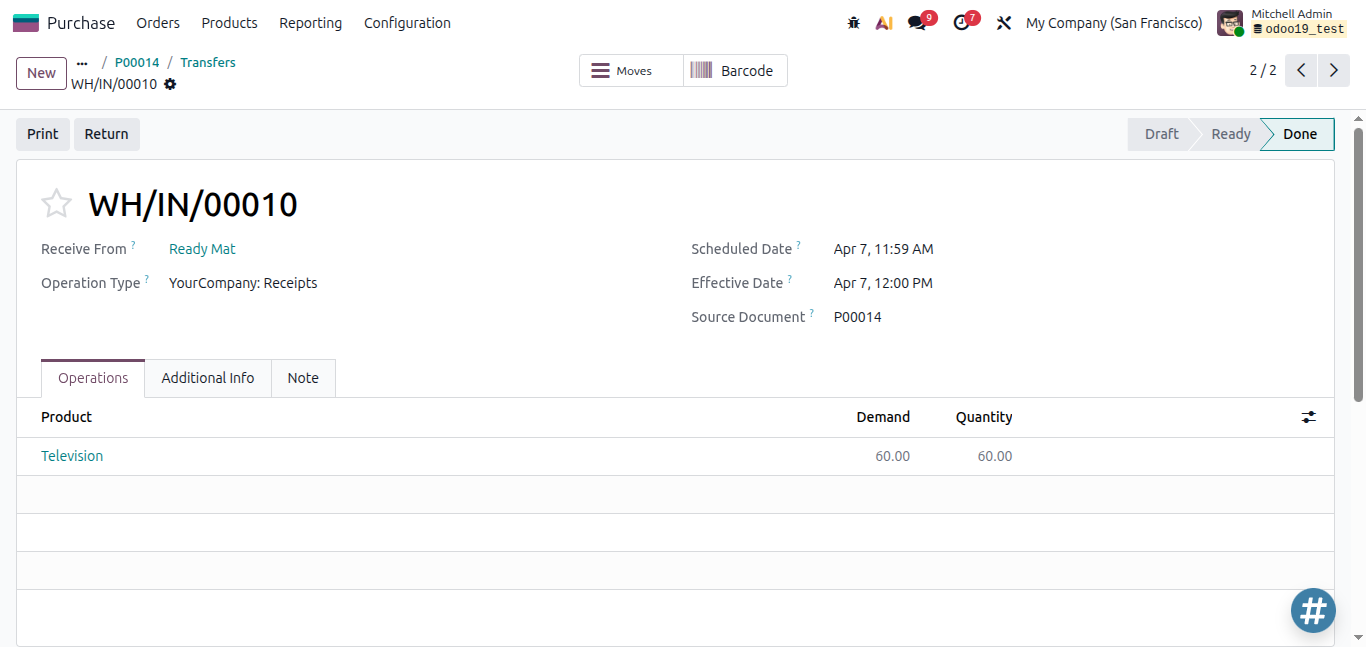
If you only receive part of an order - say 60 out of 100 units - Odoo records the valuation only for the 60 units received. The remaining 40 stay open on the Purchase Order.
When the remaining 40 arrive later and the bill is posted, Odoo creates a new valuation entry. If the price has changed by then, AVCO will recalculate again.
| Product | Television |
| Unit Price | 100 |
| Qty | 100 |
| Received Qty | 60 |
| Remaining Qty | 40 |
Scenario 6 - Purchase Return
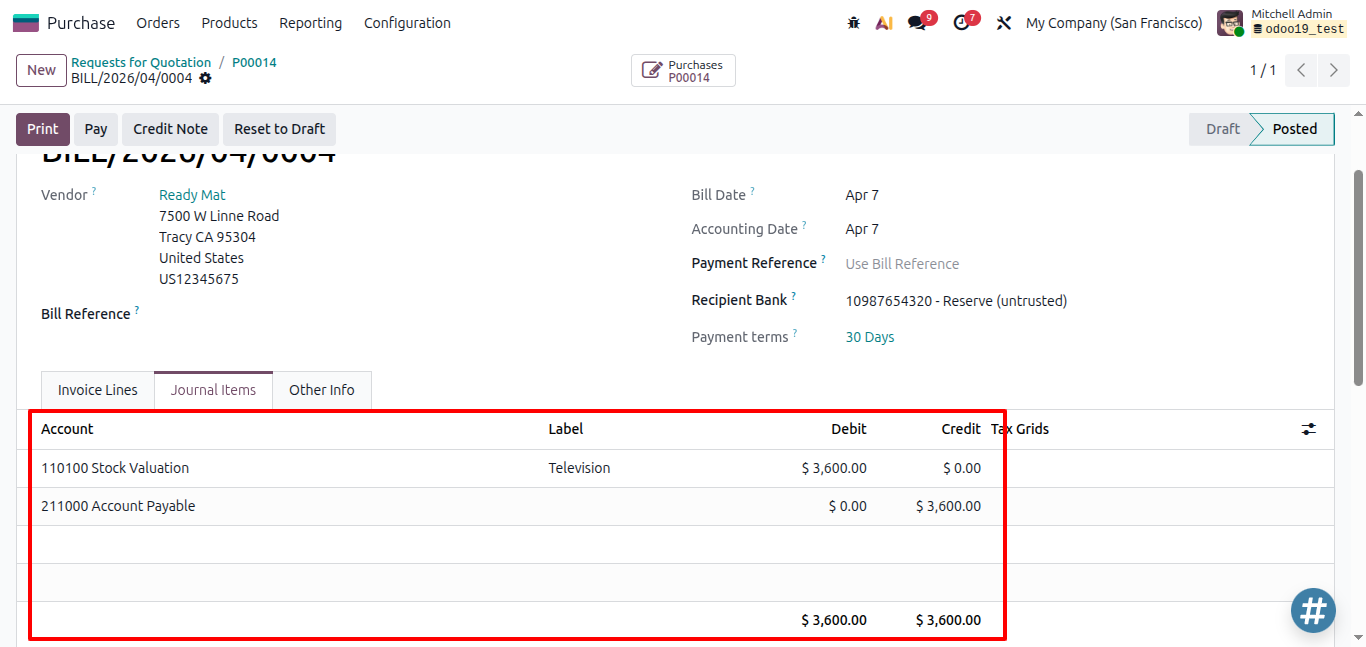
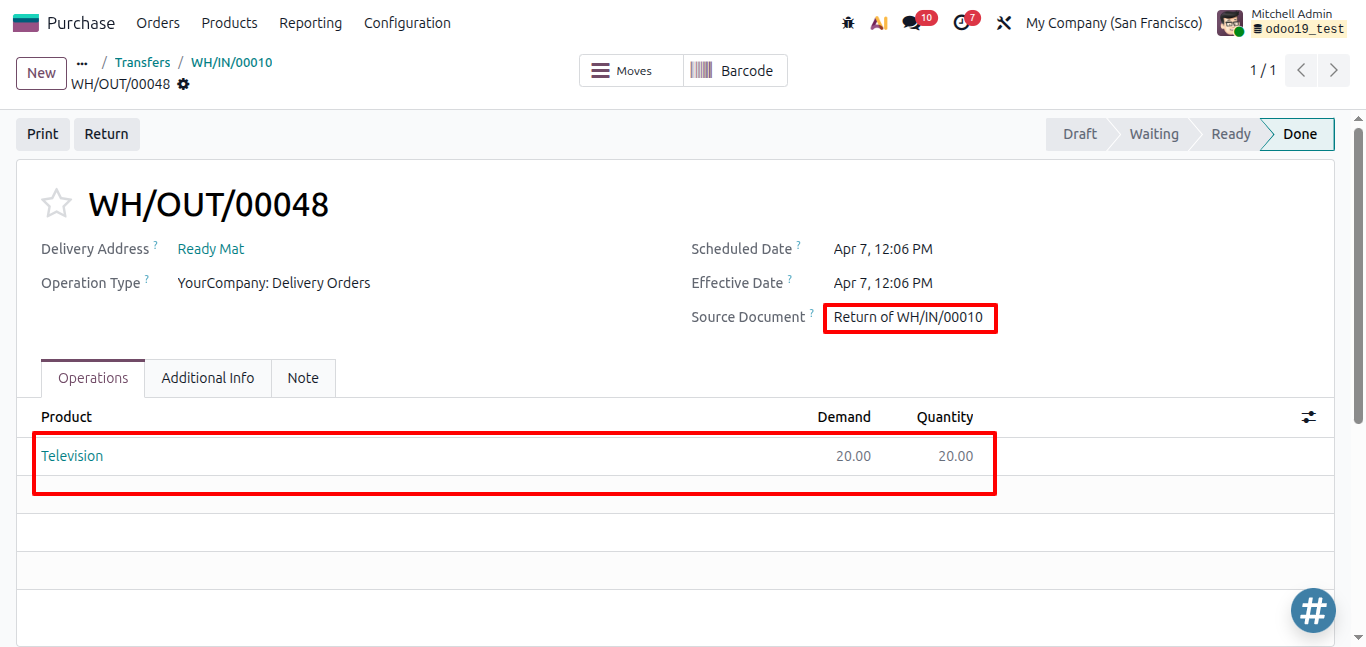
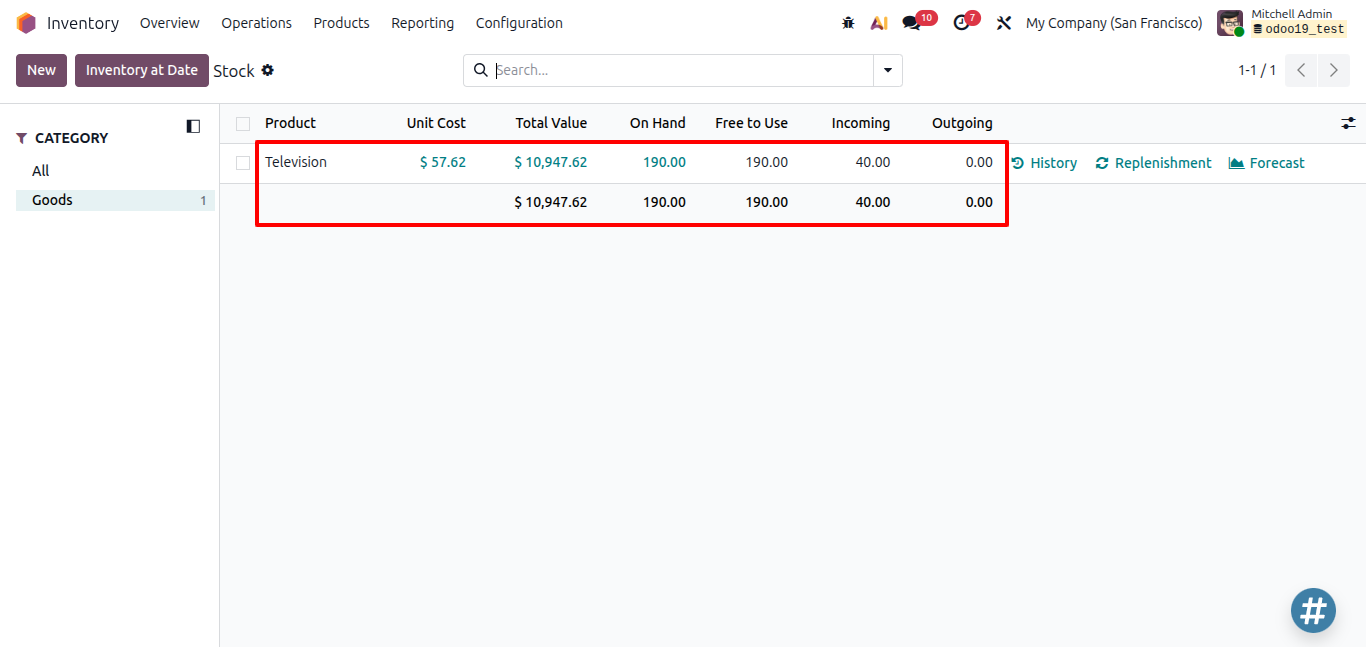
You send 20 units back to the vendor using a Reverse Transfer from the original receipt. This creates a negative stock move. When the credit note is posted, the accounting entry reverses accordingly.
Stock Move Valuation:
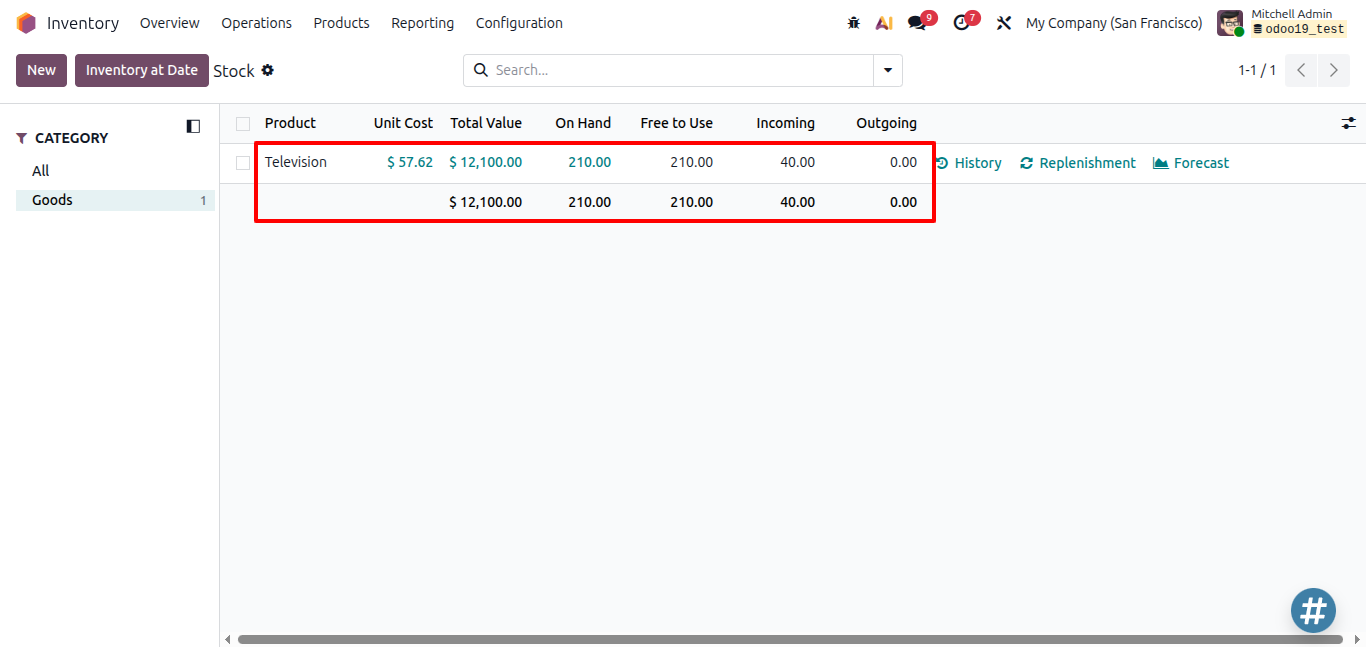
| Field | Value |
| Quantity | -20 |
| Unit Cost | $57.62 (current MAP) |
| Total Value | -$1,152.40 |
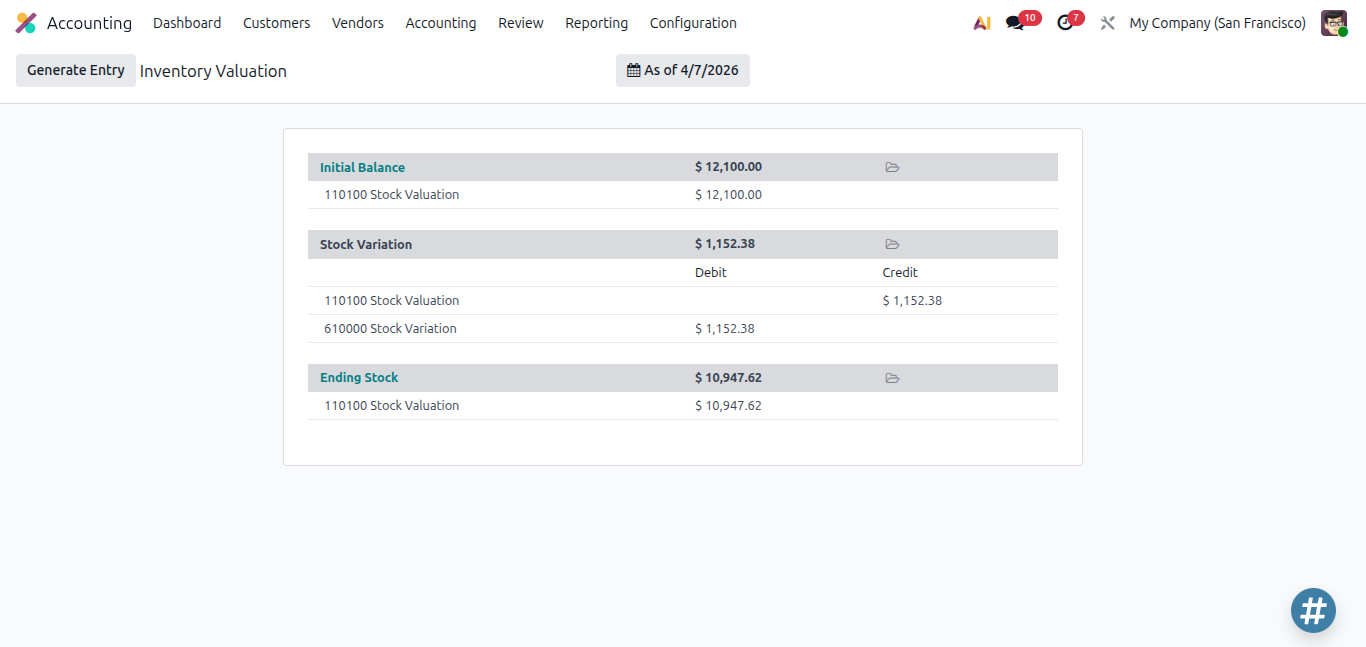
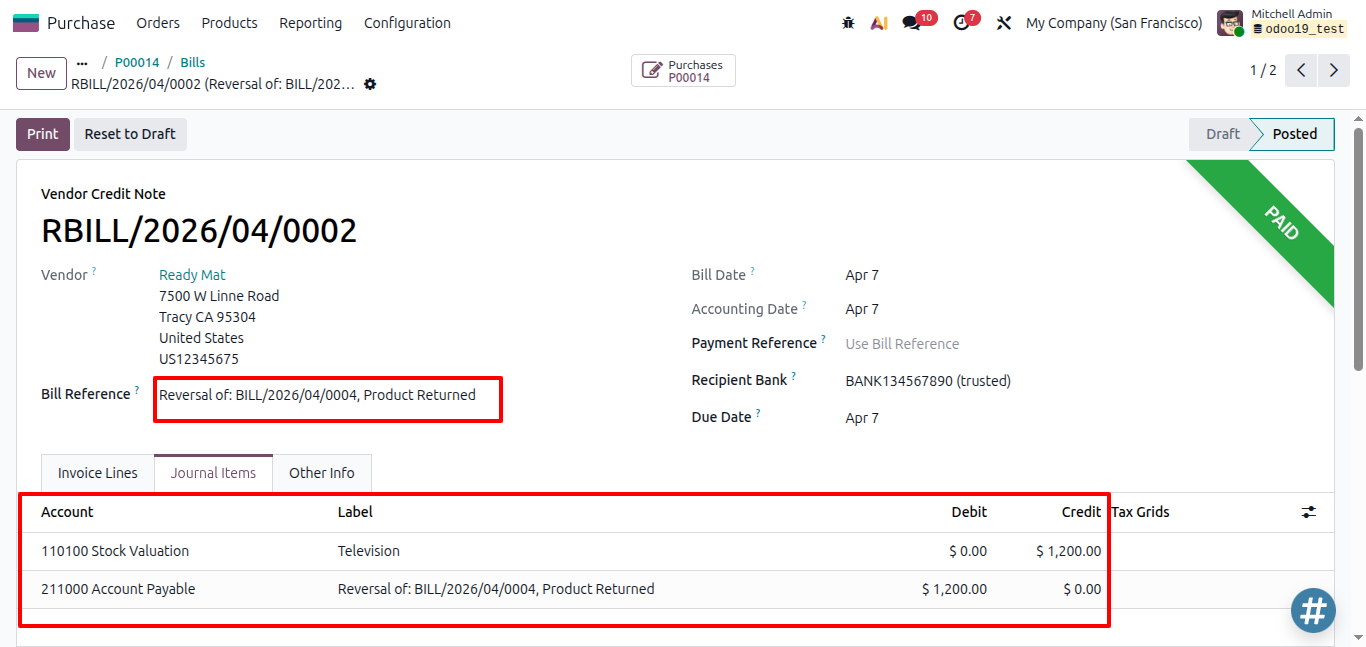
Accounting Entry - Credit Note Posted (We have purchased at $60.00 unit price):
| Account | Debit ($) | Credit ($) |
| Accounts Payable | 1,200.00 | |
| Stock Valuation Account | | 1,200.00 |
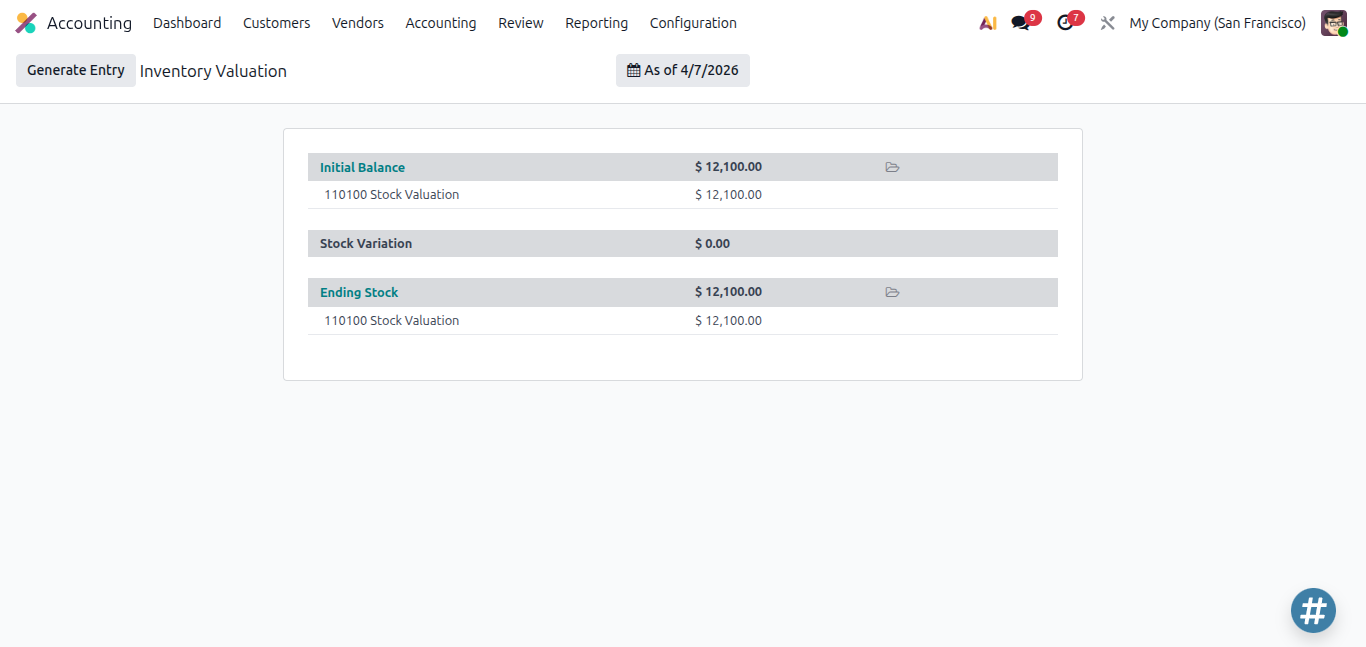
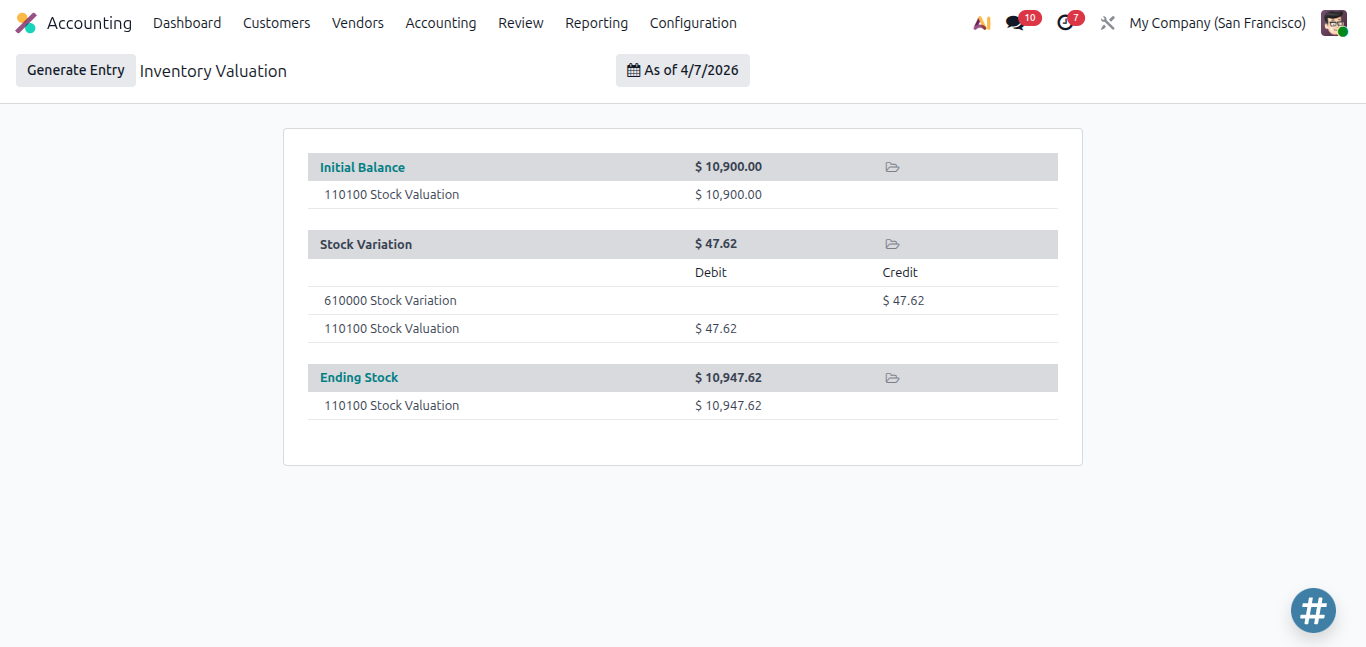
In Odoo 19 with AVCO costing, inventory valuation and vendor pricing can differ. In this scenario, the product is purchased at 60 per unit, but the average cost becomes 57.62. When returning 20 units, inventory is valued at 57.62 ($1152.40), while the vendor credit note is created at the original price of 60 ($1200).
The difference of $47.60 is posted to the Stock Variation account, representing the gap between the actual vendor price and the inventory valuation based on the average cost. This is standard behavior in AVCO and ensures accurate financial and stock reporting.
This difference will be adjusted when posting a customer invoice for that product.
This type of scenario occurs when there is a difference between the vendor/customer price and the inventory valuation (product cost in Odoo).
Scenario 7 - Sale Order Created
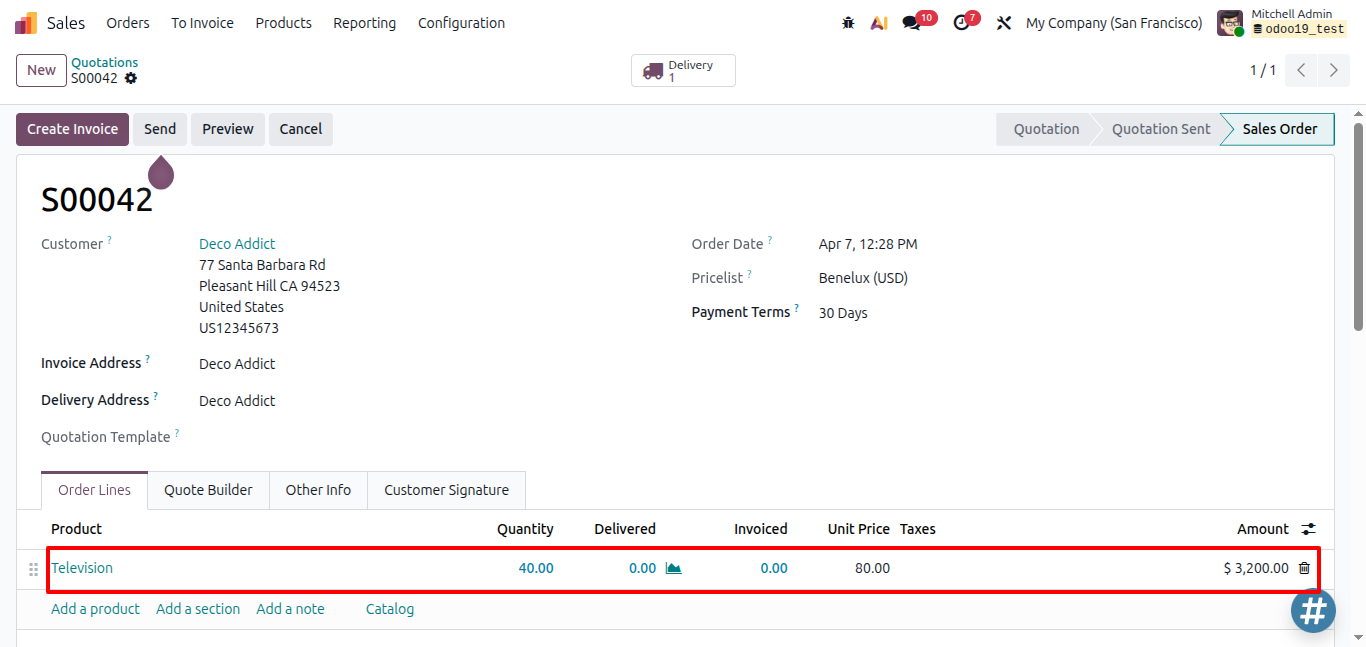
You confirm a sale for 40 units at $80 each. A delivery order is created. No valuation is recorded and no accounting entry is posted at this stage.
| Product | Television |
| Unit Price | 80 |
| Qty | 40 |
Scenario 8 - Validate the Delivery
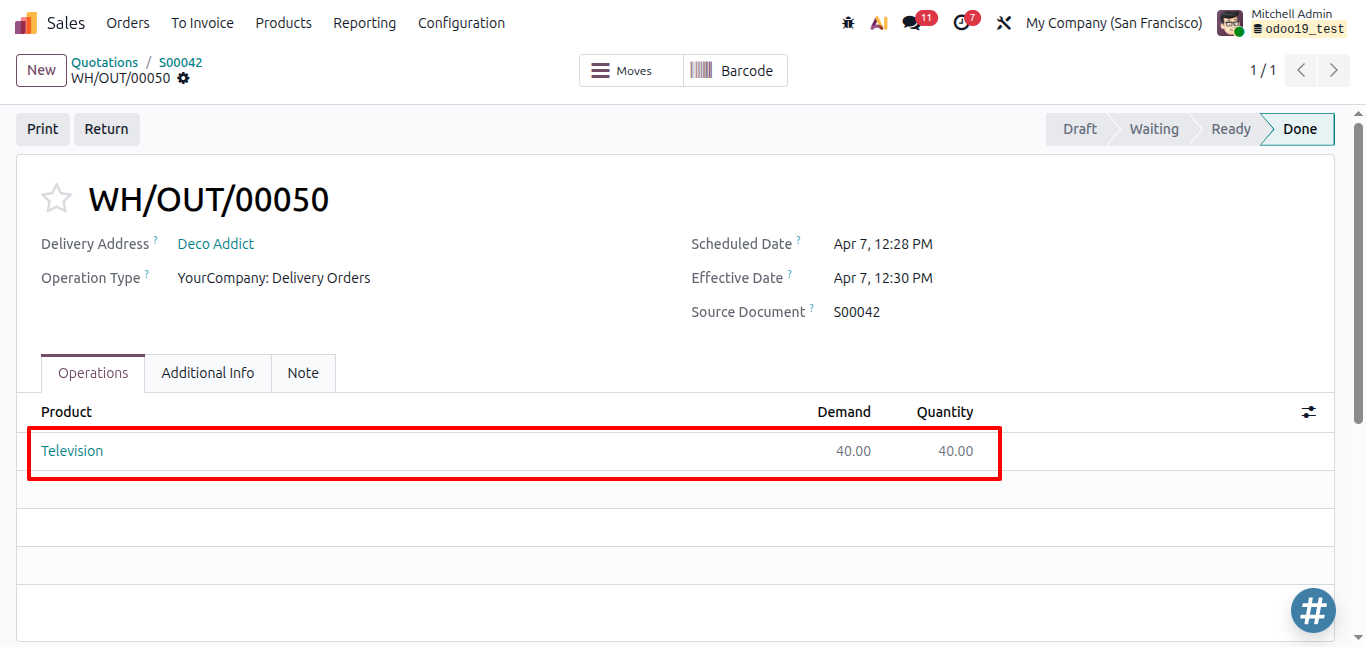
You validate the delivery. The Inventory app records the outgoing valuation on the stock move using the current MAP.
Outgoing Value = 40 × $57.62 = $2,304.76
Stock Move Valuation:
| Field | Value |
| Quantity | -40 |
| Unit Cost | $57.62 |
| Total Value | -$2,304.76 |
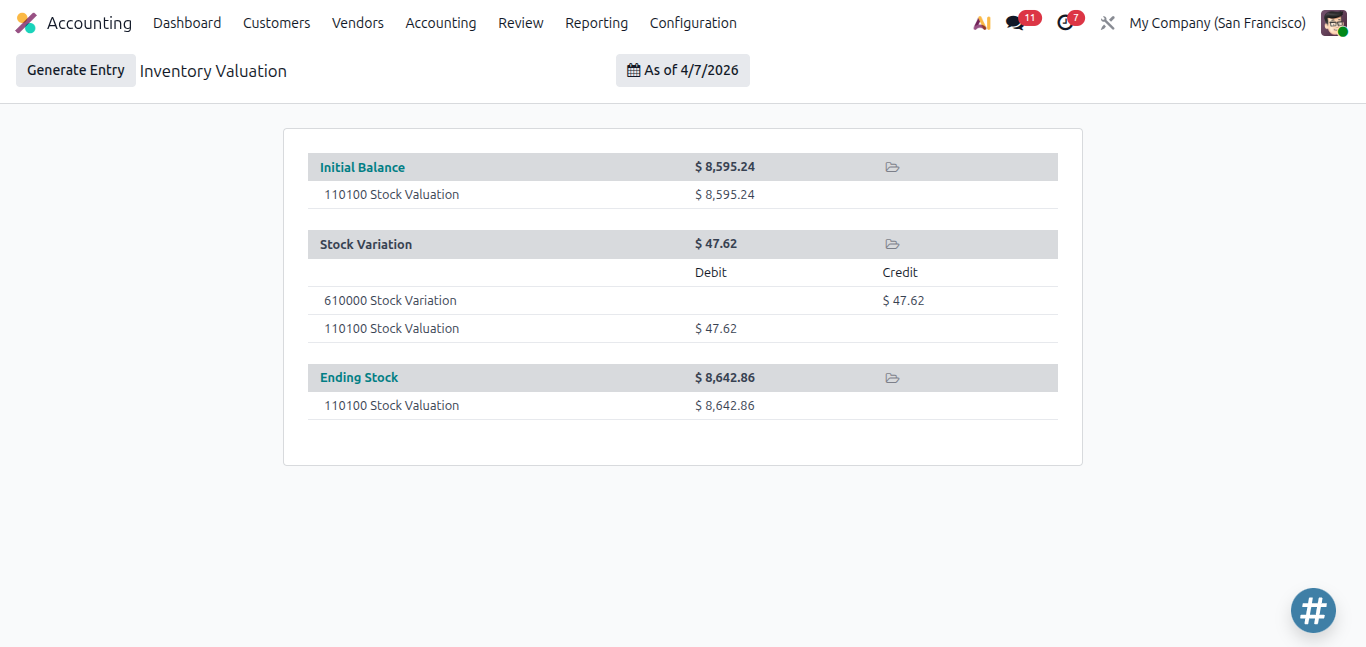
No accounting entry is posted yet. In the Inventory Valuation view, you can see this difference (47.62 - 2304.76 = 2257.14) reflected in the Inventory Value.
Note: The product cost does not impact the Delivery (Outgoing Transfer) validation.
Scenario 9 - Post the Customer Invoice (COGS Recognized)
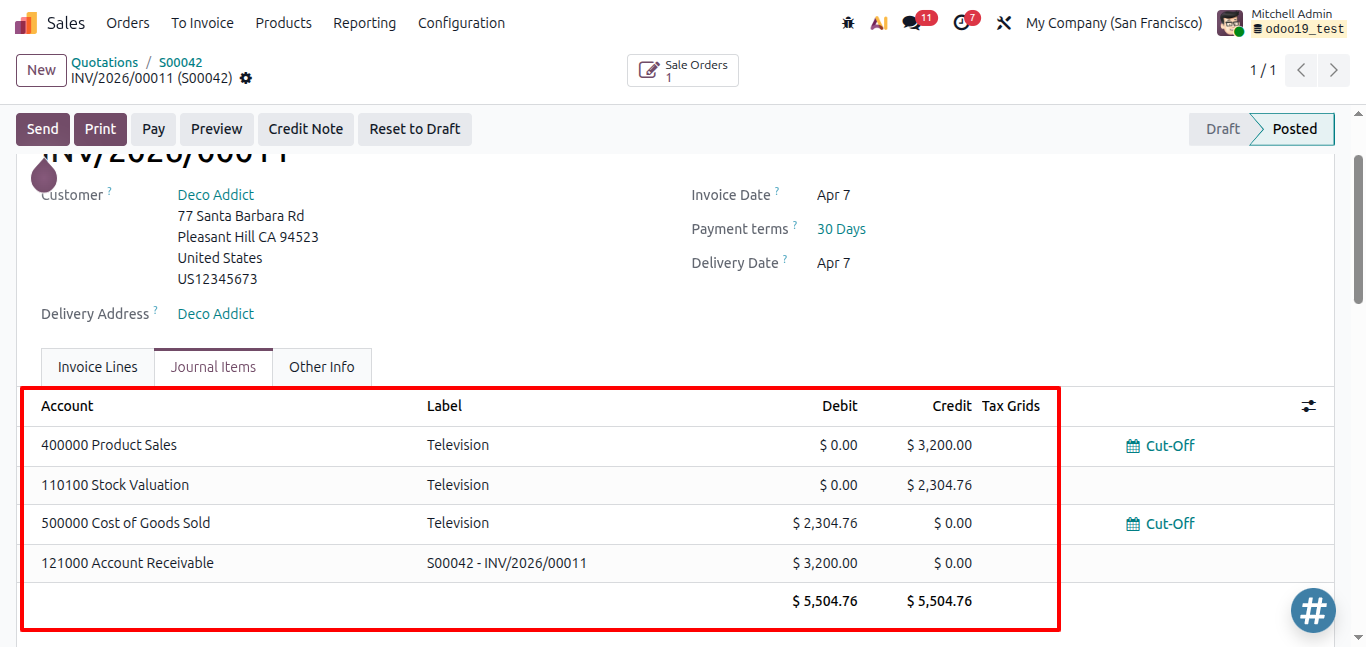
When you post the customer invoice, two accounting entries are created automatically - the revenue entry and the COGS entry.
Revenue Entry:
| Account | Debit ($) | Credit ($) |
| Accounts Receivable | 3,200 | |
| Product Sales | | 3,200 |
COGS Entry (auto generated by Odoo):
| Account | Debit ($) | Credit ($) |
| Cost of Goods Sold (COGS) | 2,304.76 | |
| Stock Valuation Account | | 2,304.76 |
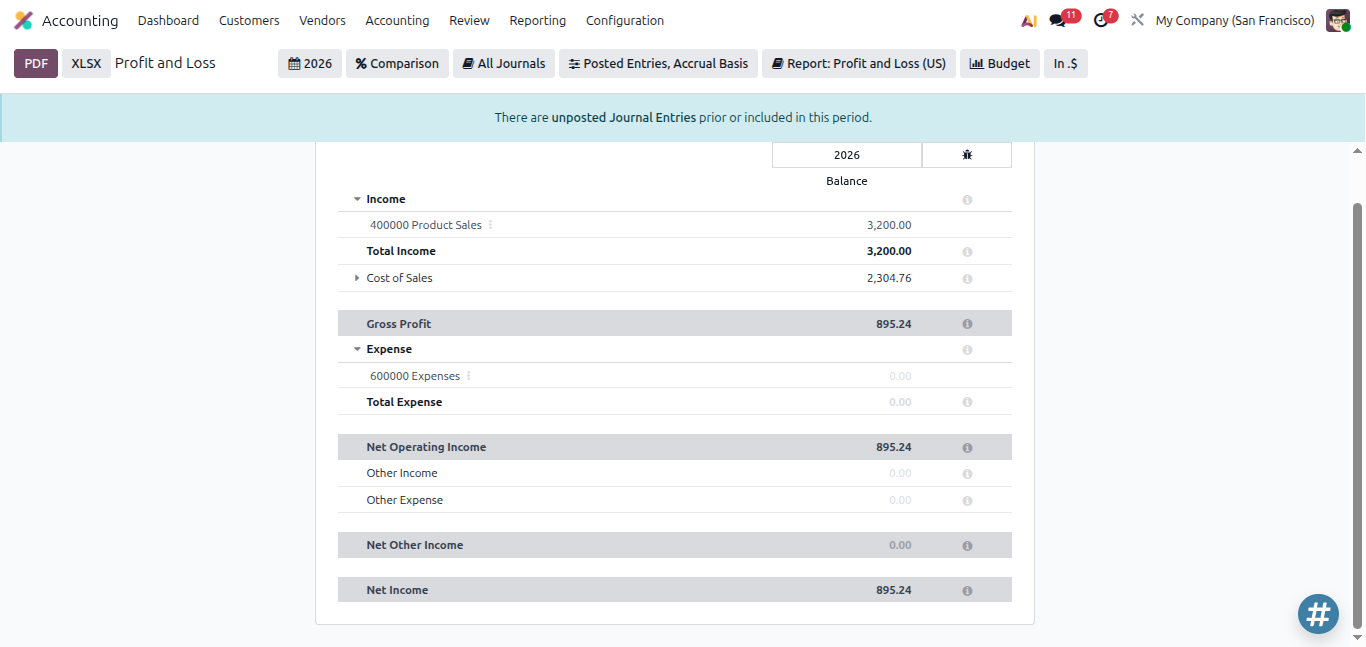
Gross Profit = $3,200 − $2,304.76 = $895.24 (Go to Accounting > Reporting > Profit and Loss)
Scenario 10 - Customer Return
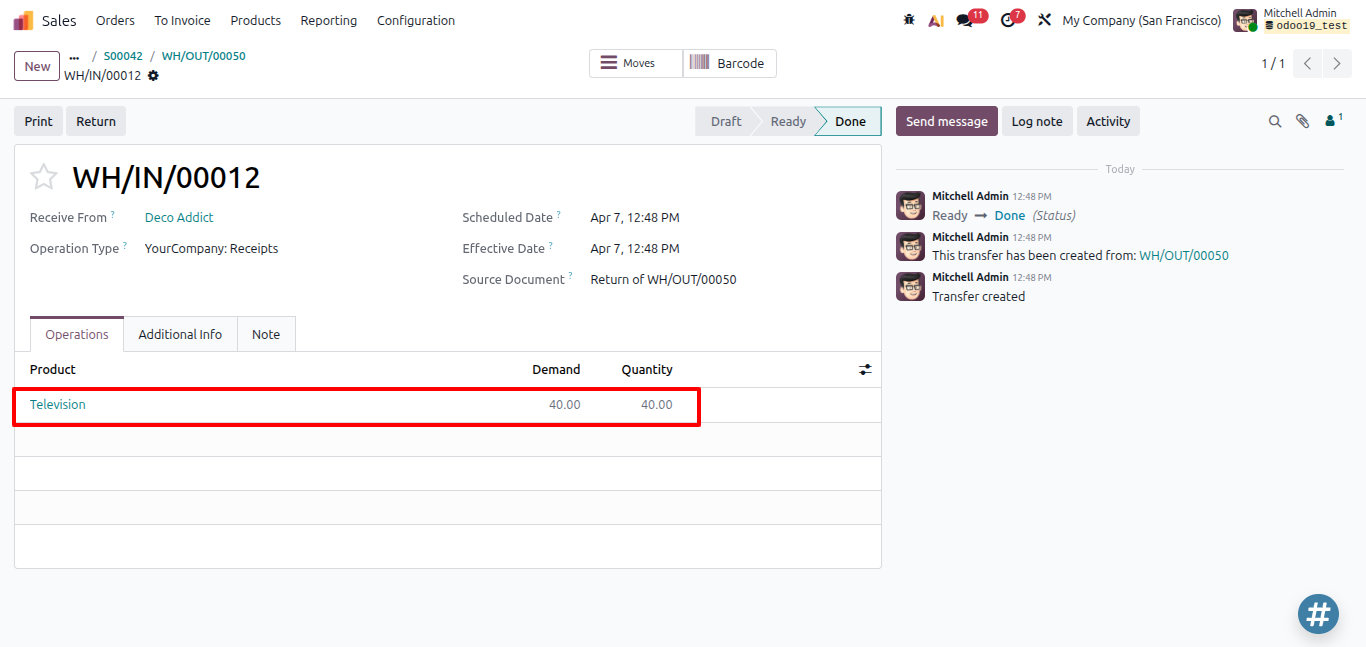
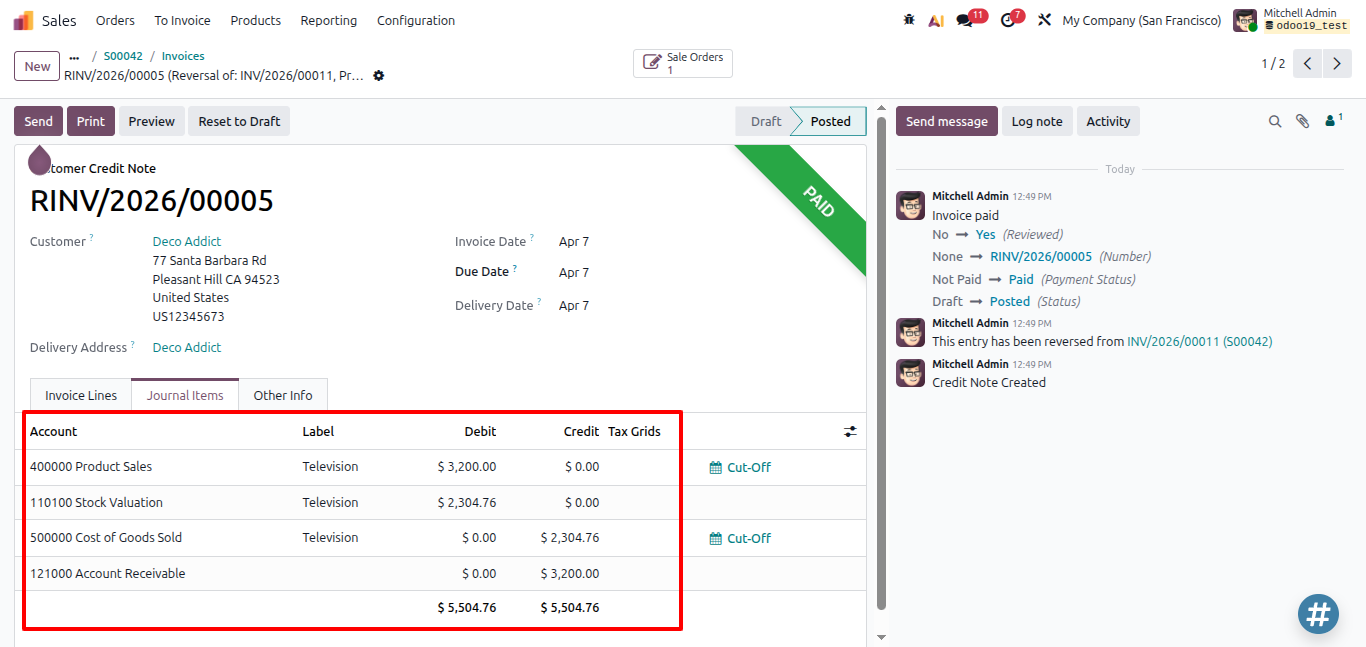
The customer returns the goods. You create a Reverse Transfer from the original delivery and issue a credit note.
Credit Note Entry:
| Account | Debit ($) | Credit ($) |
| Product Sales | 3,200 | |
| Accounts Receivable | | 3,200 |
COGS Reversal Entry:
| Account | Debit ($) | Credit ($) |
| Stock Valuation Account | 2,304.76 | |
| Cost of Goods Sold (COGS) | | 2,304.76 |
Stock quantity goes back up. COGS is reversed. Everything returns to the state it was in before the sale.
Scenario 11 - Inventory Adjustment
You do a physical stock count and find a discrepancy. In Inventory > Operations > Physical Inventory, you apply the adjustment.
In Perpetual mode, this journal entry is posted automatically when the adjustment is validated - if the Inventory Valuation Journal is properly configured in the product category.
In Periodic mode, the change is added to the Variation Account and shows up in the next period-end closing entry.
For e.g.
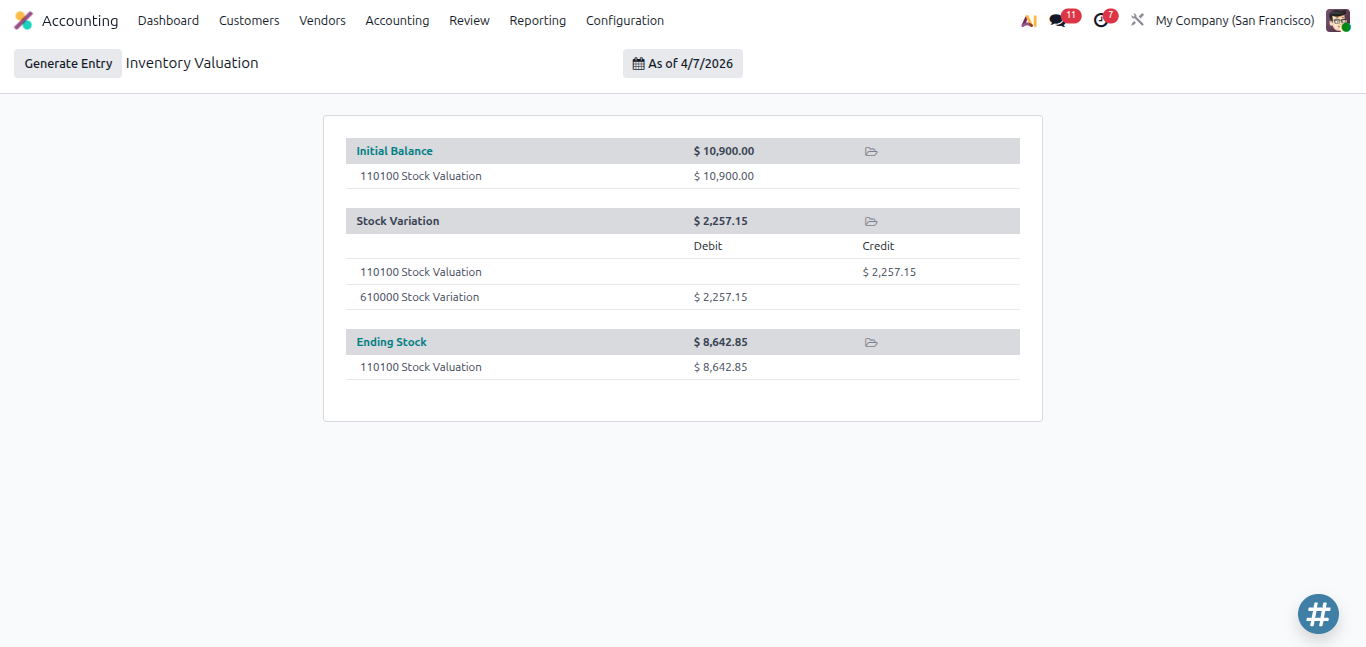
In the system it shows 190 qty of Television but in actual there is only 150 qty, so there is difference of 40 qty. This 40 qty difference will be posted in the Stock Variation and Stock Valuation account.
| Field | Value |
| Quantity | -40 |
| Unit Cost | $57.62 |
| Value | $2,304.8 |
Valuation Entry:
| Account | Debit ($) | Credit ($) |
| Stock Variation Account | 2,304.8 | |
| Stock Valuation Account | | 2,304.8 |

For e.g.
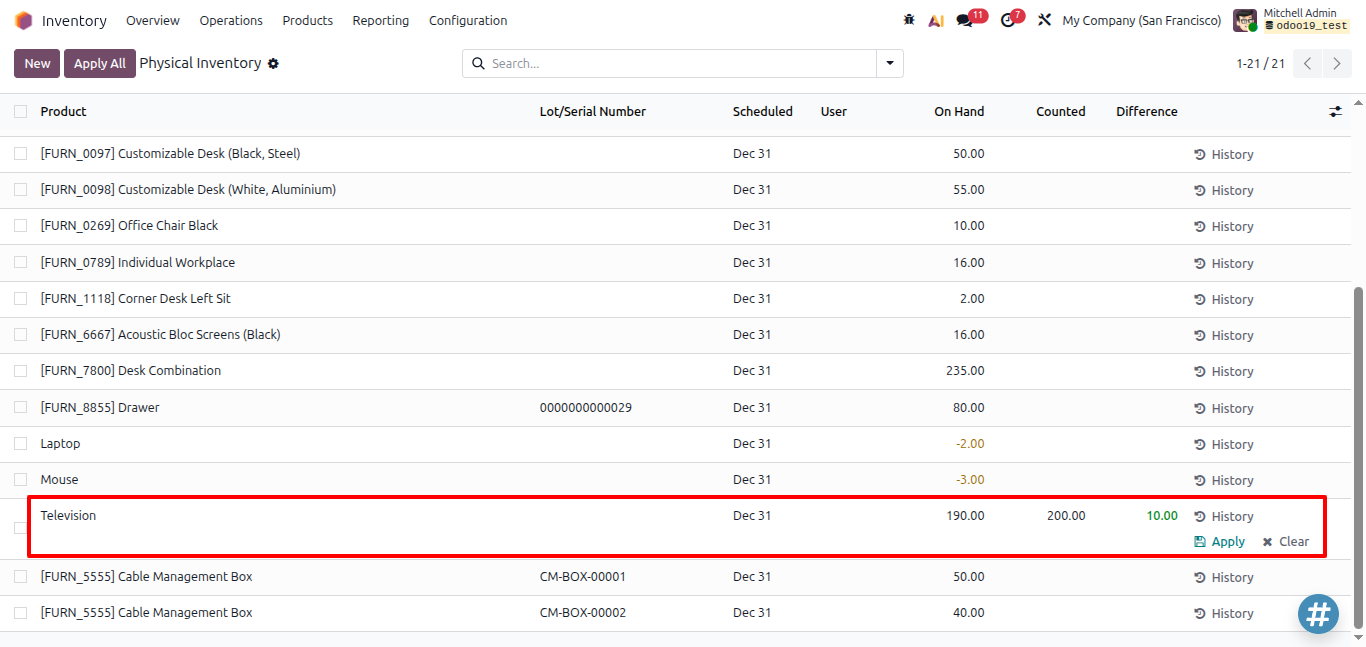
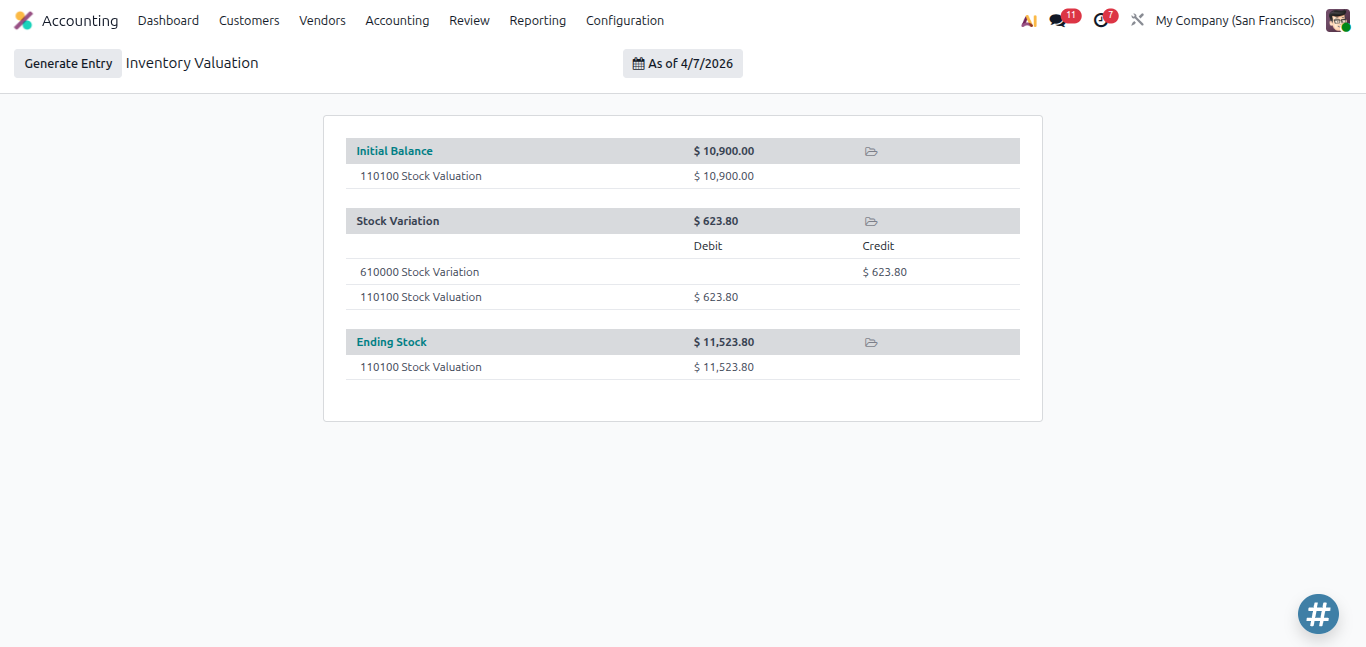
In the system it shows 190 qty of Television but in actual there is 200 qty, so there is difference of 10 qty. This 10 qty difference will be posted in the Stock Variation and Stock Valuation account.
| Field | Value |
| Quantity | +10 |
| Unit Cost | $57.62 |
| Value | $576.2 |
Valuation Entry:
| Account | Debit ($) | Credit ($) |
| Stock Variation Account | | 576.2 |
| Stock Valuation Account | 576.2 | |
Scenario 12 - Price Difference Between PO and Vendor Bill
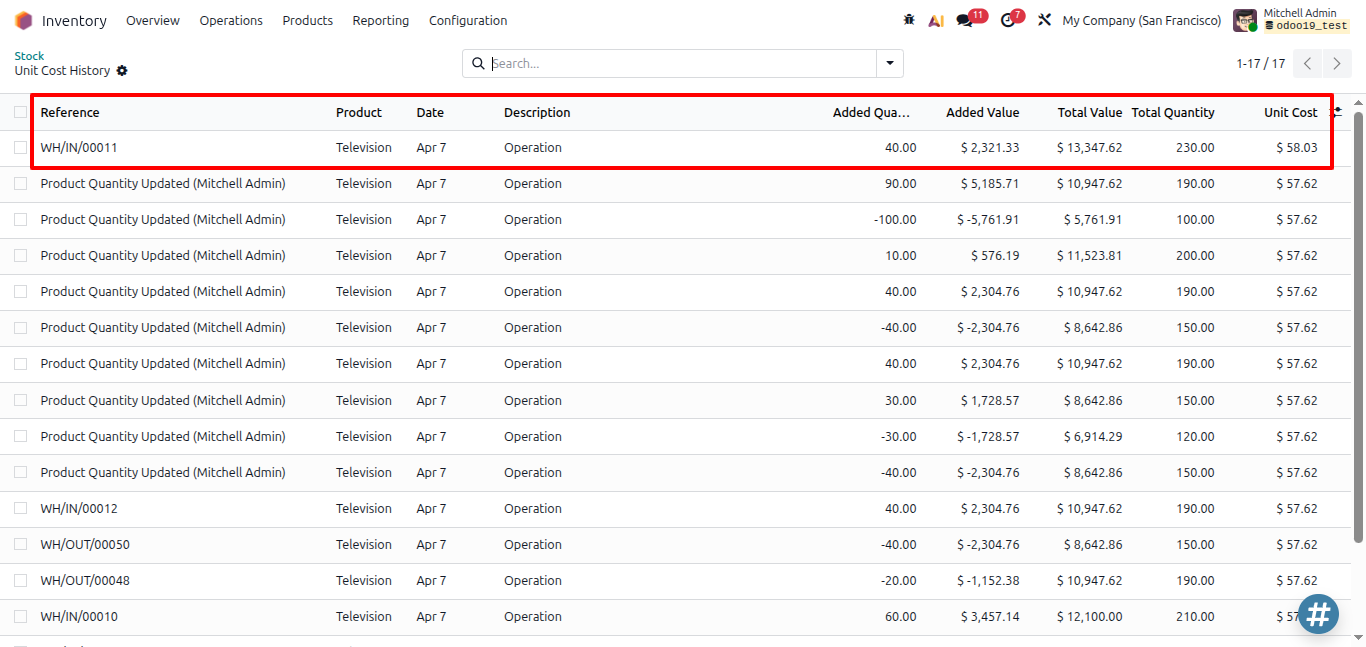
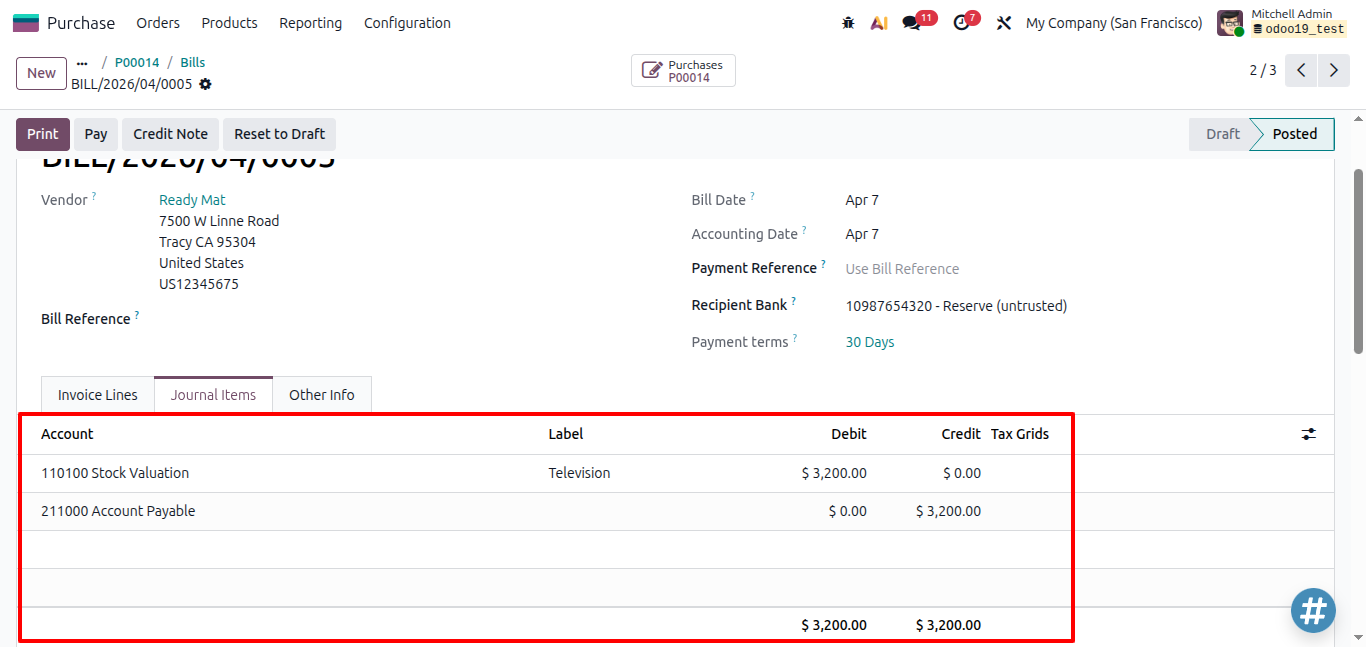
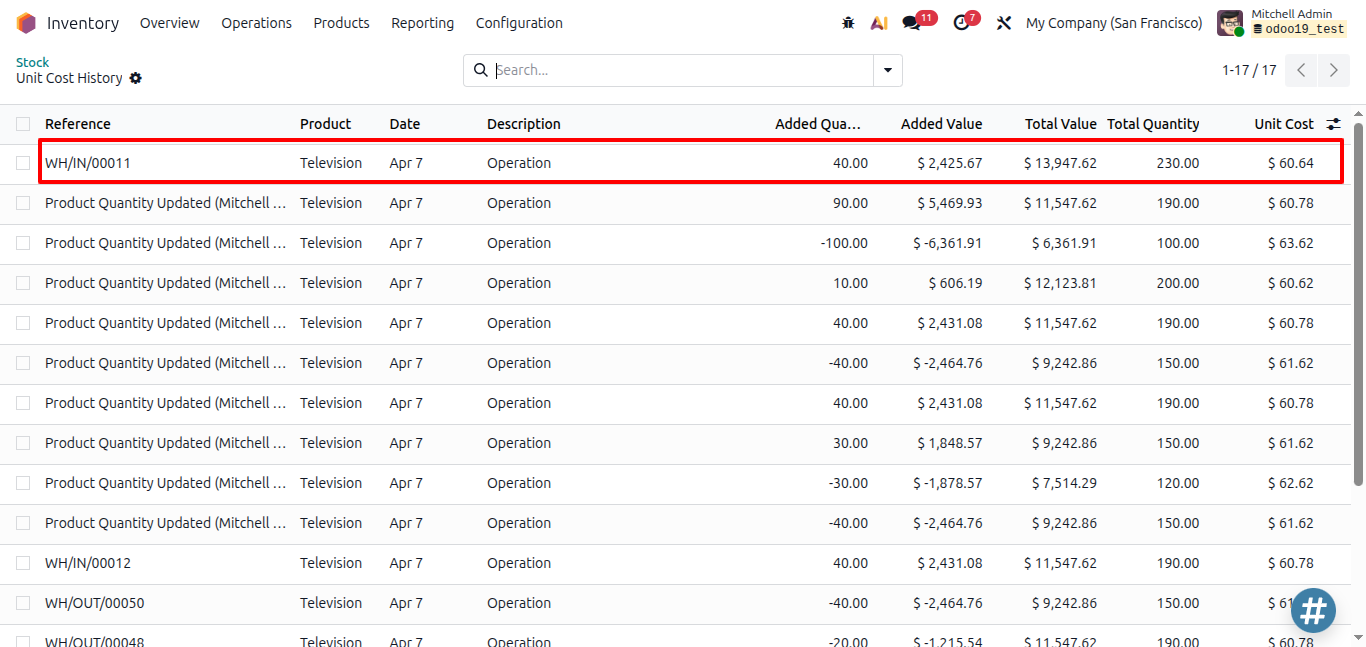
Sometimes the vendor sends a bill with a different price than what was on the Purchase Order. In this scenario, the PO Price Unit will be replaced by the Price Unit used in the Vendor Bill. The inventory will be recalculated based on the Vendor Bill Price Unit.
Eg.
In Purchase Order:
| Field | Value |
| Quantity | +40 |
| PO Price Unit | $60.00 |
| Value | $2,400.00 |
| Product Unit Cost | $58.03 |
Stock Move Valuation (Inventory side):
| Field | Value |
| Product | Television |
| Quantity | +40 |
| Unit Cost | $58.03 |
| Total Value | $2,321.33 |
In Vendor Bill:
| Field | Value |
| Quantity | +40 |
| Price Unit | $80.00 |
| Value | $3,200.00 |
| Product Unit Cost | $58.03 |
The Inventory Valuation Comparison View
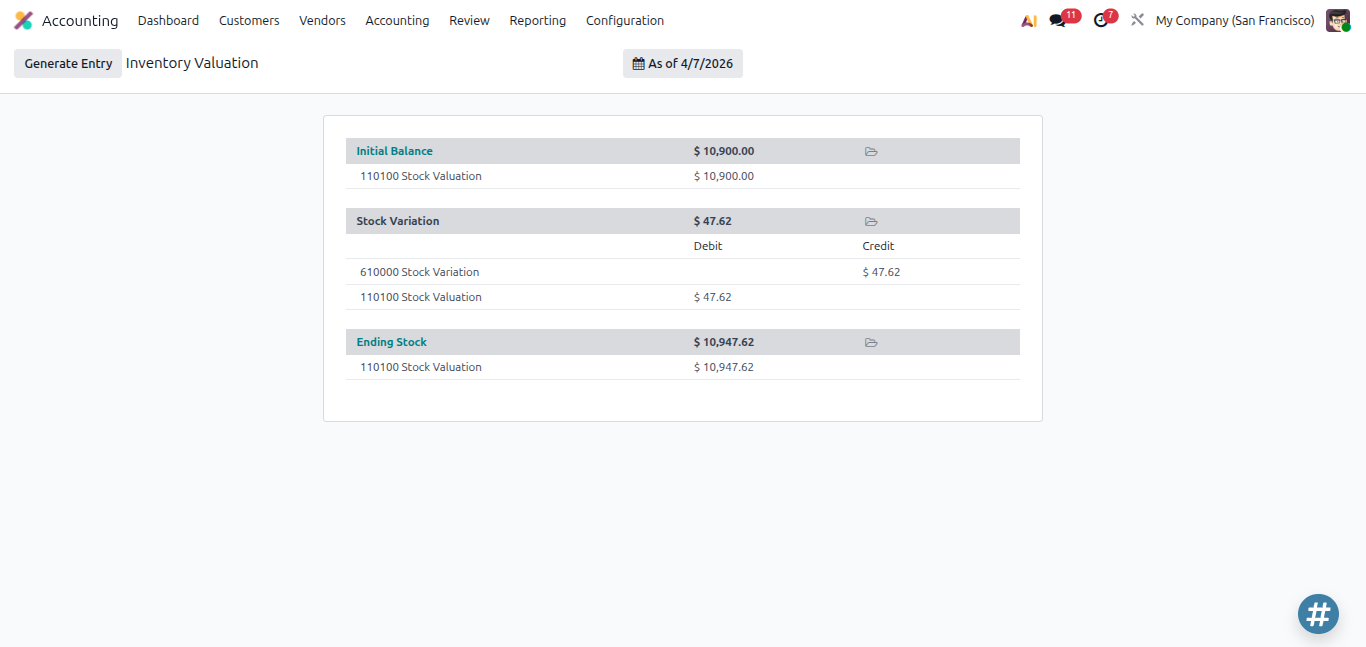
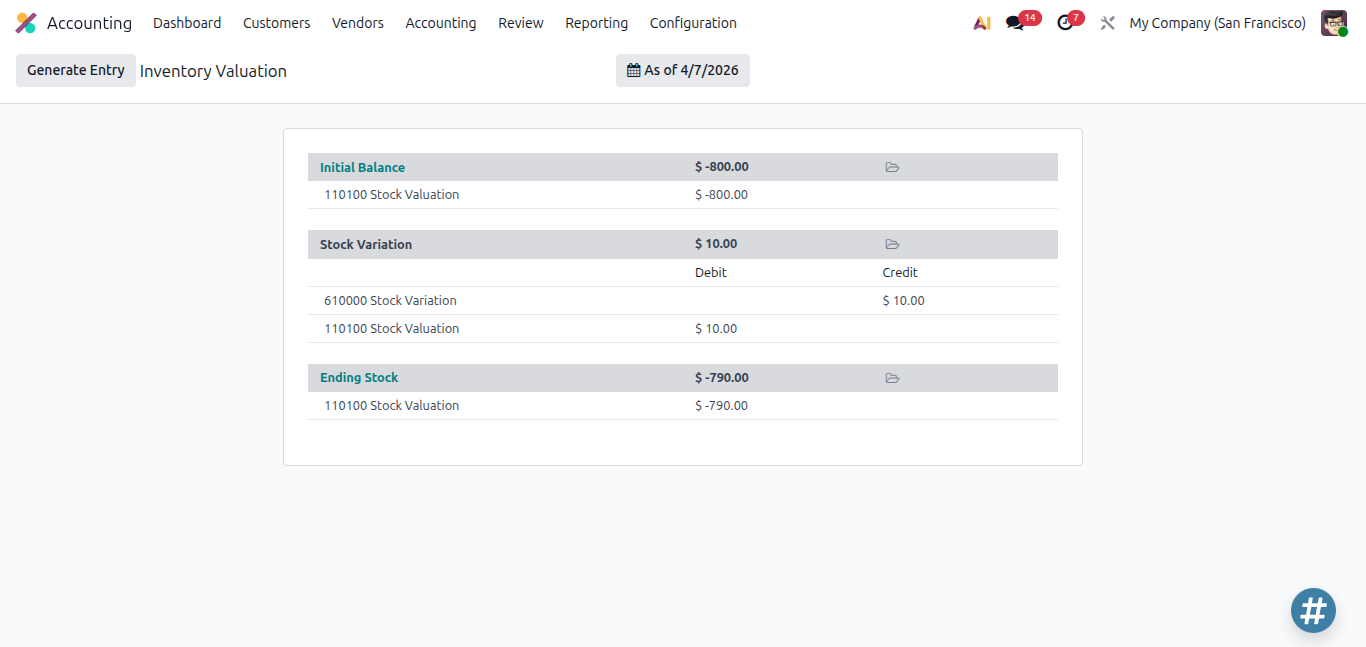
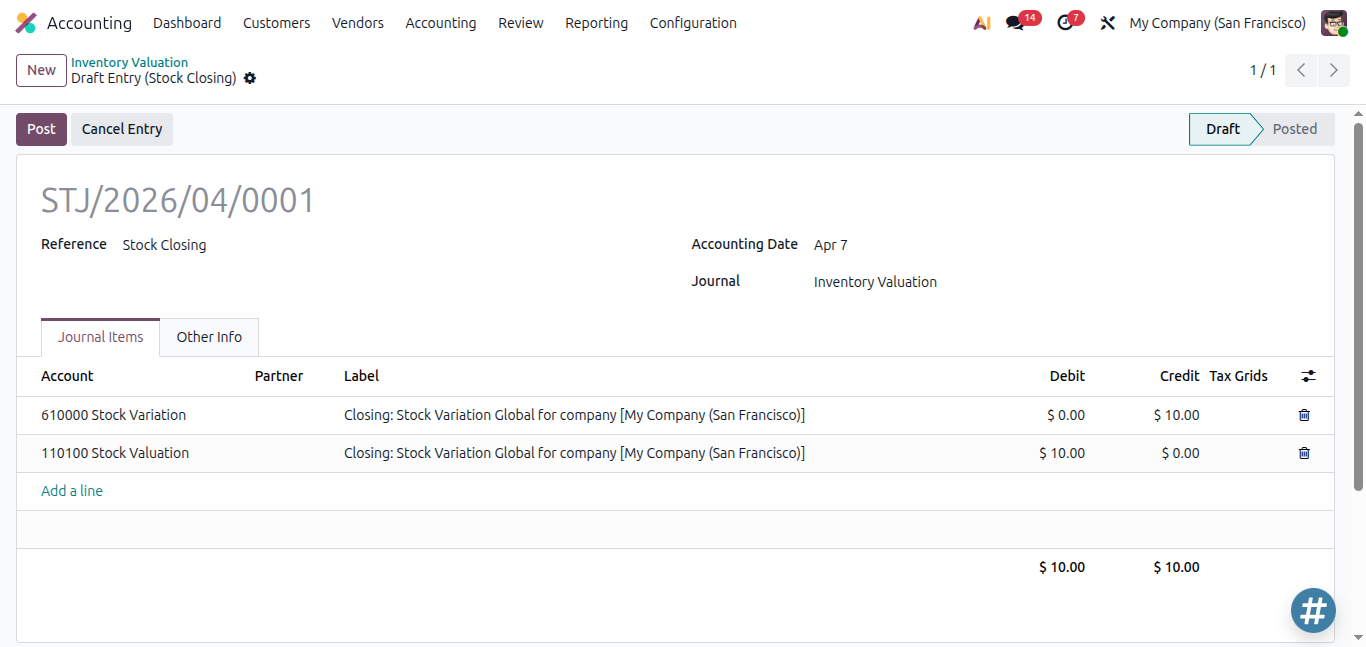
One of the most useful screens for accountants is Accounting > Review > Inventory Valuation. It shows two numbers side by side:
- Inventory Value (Ending Stock) - what the Inventory app sees based on all stock moves
- Accounting Value (Initial Balance) - what's recorded in the General Ledger based on posted bills and invoices
- Stock Variation - the difference between the two, representing transactions in transit
From this screen, click Generate Entry to create the closing journal entry that reconciles both sides. (It will be only available when there is difference in the Initial Balance and Stock Variation)
Adjusting Valuation After the Fact
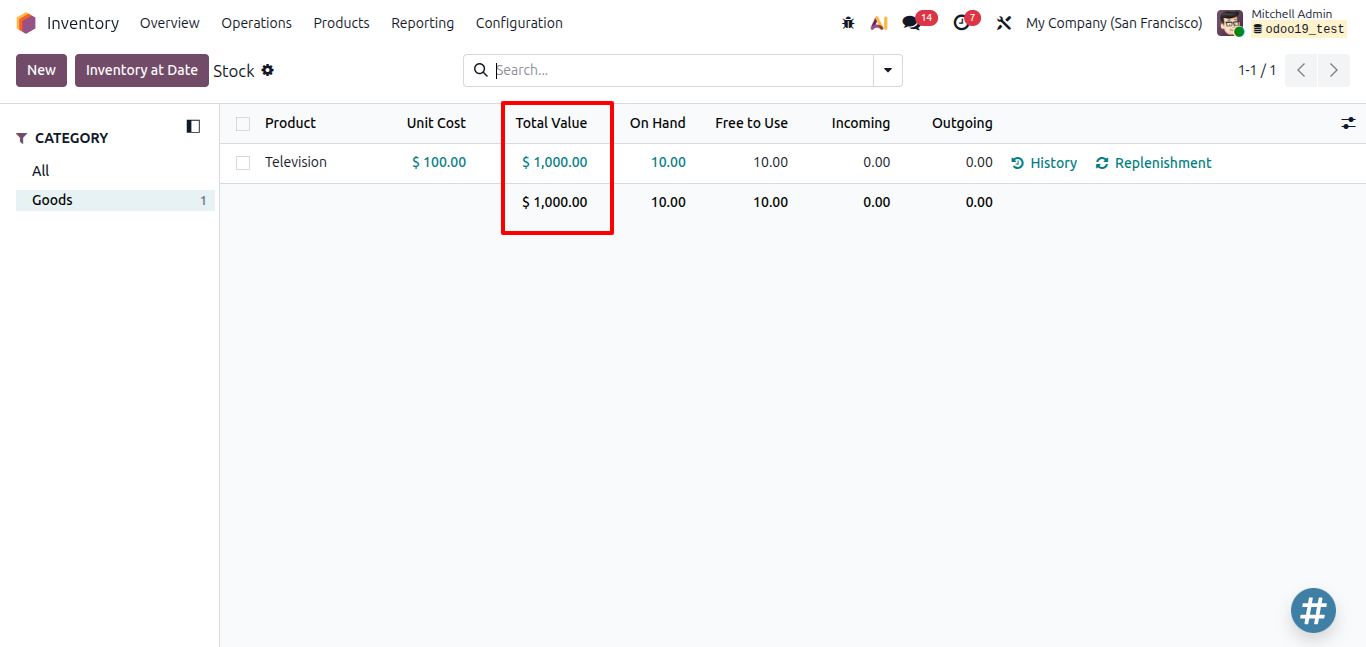
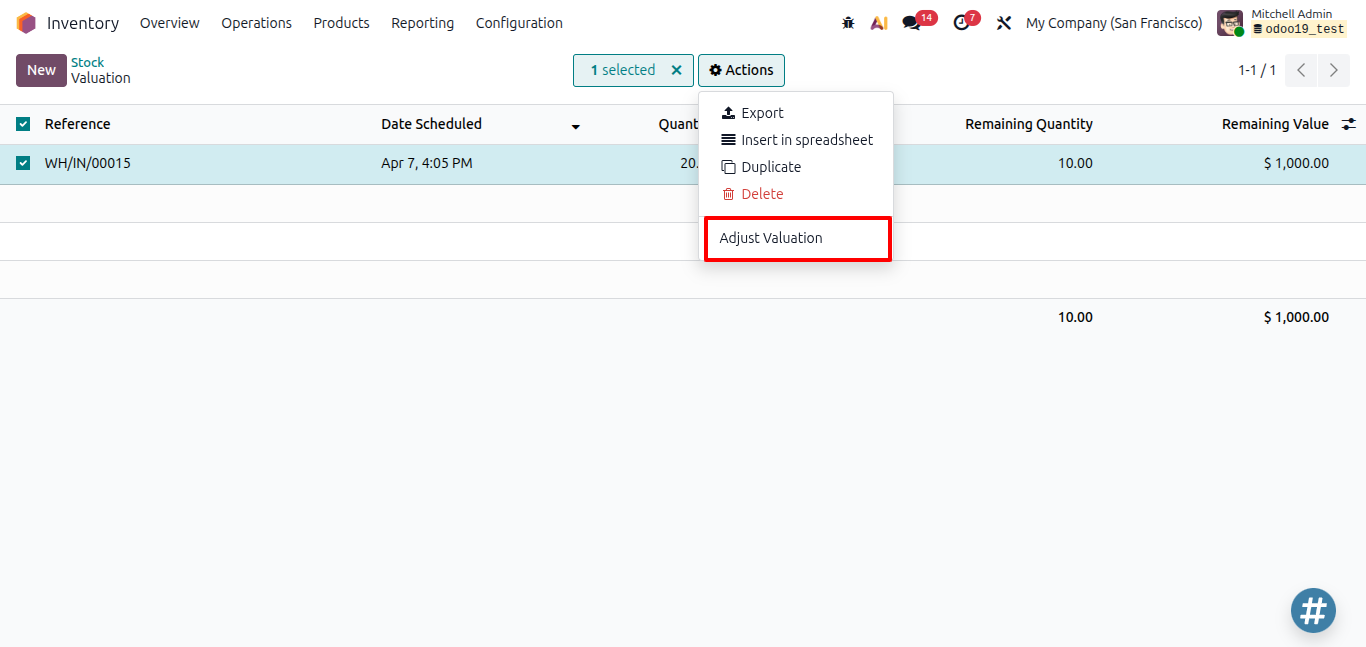
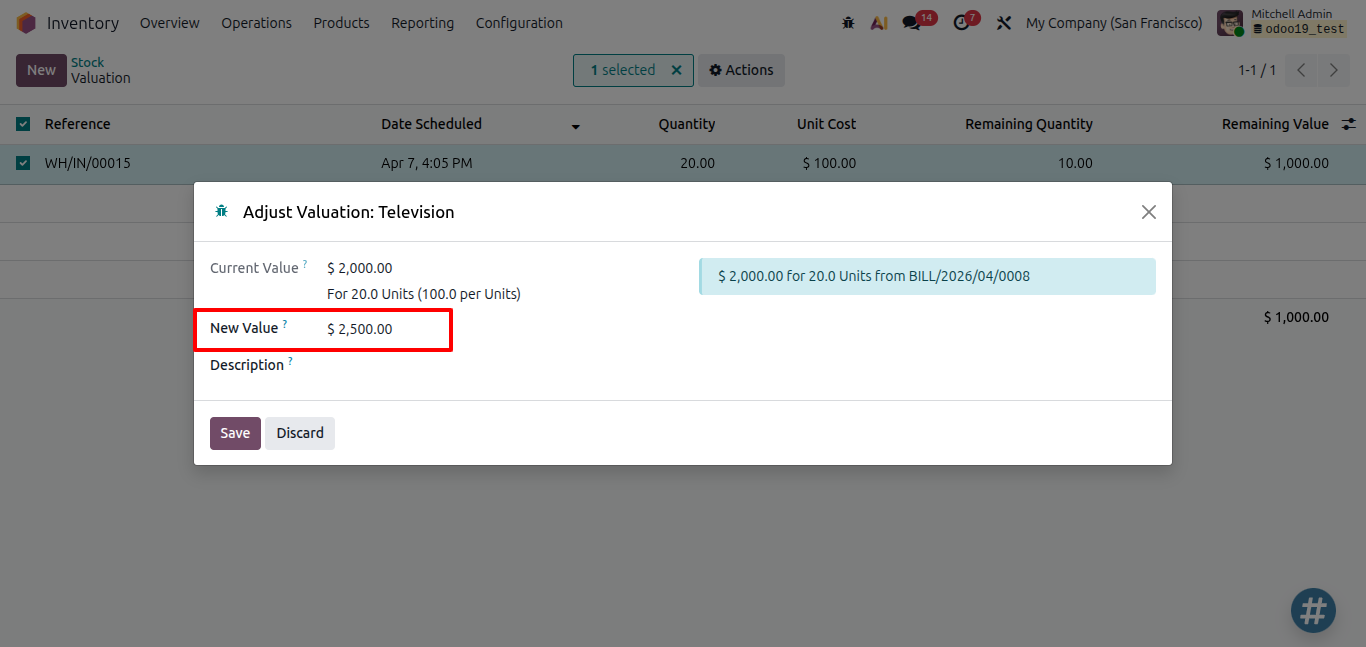
For AVCO and FIFO products, if you need to correct the cost of a past incoming stock move that still has remaining quantity, go to Inventory > Reporting > Stock. Click on a product's Total Value to see all incoming moves with remaining quantity. Select the moves you want to fix, click Actions > Adjust Valuation, enter the correct value, and save.
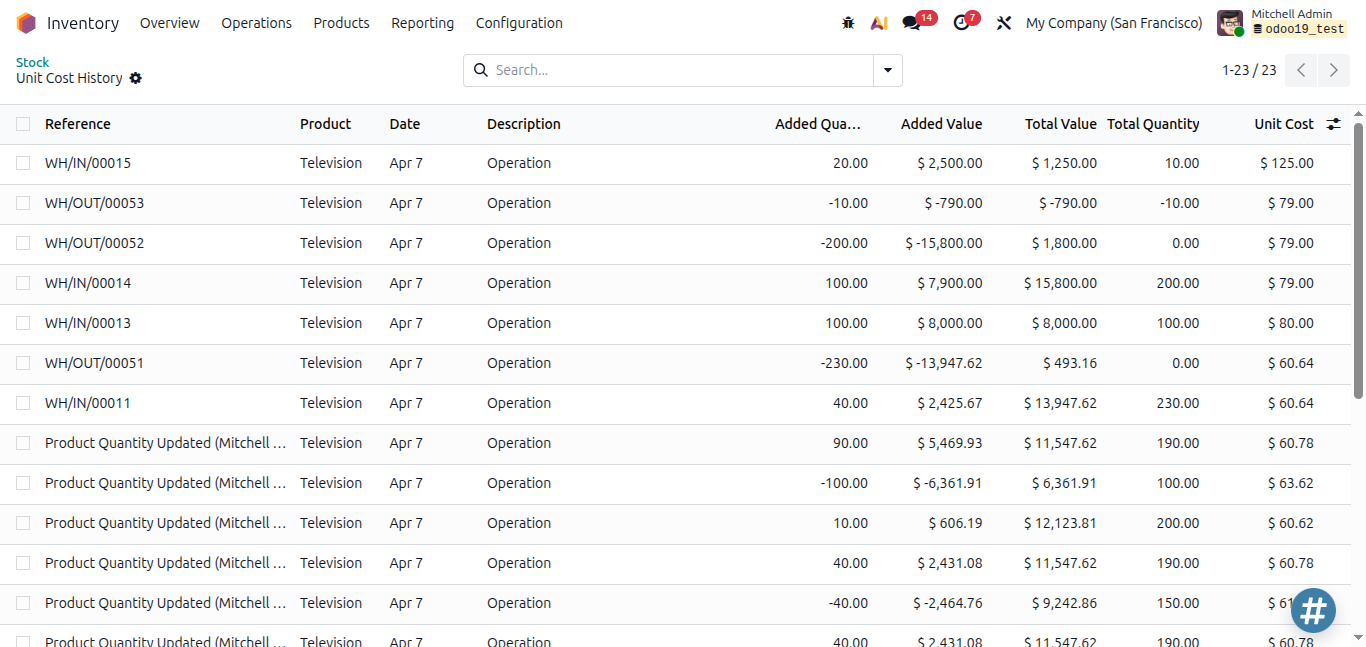
You can also review a product's unit cost history - go to Inventory > Reporting > Stock. Click on the Unit Cost field of the product to see how the value was calculated and what drove each change over time.
Conclusion
Inventory valuation in Odoo 19 is designed to be clear and low maintenance. The Inventory app always knows what's in your warehouse and what it's worth. The Accounting app stays in sync every time a bill or invoice is posted. The gap between the two - if there is one - is always visible in the Inventory Valuation comparison view in Accounting, so nothing is hidden or gets missed. With the right costing method, the right accounts, and a basic understanding of when entries are created, your financial reports will always reflect the true value of your stock - automatically and accurately.
FAQ
Does creating a Purchase Order update the product cost?
No. The cost only updates when a validated receipt is recorded (AVCO/FIFO) or when a vendor bill is posted (which triggers the accounting entry in Perpetual mode).
When is COGS recognized in Perpetual mode?
When the customer invoice is posted.
Does the Moving Average Cost (AVCO) change when you make a delivery?
No. AVCO only recalculates when new incoming stock arrives and the related bill is posted.
What if the vendor bill amount is different from the Purchase Order?
If the goods are still in stock, the valuation is corrected to match the bill amount and AVCO recalculates. If the goods have already been sold, the difference goes to COGS.
Where can I see the difference between my inventory value and my accounting value
Go to Accounting > Review > Inventory Valuation. This shows both values side by side with the variance, and lets you generate a closing entry to reconcile them.
What is the Variation Account used for?
In Periodic mode, the Variation Account temporarily collects all stock quantity changes that haven't been recorded in accounting yet. At period end, the closing entry clears this account and brings the books in line with the inventory.
What happens to inventory adjustments in Perpetual mode?
When you validate a physical inventory adjustment, Odoo automatically creates a journal entry - provided the Inventory Valuation Journal is configured on the product category. If the journal isn't set up, the validation will fail with an error.