Liferay DXP 7.4 SEO Features: A Guide to Built-In SEO Tools
Managing SEO for a Liferay website involves more than optimizing page content. Website teams also need to control how search engines discover pages, interpret page metadata, and identify preferred URLs. Liferay DXP SEO features provide built-in settings to manage these technical aspects directly within the platform.
Liferay organizes these capabilities across two main levels:
- Site-Level SEO: Manage global crawling rules through robots.txt and configure XML sitemaps for public pages.
- Page-Level SEO: Configure page titles, meta descriptions, canonical URLs, search result previews, and Open Graph metadata for social sharing.
Understanding these settings helps administrators and developers configure their websites more effectively and identify potential SEO issues.
This guide explores the built-in SEO features available in Liferay DXP 7.4, explains how to configure them, and highlights important considerations for managing your website's search visibility.
Understanding Liferay DXP SEO Architecture
Enterprise websites often have complex page hierarchies, multilingual content, and dynamic URLs. Without proper SEO configuration, search engines may encounter unnecessary URLs, struggle to identify preferred page versions, or waste crawl budget on content that adds little value to search results.
Liferay DXP 7.4 SEO provides built-in settings that help website teams manage these requirements at two levels:
- Site-Level SEO: Controls site-wide crawling rules through robots.txt and provides XML sitemap configuration to help search engines discover public pages.
- Page-Level SEO: Allows teams to configure page titles, meta descriptions, canonical URLs, indexing directives, and social-sharing metadata for individual pages.
These two levels serve different purposes but work together to support a consistent SEO strategy. Site-level settings establish the broader crawling configuration, while page-level settings provide more specific control over how individual pages are described and presented.
Understanding this distinction is important when configuring Liferay SEO settings, particularly for websites with multiple languages, complex page structures, or frequently updated content. Correct configuration should also be verified by checking the generated metadata, sitemap URLs, and crawling directives to ensure they reflect the intended settings.
For websites with more complex technical SEO requirements, enterprises may consider Liferay Consulting Services, which can help tailor specific needs and upscale the features.
Site-Level SEO: Configuring robots.txt and XML Sitemaps
Site-level SEO settings help manage how search engines crawl into a website and discover its public pages. Liferay DXP allows administrators to configure crawling rules and sitemap settings through the portal interface, reducing the need to edit server configuration files for these tasks.
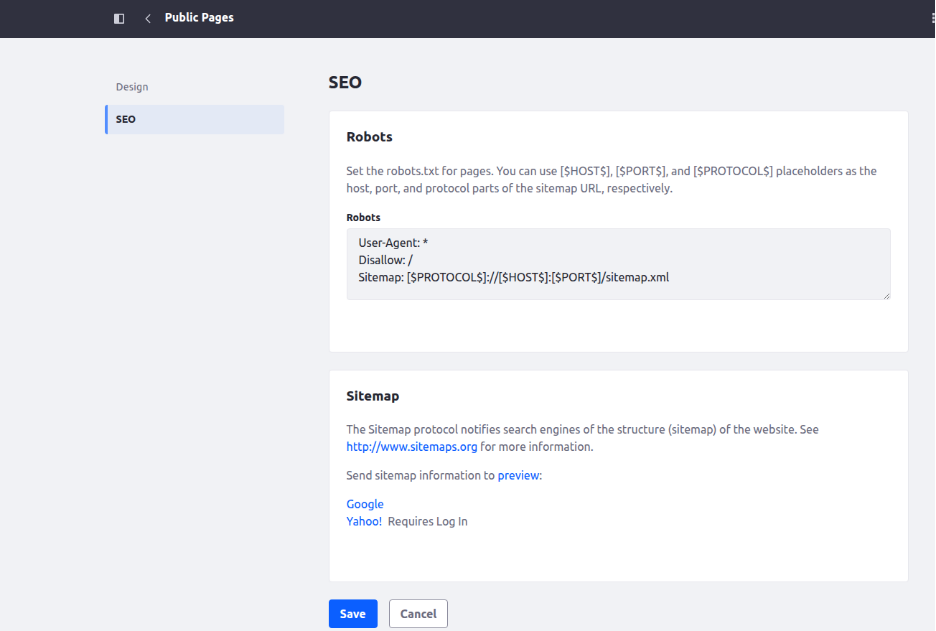
Accessing Public Pages SEO Settings
To access your site's global SEO settings:
- Open the Site Menu from the left-hand navigation.
- Go to Site Builder > Pages.
- Under Public Pages, click the Configure (gear) icon.
- Select the SEO tab.
Configuring robots.txt with Dynamic Variables
The Robots field allows you to configure the rules included in your site's robots.txt file. Liferay supports dynamic placeholders that help generate URLs based on the site configuration, rather than requiring domain details to be hardcoded.
- [$PROTOCOLS$] – Represents the site's protocol, such as HTTP or HTTPS.
- [$HOST$] – Represents the configured host or domain.
- [$PORT$] – Represents the port used by the site, where applicable.
These placeholders can help keep crawling rules consistent across different environments, provided the site's domain and port configuration is correct.
For example, a robots.txt configuration may include the following directives:
User-Agent: *
Disallow: /combo/
Disallow: /c/portal/
Sitemap: [$PROTOCOLS$] ://[$HOST$]: [$PORT$]/sitemap.xml
Review each Disallow rule before applying it to a production website to ensure that it does not block resources or pages that search engines need to access.
XML Sitemap Generation and Custom Sitemap URLs
Liferay supports XML sitemaps that help search engines discover public pages on a website. The sitemap configuration also provides options to preview the generated XML and make the sitemap available to search engines.
- Sitemap generation: Review the generated sitemap to confirm that it contains the intended public URLs.
- Sitemap preview: Use the available preview option to inspect the XML output before relying on it.
- Custom sitemap URLs: If your implementation uses an external sitemap or sitemap index, configure the appropriate sitemap URL in the Robots field, where supported by your Liferay version.
Although robots.txt can reference a sitemap, redirects are a separate configuration. If your website needs URL redirects, configure and verify them independently.
Configuring these Liferay DXP SEO features appropriately helps search engines discover the intended pages while keeping crawling rules aligned with your website's structure.
Page-Level SEO: Titles, Canonical URLs and SERP Preview
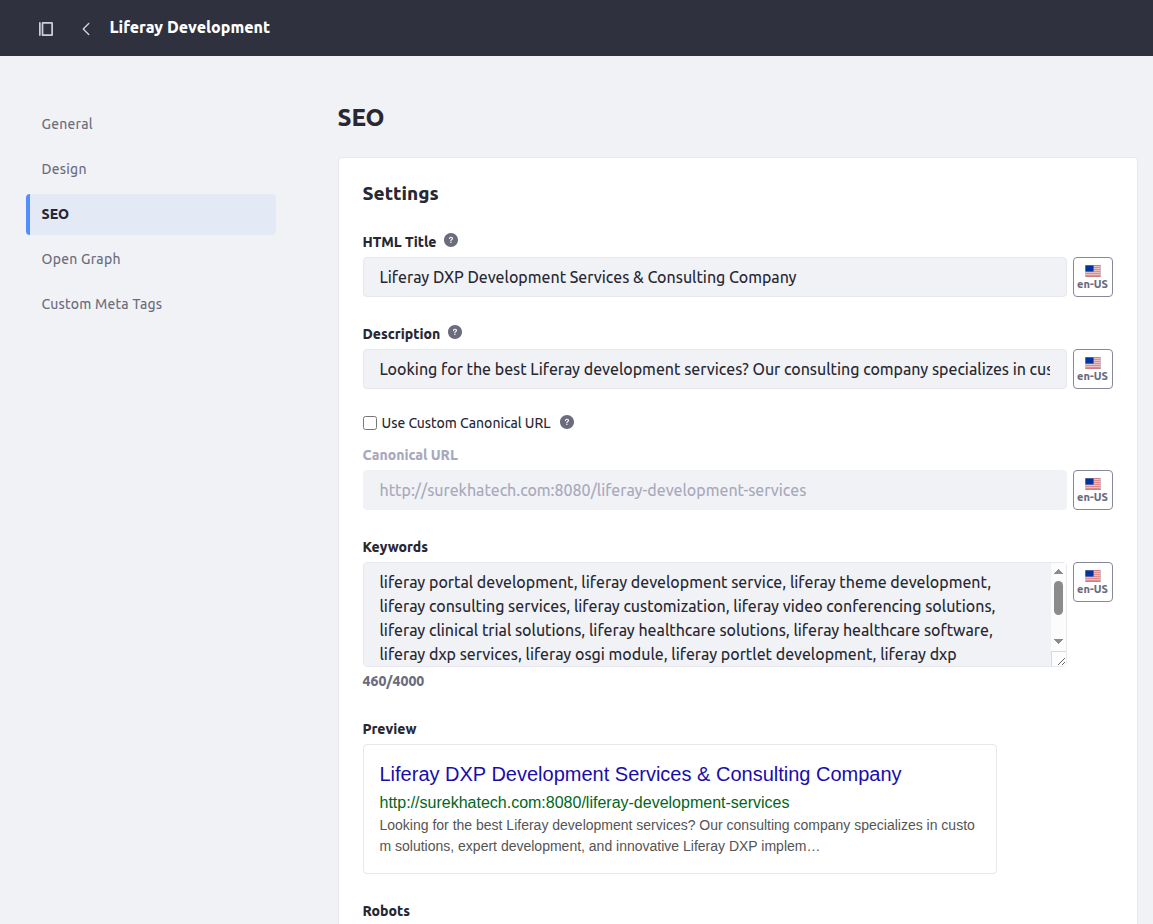
Liferay SEO configuration allows website teams to manage page titles, meta descriptions, canonical URLs, and other settings that help search engines understand individual pages and represent them in search results.
To configure SEO settings for a specific page:
- Go to Site Builder > Pages.
- Select the page you want to edit, such as an industry page or service page.
- Open the page settings and select the SEO tab.
HTML Titles and Meta Descriptions (Localized)
Page titles and meta descriptions provide search engines and users with information about a page's content.
- HTML Title: Write a clear, descriptive title that reflects the page's subject. Keeping around 50–60 characters is a useful guideline, although Google may display a different title or truncate it depending on the search result layout.
- Meta Description: Write a concise summary that accurately represents the page and encourages relevant users to visit it. Around 150–160 characters is a reasonable guideline, but Google may generate a different snippet from the page's content.
- Multilingual Support: Where supported by your Liferay configuration, use the language selector to provide localized titles and descriptions for the available languages.
Setting Custom Canonical URLs
The same or similar content can sometimes be accessed through multiple URLs, including those containing tracking parameters. Canonical URLs help indicate which version should be treated as the preferred URL.
- Default Behavior: Check the canonical tag generated by Liferay to confirm that it points to the intended URL. Its behavior may vary depending on the page type and configuration.
- Custom Canonical URL: Where supported, select Use Custom Canonical URL to specify the preferred URL. This can be useful when managing duplicate or substantially similar pages, provided the selected URL represents the intended canonical version.
A canonical tag is a signal rather than a guarantee. Search engines may select a different canonical URL based on other information available to them.
Keywords and Real-Time SERP Preview
Liferay's page SEO settings also include a keywords field and a search result preview to support content configuration and review.
- Keywords: You can enter relevant terms associated with the page's content. However, Google does not use the meta keywords tag as a ranking factor. Focus on incorporating relevant terms into the content, title, headings, and description.
- SERP Preview: Use the available search result preview to review how the title and description may appear before publishing. Treat it as a reference rather than an exact representation of Google's result, since Google may rewrite titles or generate different snippets.
When SEO requirements need to be considered alongside site architecture, page configuration, and implementation decisions, Liferay Development Services can be relevant to the broader process of setting up and configuring a Liferay website.
Fine-Tuning Page Indexation: Robots Directives and Sitemap Settings
After configuring page-level SEO, the next step is to determine which pages should be available for indexing, and which URLs should be included in your XML sitemap. Liferay provides page-level settings to manage these requirements, helping website teams align their SEO configuration with each page's purpose.
Page-Specific Robots Directives (noindex / nofollow)
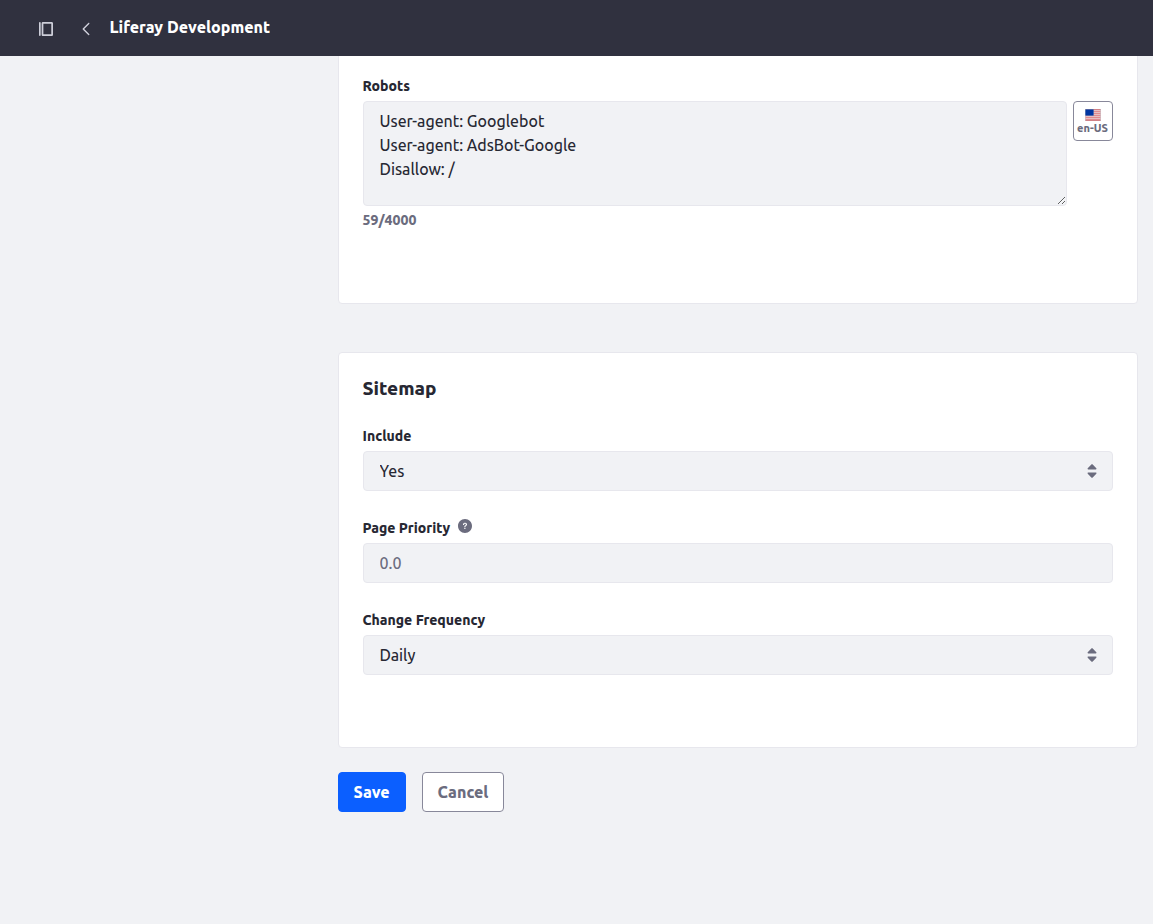
The Robots field in the page's SEO settings allows you to specify directives that guide search engines in handling individual pages.
- Control Indexing: Use noindex when a public page should not appear in search results, such as a thank-you page or an internal search results page, where appropriate. The page must remain crawlable for search engines to detect the noindex directive.
- Control Link Following: The nofollow directive indicates that search engines should not follow links on the page. Use it only when this behavior is intended, as it differs from preventing a page from being indexed.
- Manage Snippets: Directives such as max-snippet can help control the amount of text displayed in search snippets. Check current search-engine support before relying on a particular directive.
You may apply these settings according to the purpose of each page rather than used as a blanket rule for all low-priority content. They are particularly relevant when managing Liferay page indexing across websites with different content types and visibility requirements.
Sitemap Inclusion, Priority and Change Frequency
Liferay's page-level SEO settings also provide options for controlling sitemap inclusion and, where supported, configuring sitemap priority and change frequency.
- Include in Sitemap: Select Yes for public pages that should be discoverable through the sitemap. Select No for pages that should be excluded, based on their purpose and SEO requirements. Excluding a URL from a sitemap does not, by itself, prevent search engines from indexing it.
- Page Priority: Where available, this setting accepts values between 0.0 and 1.0 to indicate a page's relative priority within the sitemap. However, Google ignores this value when determining crawling priority or rankings.
- Change Frequency: Where supported, this setting indicates how frequently a page is expected to change. Google ignores the changefreq value, so it should not be treated as a way to schedule Googlebot visits.
For effective sitemap management, focus on including the appropriate canonical URLs and ensuring that the sitemap reflects the website's current public content. Accurate last-modified information, when supported, can also help search engines understand when a page has changed.
Open Graph (OG) Settings: Optimizing Social Sharing Previews
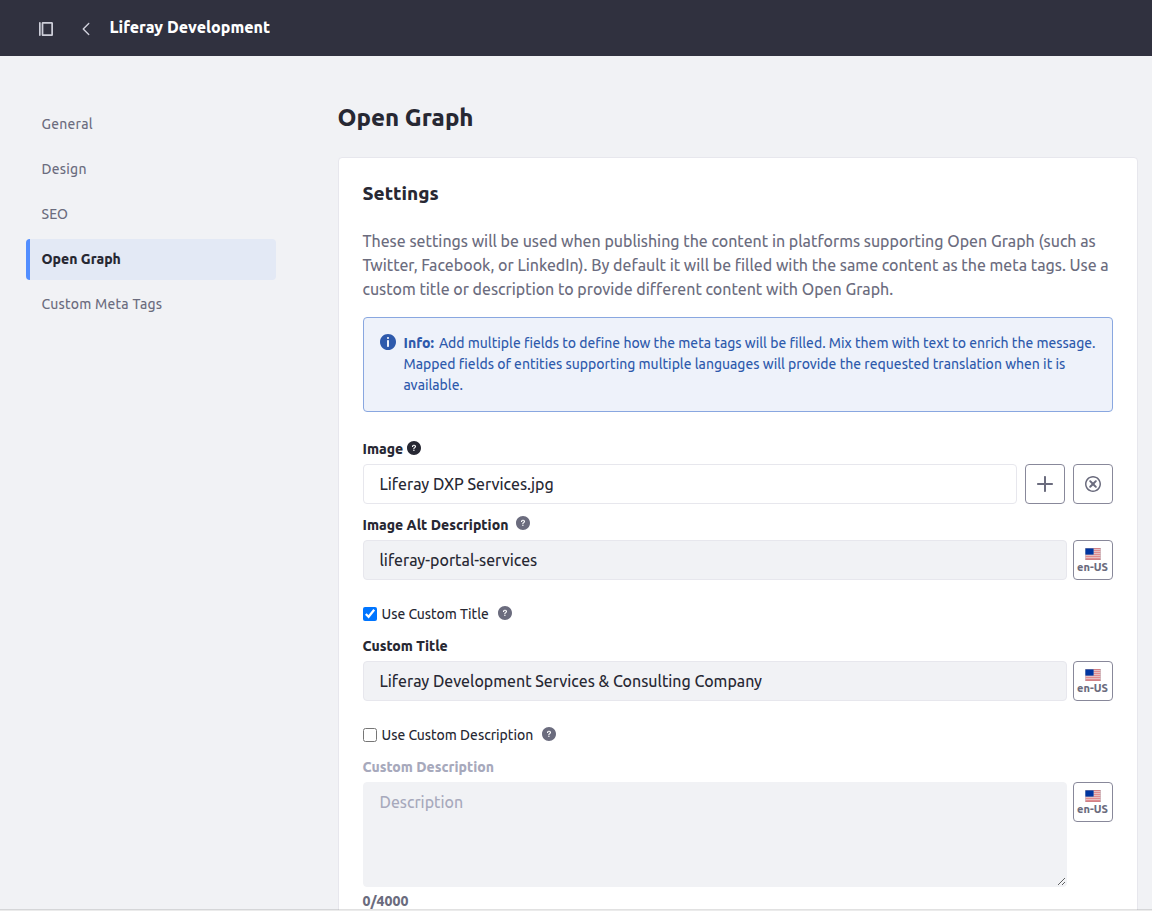
When a page is shared on platforms such as LinkedIn, Facebook, or X, Open Graph (OG) metadata helps determine how its preview appears. These settings allow you to define the title, description, and image displayed when someone shares a link, making the content easier to recognize and understand.
Configuring Open Graph Settings
To configure social sharing metadata for a page:
- Go to Site Builder > Pages and select the page you want to edit.
- Open the page settings and select the Open Graph tab, where available.
Featured Social Image and Alt Description
- Featured Social Image: Select an appropriate image from Documents and Media for the page's social sharing preview. An image size of approximately 1200 × 630 pixels, with an aspect ratio of 1.91:1, is a useful general guideline for social sharing.
- Image Alt Description: Add a meaningful image description where the field is available. This supports accessibility, though social platforms use image descriptions differently.
Choose an image that clearly represents the page's content and remains recognizable when displayed in a social feed.
Custom Titles and Descriptions for Social Sharing
Liferay may use the page's existing SEO metadata as the default for social sharing. Where supported, you can configure separate Open Graph titles and descriptions to better suit the context in which the content is shared.
- Custom Title: Use a concise, descriptive headline that communicates the page's subject.
- Custom Description: Write a summary that gives readers a reason to open the link without making claims that the page does not support.
- Multilingual Support: Where available in your Liferay configuration, provide localized Open Graph titles and descriptions for the relevant languages.
Review the generated metadata and test the shared URL on the intended platforms where possible. Social platforms may interpret or cache metadata differently, so the final preview may not always match the configured fields exactly.
Verifying Liferay SEO Settings Before Publishing
Configuring SEO settings is only part of the process. Before publishing changes, review the generated output to confirm that search engines can interpret your pages as intended.
- Check Canonical URLs: Confirm that each page's canonical URL points to the intended preferred version.
- Review Crawling Rules: Ensure that the robots.txt file does not block important pages or resources that search engines need to access.
- Validate XML Sitemaps: Check that the XML sitemap includes the intended public URLs and does not contain unintended entries.
- Test Metadata: Review page titles and meta descriptions and check Open Graph previews to confirm that the information appears as expected after publishing.
These checks can help identify configuration issues early and keep your website's SEO settings aligned with its content and structure.
Conclusion
Effective SEO requires more than adding keywords to page content. It also depends on how search engines crawl, interpret, and display your website's pages. The Liferay DXP SEO features covered in this guide provide built-in controls for managing crawling rules, XML sitemaps, page metadata, canonical URLs, indexing directives, and social-sharing previews.
By configuring these settings carefully and verifying their output, website teams can address common technical SEO issues and maintain better control over how their content appears in search results. Regular reviews are equally important as pages, URLs, and website structures evolve.
Need Hands-On Help with Your Liferay SEO?
Getting the most out of your Liferay DXP portal requires balancing technical architecture, crawl efficiency, and search performance. At Surekha Technologies, our certified Liferay experts provide technical SEO audits, architecture optimizations, and seamless portal migrations.
Contact Us for a Complete Liferay Technical SEO Consultation →
Frequently Asked Questions
Where can I find global and page-level SEO settings in Liferay DXP 7.4?
Global SEO settings are available under Site Builder > Pages > Public Pages > Configure > SEO, where you can manage crawling rules and sitemaps. Individual page settings are accessible through Page Settings > SEO.
How do dynamic placeholders work in Liferay's robots.txt?
Placeholders such as [$PROTOCOLS$], [$HOST$], and [$PORT$] represent the site's protocol, host, and port. They help generate URLs dynamically, reducing the need to hardcode domain details across environments.
When should I use a custom canonical URL in Liferay DXP?
Use a custom canonical URL when the same or similar content is accessible through multiple URLs. It signals to search engines which URL is preferred, although search engines may select a different version.
What happens if I don't configure Open Graph settings in Liferay DXP?
Without dedicated Open Graph metadata, social platforms may use other available page metadata to generate link previews. Configuring a suitable image, title, and description gives you more control over how shared content appears.
Can I exclude specific pages from the XML sitemap in Liferay DXP?
Yes. Where supported, set Include in Sitemap to No in the page's SEO settings. This excludes the URL from the sitemap but does not, by itself, prevent search engines from indexing it.