Managing e-commerce or retail operations is a balancing act of speed and accuracy. In the warehouse, every second counts. Yet, many businesses still suffer from print workflows that require multiple manual clicks. Research shows that maintaining a shipping error rate below 1% is vital to control operational costs. When your team has to download a PDF report, open a browser viewer, select a local printer, and click confirm for every order, fulfillment slows down.
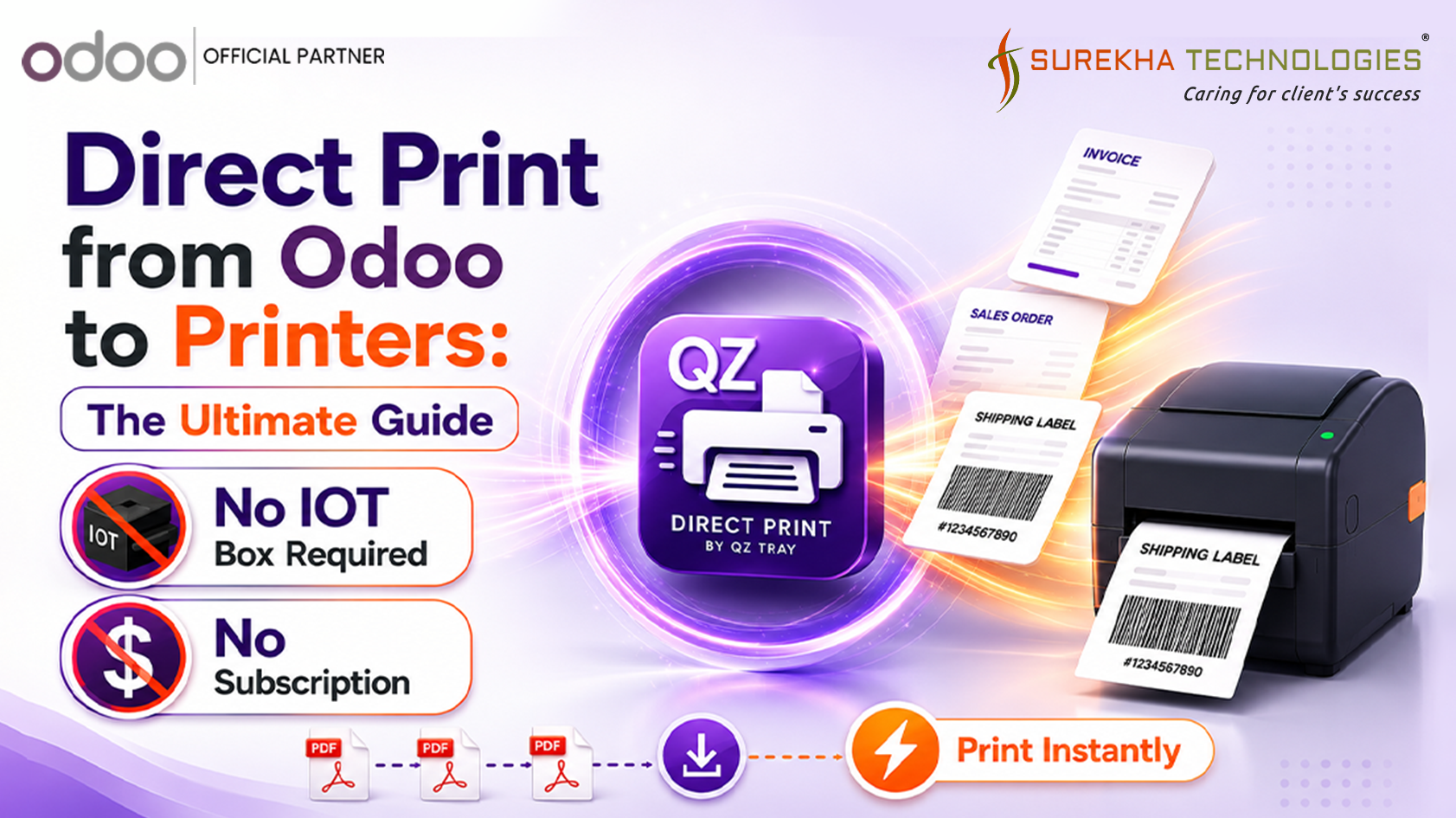
Direct printing from Odoo bypasses these steps entirely. This guide walks you through setting up direct print workflows using the QZ Tray connector. You will learn how to eliminate manual steps, avoid expensive hardware, and secure your printing network.
Download the Direct Print by QZ Tray Module from Here
Why Do Manual PDF Downloads Slow Down Your Business?
Can manual printing steps hurt your bottom line? A shipping accuracy target for competitive e-commerce should remain below 1% to keep overheads low. Standard browser printing requires downloading and manually opening a PDF, creating critical data gaps and limiting warehouse throughput.
When you print documents in a default Odoo setup, the system downloads a PDF file to your local computer. Consequently, employees must open each file and print it manually. If your business processes hundreds of daily orders, this extra step creates a major bottleneck.
Manual document processing is a major source of operational errors in modern logistics. A single labeling mistake can misroute packages, stall deliveries, and result in severe marketplace chargebacks. Studies show that 60% to 80% of customers will not return to a store after experiencing a single poor delivery experience.
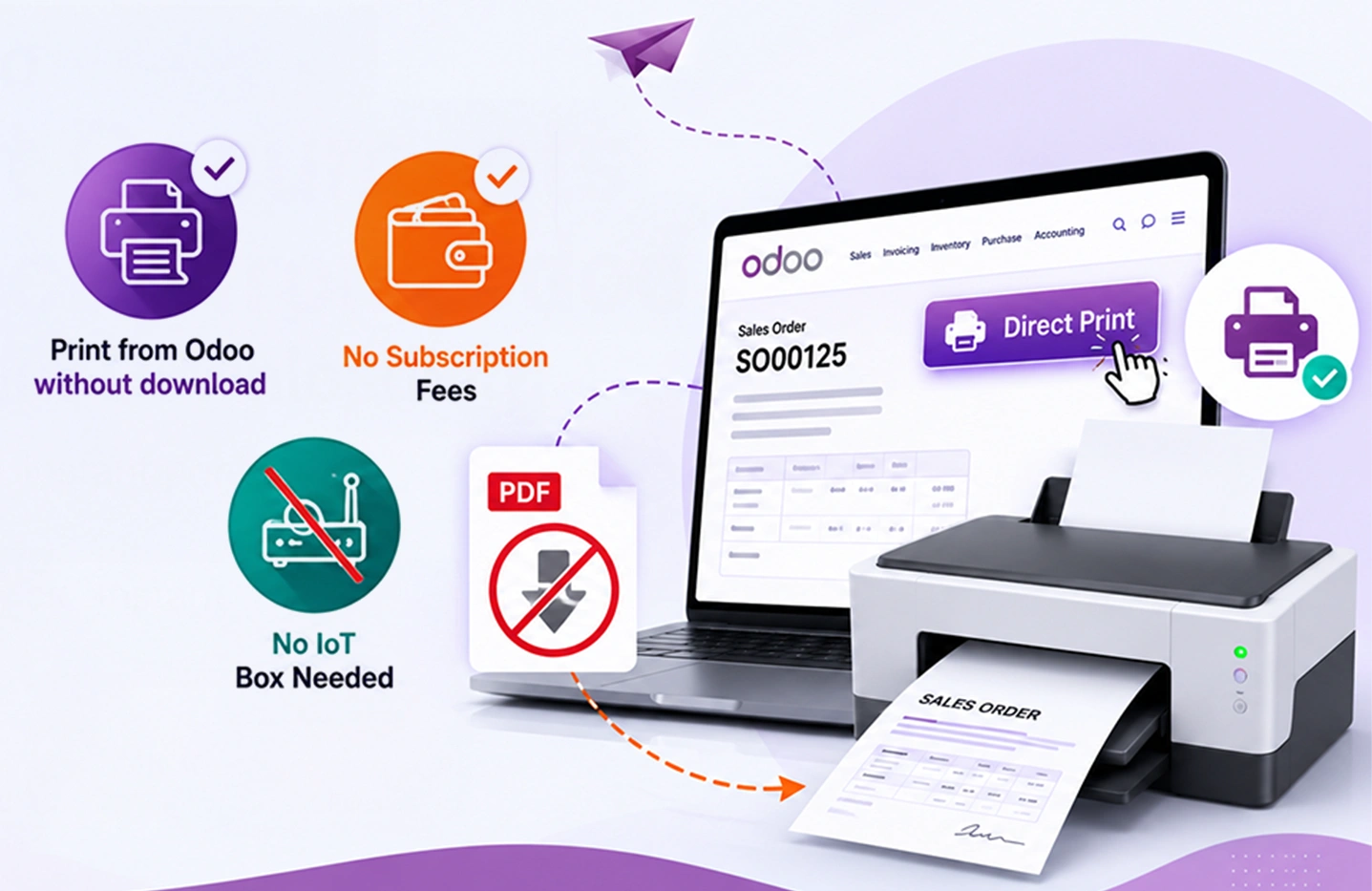
Direct printing automates the transfer of documents from Odoo to local devices, minimizing human error and protecting customer lifetime value. Automated print workflows ensure that orders are labeled accurately and shipped without delay.
Citation Capsule
Standard browser workflows force workers to manually download and print reports, increasing operational delays. Since 60%–80% of customers abandon retailers after one delivery issue, eliminating manual print steps is critical to protect customer lifetime value.
Feature & Cost Comparison
| Feature/Cose | Odoo IOT Box | QZ Tray Direct Print |
| Monthly Subscription | $30.00 / Device | $0.00 |
| Setup Complexity | High | Low |
| Silent Printing | Supported | Supported |
| Hardware Required | Yes | No |
| Hardware Cost | $100-$120 | $0 (runs on existing Systems) |
| Multi-Printer Support | Limited | Flexible |
| Broswer Integration | Limited | WebSocket-based |

How Does the Direct Printing Workflow Function?
How can you speed up your printing process? Logistics research shows that automated print interfaces reduce manual label generation time from hours to minutes. Direct printing sends files immediately to local hardware when a user clicks print in Odoo, bypassing the download step.
The Odoo direct print integration uses a clear, step-by-step process:
- The user clicks the print button on an invoice or sales order.
- Odoo generates the PDF report on the server.
- A custom JavaScript widget intercepts the action instead of downloading the file.
- Odoo sends the print data directly to QZ Tray.
- QZ Tray routes the document to your designated physical printer immediately.
The label or invoice prints immediately, without showing a print dialog. Consequently, the silent print mode executes print triggers automatically.
The Architecture of QZ Tray: How the Direct Print Engine Functions
How does the direct printing engine operate locally? The QZ Tray architecture solves this by acting as a native background service that bridges Odoo sessions with the local operating system's print spooler.
Web browsers are designed with strict security sandbox rules that prevent web applications from accessing local hardware including USB, serial, or network printers without user consent. Because of this sandbox, Odoo cannot talk to local printers directly from the cloud. Therefore, a local printer daemon is required to communicate with local hardware.
QZ Tray is a lightweight, cross-platform printing service that runs as a background application on the user's local operating system. Its architecture acts as an intermediary, receiving print instructions from Odoo and translating them into raw commands or pixel data for the local printer. The software uses a Java runtime environment to communicate directly with local printer queues via native operating system APIs. By running a local printing service, companies can route invoices and labels immediately to desktop thermal or laser printers, bypassing browser print dialogs entirely.
What is a WebSocket?
A WebSocket is a communication protocol that provides full-duplex communication channels over a single TCP connection. QZ Tray utilizes this protocol to bypass browser sandboxes by creating a local connection on port 8181 (secure HTTPS) or port 8182 (HTTP). This allows Odoo web pages to interact directly with local hardware without user prompts.
How Do You Set Up QZ Tray on a Local Machine?
Is local printer setup complex for web applications? Studies indicate that up to 5.8% of parcels encounter fulfillment delays due to labeling issues. Installing the free QZ Tray client on your local computer addresses this by allowing your operating system to share printer access directly.
Installation Steps
- Download the installer for your operating system from the official QZ Tray website. The application is free and open-source, supporting Windows, macOS, and Linux.
- Download from here: https://qz.io/download/
- Run the installer and follow the prompts. Once installed, the QZ Tray icon appears in your system tray.
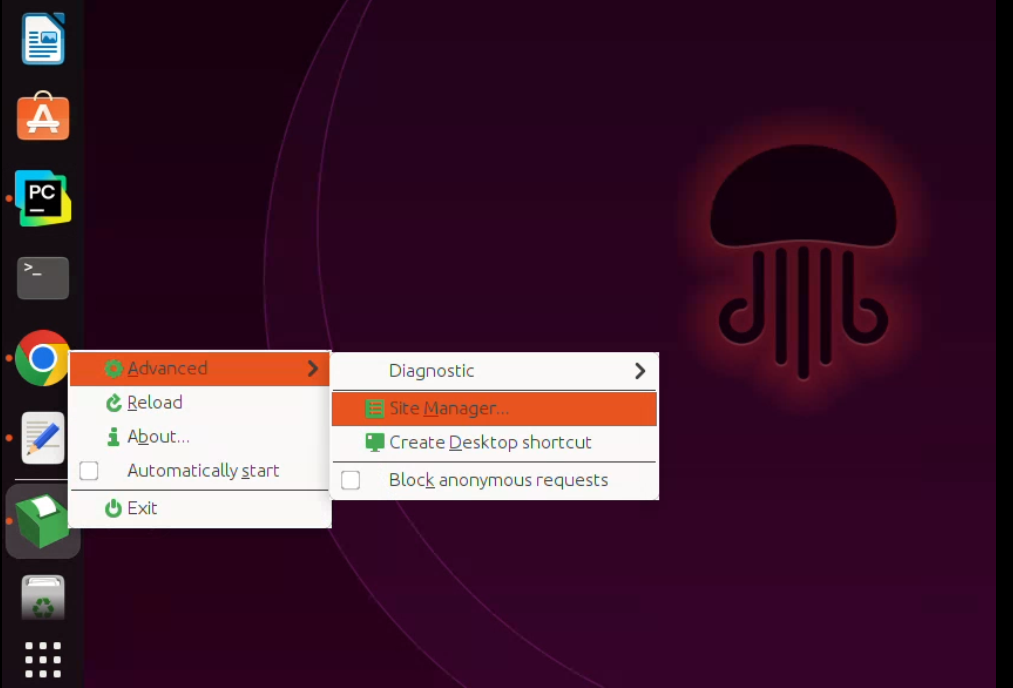
- Ensure that the service starts automatically. Right-click the system tray icon and check the startup options. This ensures that the WebSocket server is always ready when you log into Odoo.
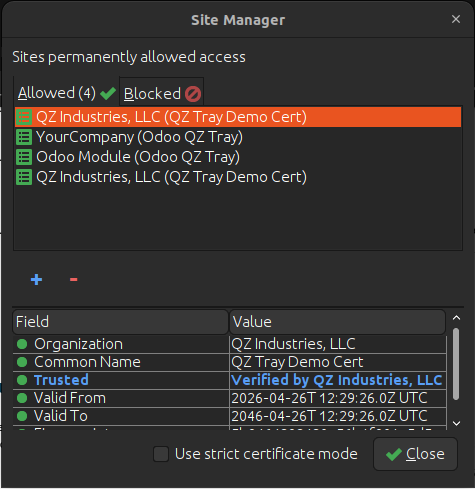
- To handle secure print requests, open the QZ Tray menu, navigate to Advanced, and select Site Manager. Generate a new pair of security keys and save these files you will need to add them to Odoo.
How Is the Odoo Direct Print Module Configured?
Can we simplify printer configuration in Odoo? Predictive logistics research shows that machine learning models can classify shipping delays with over 88% accuracy using operational data (IEEE, 2023). Configuring the Odoo module allows managers to register device for MAC addresses and set up certificate values in user preferences.
Module Installation
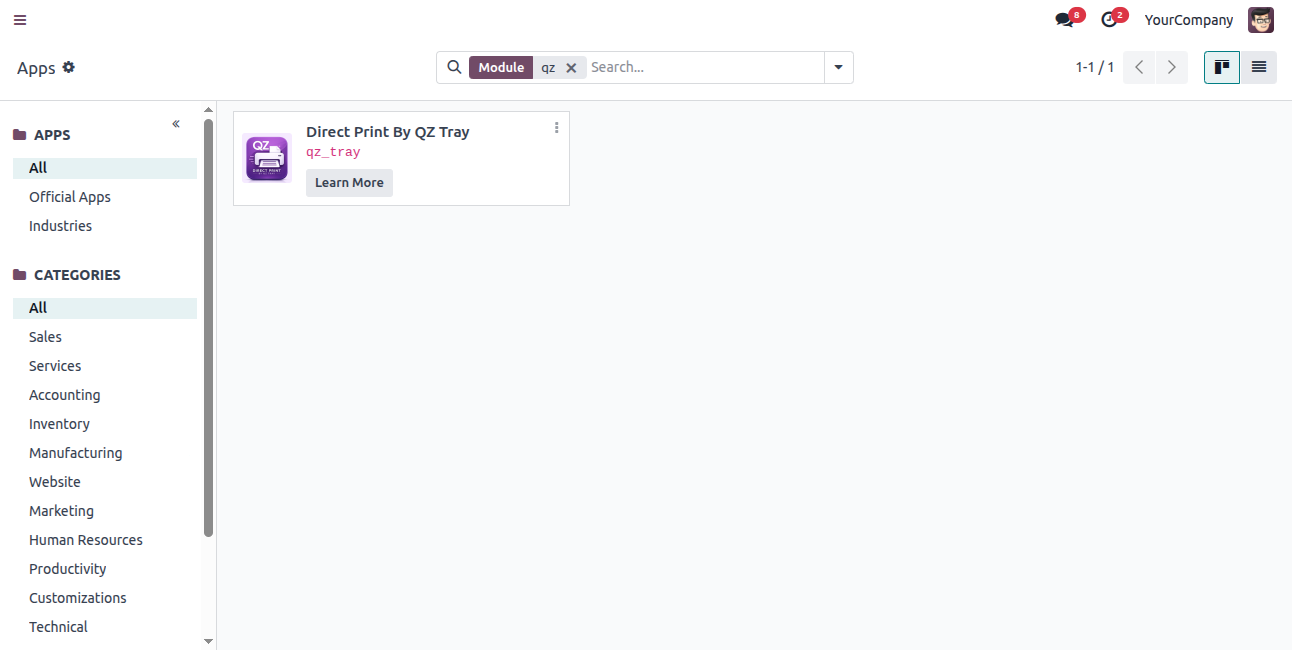
- Click on the Link below to go to Direct Print by QZ Tray in Odoo Marketplace.
- Link: Direct Print by QZ Tray
- Download the module and install module
Certificate Configuration
- Navigate to User Preferences and open the QZ Tray configuration tab. Click to register the local machine. Odoo automatically captures the device's MAC address and links it to the active session.
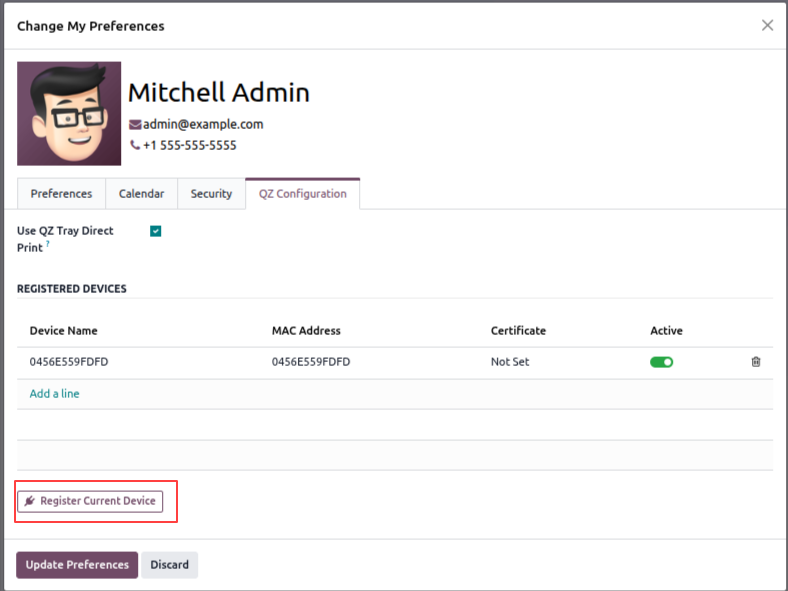
- Paste your digital certificate and private key files in the user preferences tab to ensure all communication is signed.
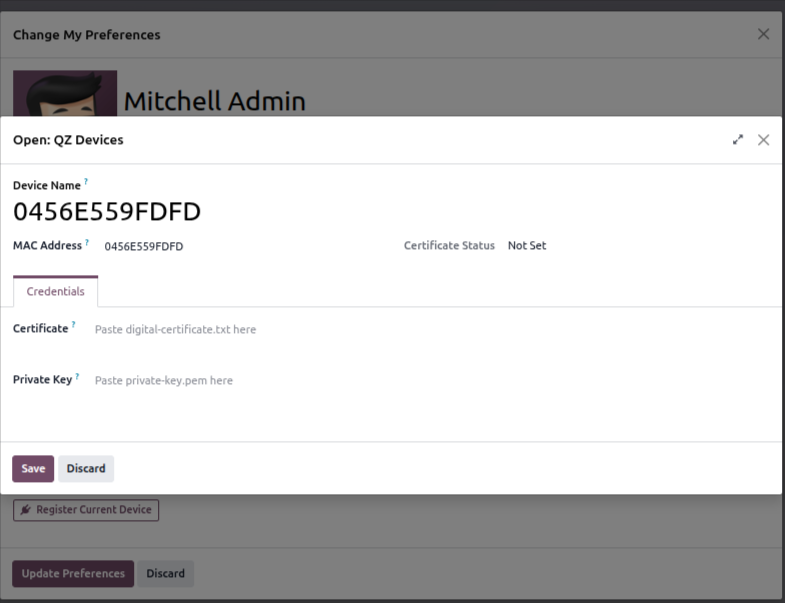
- Enable QZ Tray in your user preferences, select your printer, assign it to report types, and you're done. Every print action now goes straight to your printer.
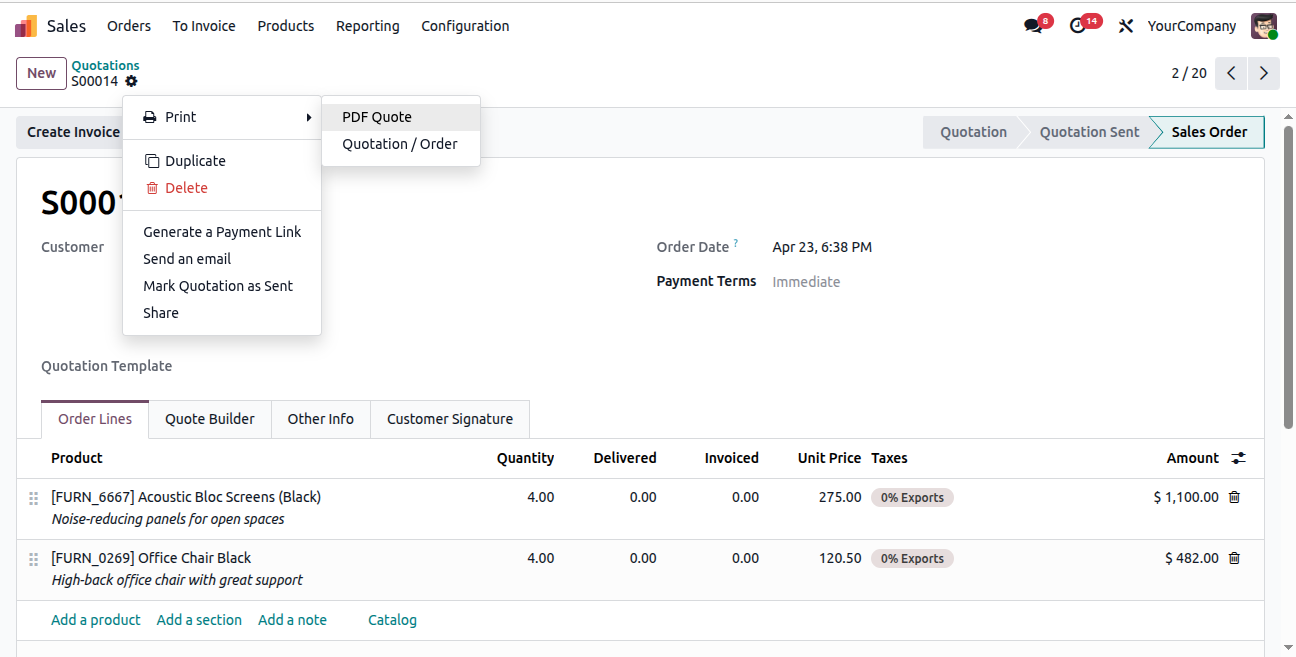
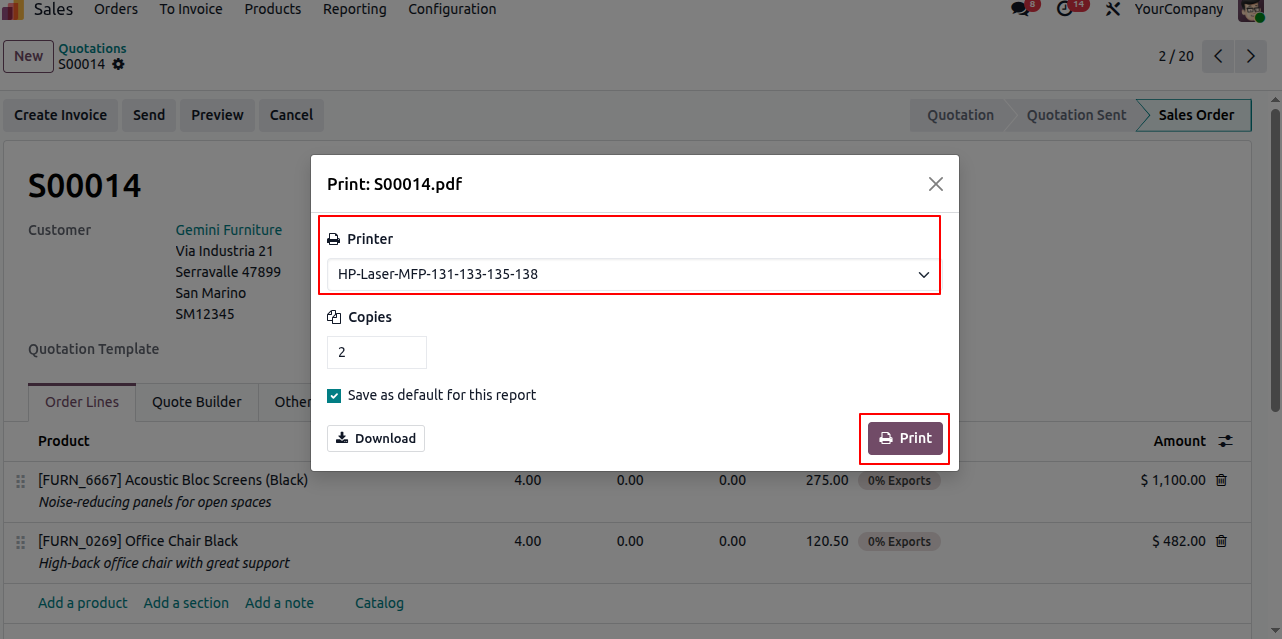
- Printer Selection: Choose your printer and number of copies directly from the Odoo print dialog and press the Print Button.
Silent Printing and Per-Report Printer Assignment
How can you print invoices and shipping labels to different printers? Studies reveal that 60% to 80% of customers will not return to a retailer after a single poor delivery experience. Setting up per-report printer assignments routes documents automatically to the right printer without manual selection.
Different reports need different printers. A customer invoice belongs on a standard A4 laser printer, while a shipping label must go to a thermal barcode printer. Odoo lets you map specific report actions to different local devices. Each user can configure these settings independently.
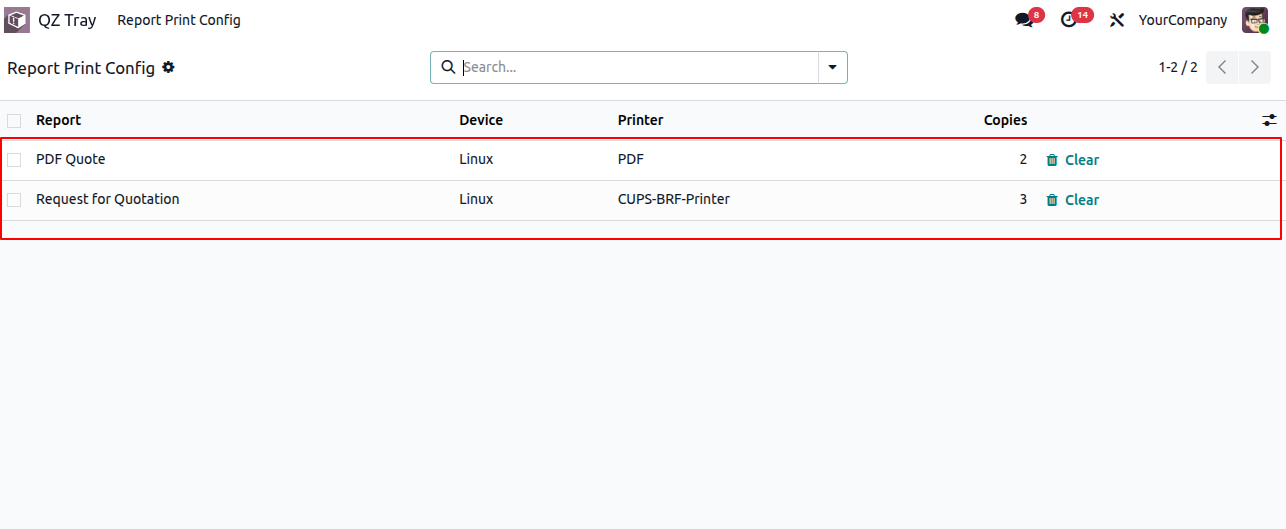
In our module, printer preferences are stored through a per-report configuration. Users can assign a specific printer and define the number of copies for each report type, such as invoices, delivery slips, or shipping labels. The saved configurations can be reviewed at any time from the settings interface, allowing users to verify which printer and copy count are assigned to each report. If needed, users can also clear or reset the saved configuration, making it easy to update printer assignments as business requirements change.
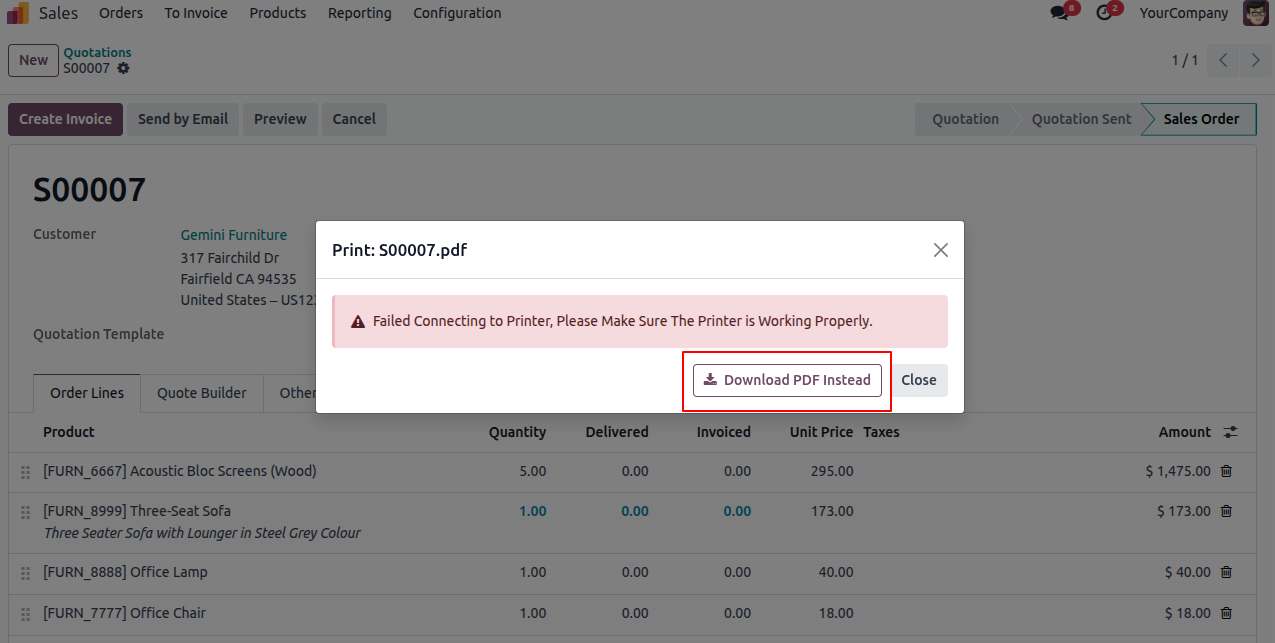
How Does the Smart Fallback to PDF Downloads Prevent Operational Halts?
What happens if the local printing service goes offline? Industry analysis shows that a standard Odoo IoT Box costs $30.00 per month, adding $360.00 in annual recurring fees. The smart fallback mechanism prevents operational halts by offering immediate PDF downloads if the QZ Tray service becomes unavailable.
If your local computer loses internet, or if QZ Tray is closed, a standard automated printing environment could freeze your entire packing line. To prevent this, the Odoo module features an intelligent fallback system that continuously monitors the connection state.
Instead of halting the printing process when the local printing service is unavailable, our module ensures business continuity by providing the report as a downloadable PDF. If QZ Tray is offline, disconnected, or not running, users can instantly download the generated report and print it manually if required. This fallback mechanism prevents disruptions to daily operations, allowing warehouse, packing, and invoicing workflows to continue without delays while maintaining access to all critical documents.
Conclusion
Direct printing in Odoo via QZ Tray is a powerful way to streamline your business logistics. By eliminating manual PDF downloads, you increase fulfillment speed and reduce errors. This guide has shown how to connect Odoo to your local printer, set up security certificates, and configure user preferences.
Unlike the Odoo IoT Box, which requires a $30.00 monthly subscription fee per device, this client-side module is a one-time purchase. It offers a scalable, secure, and cost-effective printing solution for growing businesses.
Download the Direct Print by QZ Tray Module from Here
FAQ
Why use QZ Tray instead of Odoo IoT Box?
The Odoo IoT Box costs $30.00 per month in subscription fees per device (Odoo, 2024). In contrast, the QZ Tray integration operates client-side with no monthly fees, saving hundreds of dollars annually.
Do I need an active internet connection to print?
QZ Tray runs locally on your machine, so it does not need internet access to talk to your printer. However, your Odoo instance must be accessible via your network to trigger print requests.
Can I use any printer model with QZ Tray?
Yes. QZ Tray supports any printer your operating system can detect, including USB, thermal, dot-matrix, and network printers. You do not need to install special drivers on the server.
What happens if QZ Tray is closed or offline?
The module features a smart fallback system. If QZ Tray is offline, Odoo displays a dialog giving the user the option to download the standard PDF report instead, keeping operations running without interruption.
How does digital certificate signing work?
Digital signing uses cryptography to verify that print requests originate from your trusted Odoo server. This security layer prevents unauthorized prints and eliminates browser warning popups entirely.