In manufacturing, it is not enough to know that you have one hundred units in stock. What really matters is whether those one hundred units of the product are actually available when the production team needs them.
This is where Odoo 19 manufacturing orders report capabilities truly stand out.
With the Odoo 19 MRP module, Odoo has evolved into a complete control center for production, inventory, and planning. Among the most powerful tools available are Odoo MRP reports, especially the Odoo allocation report, which gives you clear visibility into how materials are reserved and used.
This is where manufacturing allocation in Odoo becomes critical. The allocation report in Odoo 19 helps the production team clearly see which materials are available for which materials are reserved and where the materials are being used in the production process.
Many delays in manufacturing don’t happen because parts are missing—they happen because parts are already reserved somewhere else. Without a proper Odoo stock allocation report, your team might spend hours searching for components that are technically available but not usable.
Without an Odoo stock allocation report, the production team might waste a lot of time searching for components that are technically in stock but already reserved for another production order in the system.
The allocation reports in Odoo 19 solve this problem by giving the production team complete visibility into the supply of materials and the demand for the materials helping the production team avoid confusion and production bottlenecks, in the manufacturing process of the product.
How to Create and Manage Allocation Reports (Step-by-Step)
Let’s walk through how to use Odoo production report features to manage allocation effectively.
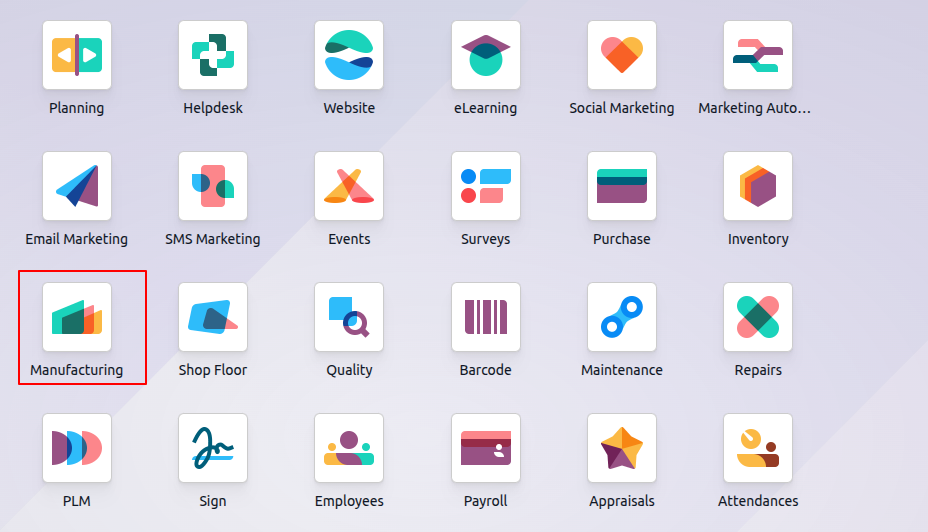
Step 1: Configuration of the Odoo 19 MRP Module
Before using allocation reports, you need to enable the feature.
- Go to Manufacturing → Configuration → Settings
- Under the Operations section, enable Allocation Report.
- (Optional but recommended) Go to Inventory → Configuration → Settings and enable Reception Report to track allocations during incoming shipments.
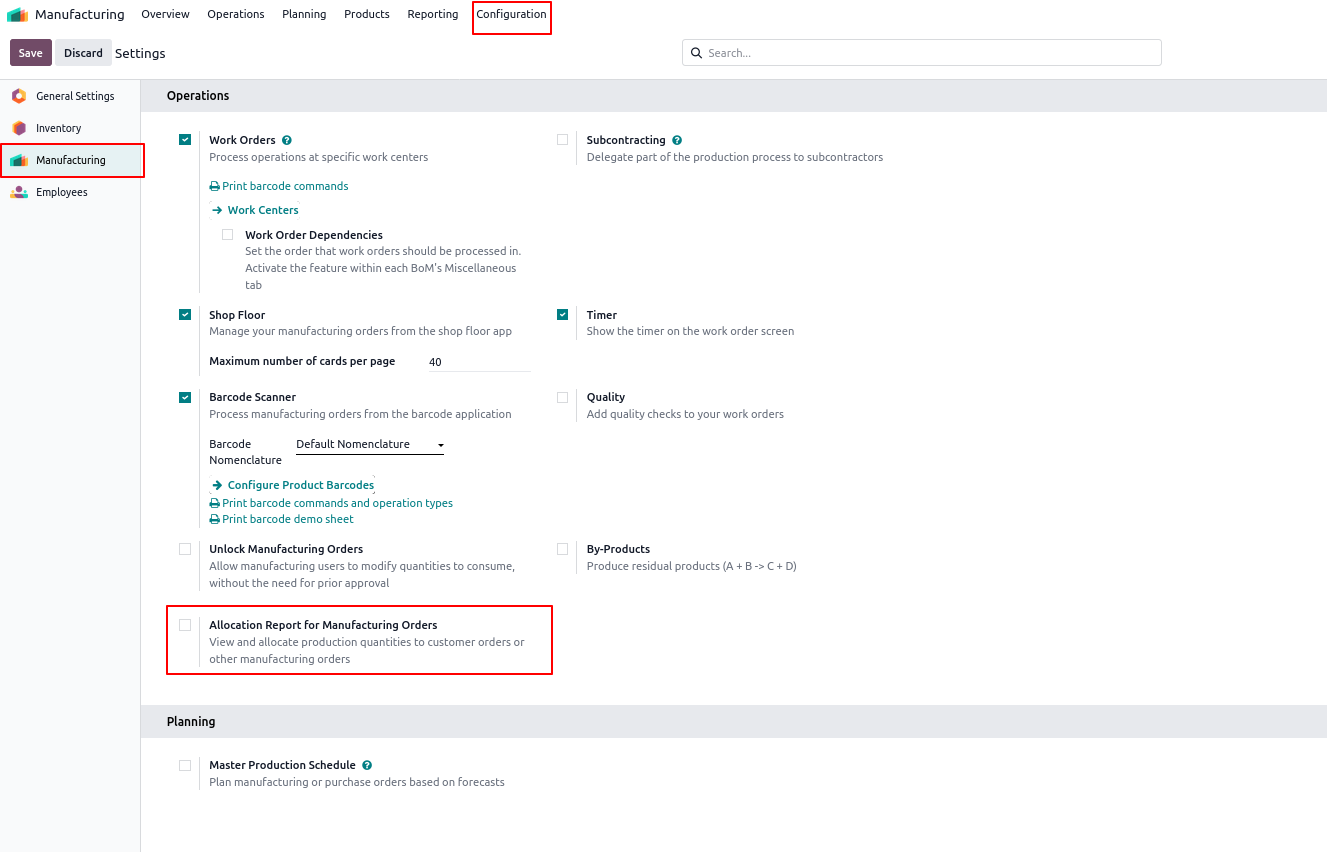
This ensures that your system can track how materials move between purchase, inventory, and production.
Step 2: Confirm Demand with a Manufacturing Order
Now, create a Manufacturing Order (MO):
- Go to Manufacturing → Operations → Manufacturing Orders
- Click Create
- Select a product
- Click Confirm
At this point, Odoo will try to reserve the required components.
Scenario: Product with Zero On-Hand Quantity
To understand allocation better, try this:
- Select a product with 0 On-Hand Quantity
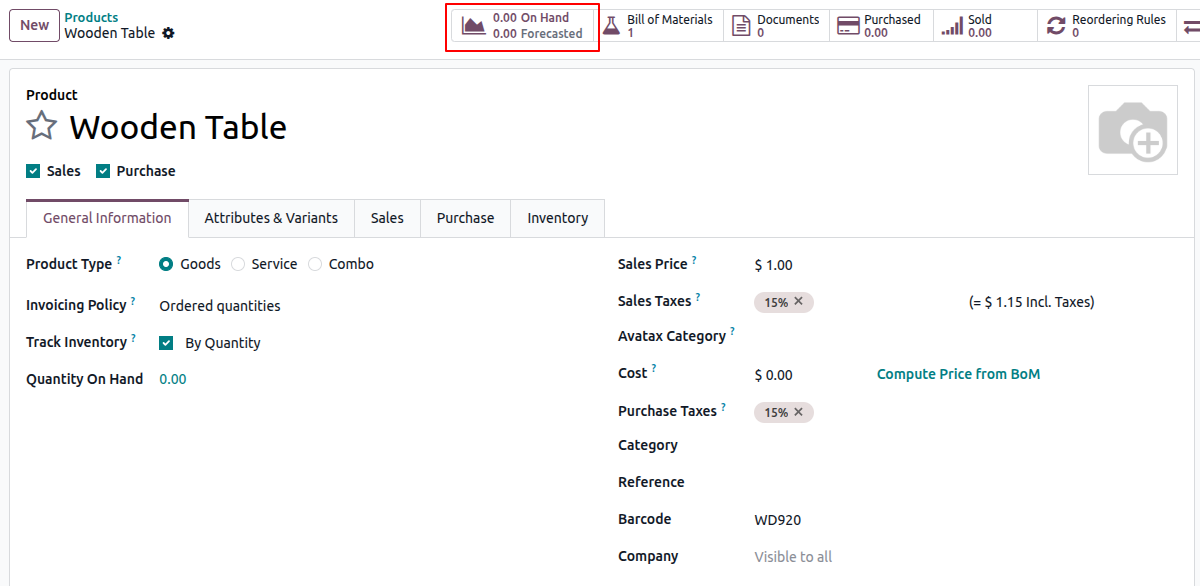
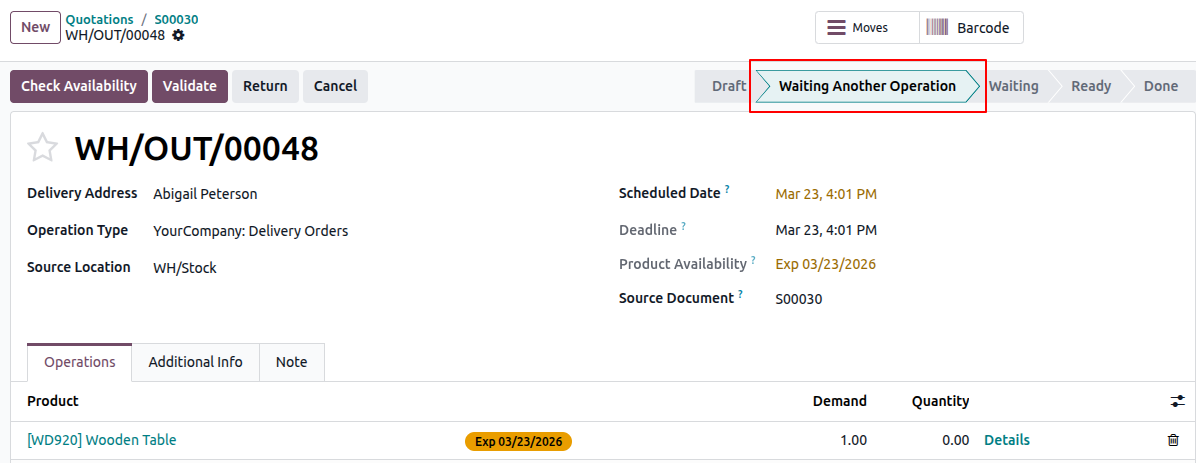
imageWhat happens next?
- The Reserved quantity remains 0
- The status shows “Waiting Another Operation”
Step 3: Sales Order to Manufacturing Flow
If the demand comes from a sales order:
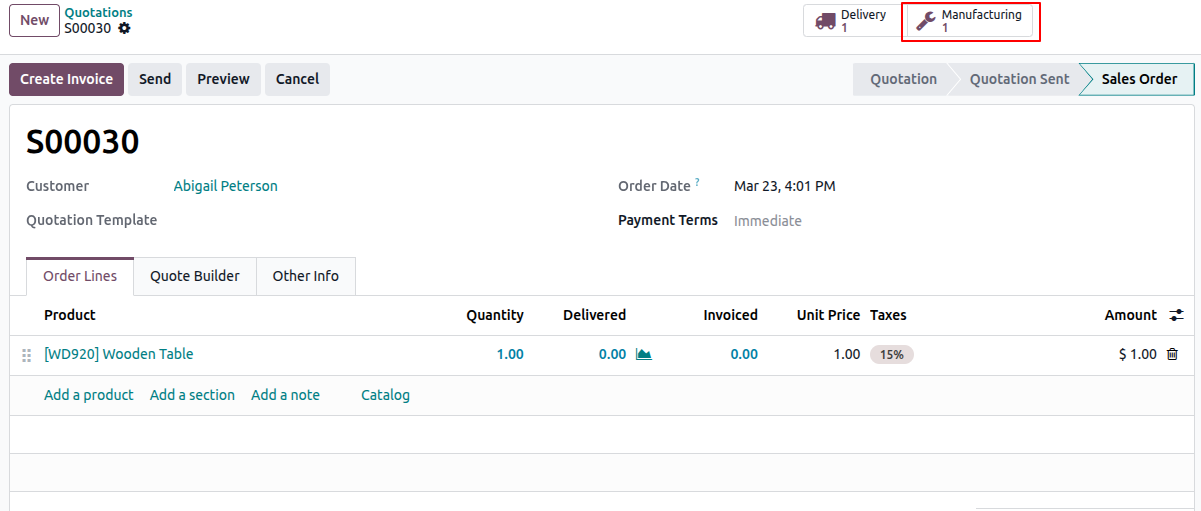
- Create a Sales Order for the same product
- Confirm the Sales Order
Odoo will automatically:
- Generate a Manufacturing Order
- Link it to the Sales Order
Step 4: Access the Allocation Smart Button
Once your Manufacturing Order is confirmed:
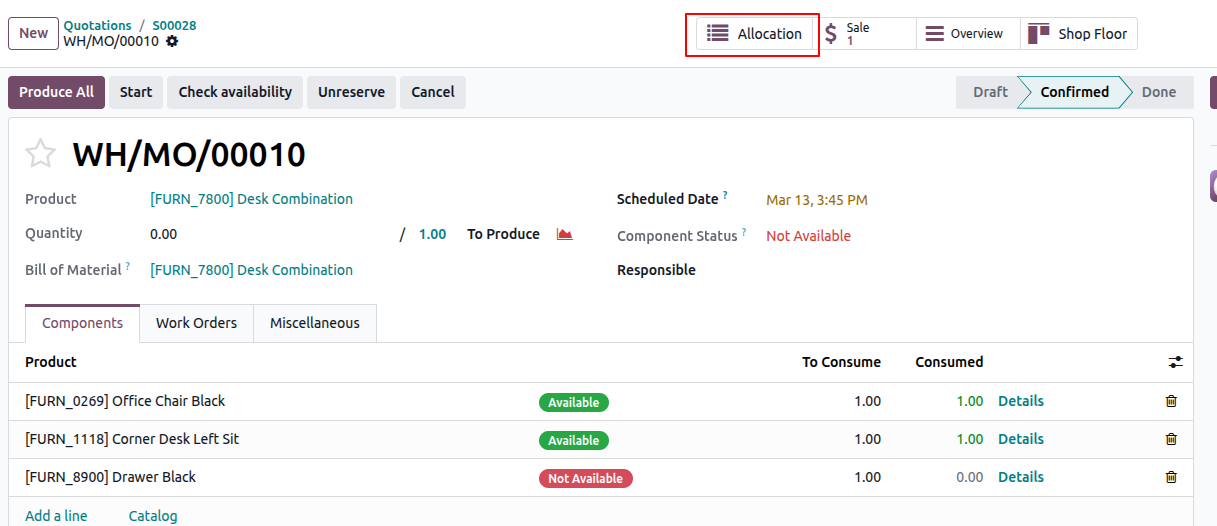
- Open the MO form
- Look at the top-right corner
- Click the Allocation smart button
Step 5: Understand the Allocation Dashboard
The allocation dashboard gives you a clear breakdown of material flow. Here’s what you’ll see:
- Source:
- Where the material is coming from
- (e.g., Purchase Order or another Manufacturing Order)
- Destination:
- Where the material is going
- (e.g., your current MO or a Sales Order)
- Action:
- You can manually assign quantities using the Assign button

This allows you to prioritize production and control which order gets materials first.
Step 6: Validate and Track the Workflow
Once allocation is done:
- The MO status updates to show materials are Expected
- When the source document (like a Purchase Order) is validated:
- Allocation becomes a Physical Reservation
- Component lines turn green
- The out Delivery becomes Ready
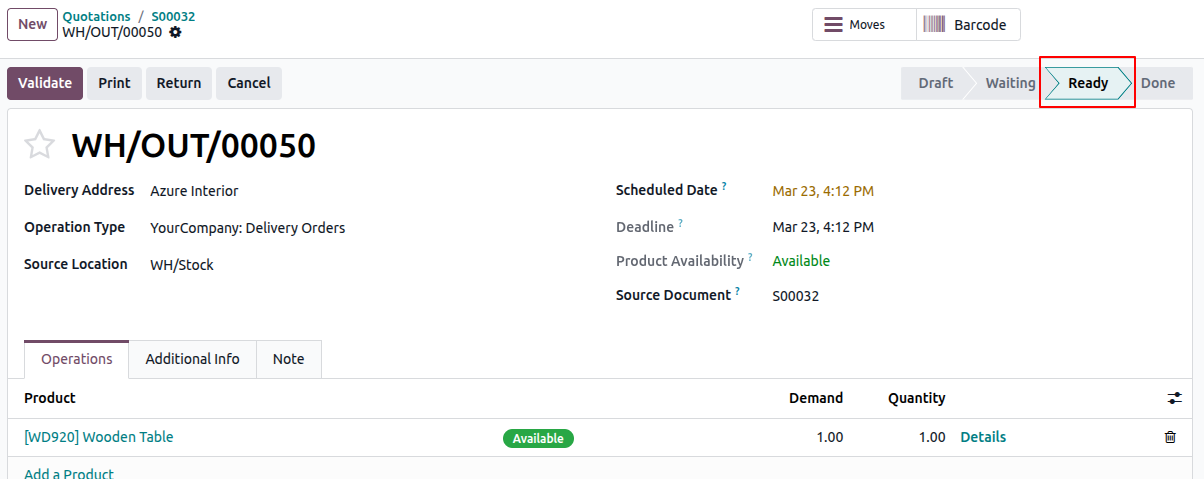
This is where Odoo work order tracking becomes seamless—your production team can now proceed without delays.
Conclusion
Allocation reports in Odoo 19 are not just one feature; they are actually a very powerful tool that can help make manufacturing more efficient.
When you use Odoo allocation reports, you can:
- Make sure you do not run out of materials during production
- Save time that was previously wasted looking for parts
- Get a picture of how much you have versus how much you need
- Make better plans and schedules
With more information and better control, your whole production process gets smoother, faster, and also more reliable.
FAQ
What is an allocation report in Odoo 19?
An allocation report shows how inventory is reserved and distributed across different operations like manufacturing orders, purchase orders, and sales orders.
Why is my Allocation smart button not visible?
Make sure:
- The Allocation Report feature is enabled in settings
- The Manufacturing Order is confirmed
- There is a stock movement or shortage triggering allocation
What happens if stock is not available?
Odoo will:
- Keep the reserved quantity at 0
- Show the status as Waiting
- Trigger procurement (purchase or manufacturing)
Can I manually assign materials?
Yes, using the Assign button in the allocation dashboard, you can manually link incoming stock to a specific Manufacturing Order.
How does allocation improve production efficiency?
It ensures materials are:
- Available at the right time
- Not double-booked
- Properly tracked across operations
This reduces delays and improves overall workflow.