Managing vendor bills across two separate platforms is one of those problems that looks small on paper but quietly eats up hours every week. When your finance team is running payments through Bill.com and your accounting lives in Odoo, someone ends up manually re-entering data, and that's where mistakes creep in.
This blog walks through a custom integration we built that keeps Bill.com and Odoo in sync automatically, from the moment a vendor uploads an invoice in Bill.com right through to payment reconciliation in Odoo. No duplicate entry, no payment status drift, no manual chasing.
Before getting into the how, here's a quick picture of the two sides of this connection.
Bill.com handles the accounts payable side — vendors submit invoices digitally, finance teams approve them, and payments go out via ACH or check. Odoo is the ERP backbone — it manages vendor bills, journals, payment records, and financial reporting. To get a real-time picture of cash flow and payables, you need both systems talking to each other constantly.
The result is a live connection: bills created and paid in Bill.com are reflected in Odoo automatically. Odoo's payables ledger always shows the true outstanding liability. Neither system goes stale.
Key Integration Benefits and Features
- Bi-directional Synchronization: The system keeps both platforms completely aligned all the time. This means that if you make any changes to customer profiles or vendors, bank details, items, invoices, or bills on one platform, these changes will show up on the platform right away.
- Payment Automation: You can send a vendor bill from Odoo to Bill.com with one click. This way, you do not have to type the invoice into two different systems. Once the bill is in Bill.com, you can handle the payment. schedule it.
- Payment Reconciliation: The integration does the work for you. It checks the payment status on Bill.com. Updates your Odoo ledger. This keeps your books accurate and ready to be reconciled.
- Error Reduction: The integration helps reduce mistakes. When you are not entering information by hand, you avoid mistakes like typos, duplicates, or missed lines. This makes things easier for the accounting team.
How the Integration Works: Step by Step
Here is the full flow — from when a vendor uploads a bill in Bill.com to when the payment is reconciled in Odoo.
Step 1: Authenticating with Bill.com
- The integration starts by calling the login method, which authenticates using your organization developer token, stored securely in Odoo's company settings — and returns a session ID. Every subsequent API call in that session appends both the dev key and session ID as parameters.
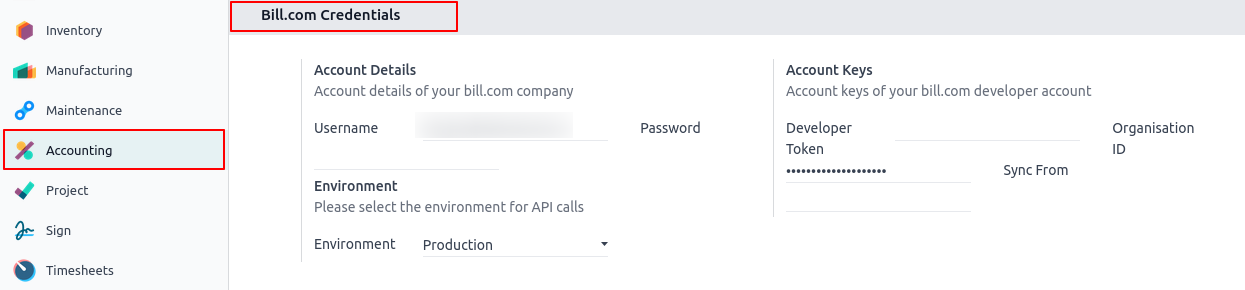
- This session-based approach follows Bill.com's REST API authentication model. The base URL and session details are also configurable per company, which means the same module can support multi-company environments.
Step 2: Fetching Approved Bills from Bill.com
- Once authenticated, the integration calls Bill.com's List/Bill endpoint with a filter that targets only approved bills. Unapproved or in-review bills are not touched, only those ready to be paid.
- If you have configured a sync start date in Odoo's company settings, the filter adds an additional clause so only bills from that date onwards are pulled.
- The API also returns an active flag for each bill. Any bill marked as inactive is skipped silently — a quiet guard against processing voided or archived records.
- Each Bill.com API response contains fields like the invoice number, due date, invoice date, vendor ID, PO number, paid amount, and line items. The logic behind of Odoo bill creation is mentioned below.
Step 3: Matching and Creating Vendors in Odoo
Before any bill is created, the integration needs to know which vendor it belongs to in Odoo. It does this in one of three ways, in order of priority:
- Dropship vendor bill match: If the Bill.com invoice number matches an existing dropship vendor bill in Odoo, the integration links the Bill.com record to that existing bill and updates its fields, without creating anything new.
- PO number match: If the Bill.com bill carries a PO number, the integration searches Odoo for the matching purchase order and links the bill to it. This handles supplier invoices that are directly tied to a PO.
- Vendor lookup via Bill.com API: If neither of the above matches, the integration fetches the vendor's details from Bill.com directly, then searches Odoo's contacts by name. If no match is found, a new vendor contact is created automatically.
This tiered matching strategy means the integration handles the common cases fast and falls back gracefully when it needs to create something new.
Step 4: Creating the Vendor Bill in Odoo
Once the vendor is resolved, the integration creates a vendor bill in Odoo. The bill is populated with:
- The invoice number from Bill.com, stored as the vendor reference.
- The Bill.com bill ID, used for deduplication and payment sync.
- The invoice date and due date from Bill.com.
- Line items mapped to the correct Odoo accounts using the purchase journal's configured Bill.com account.
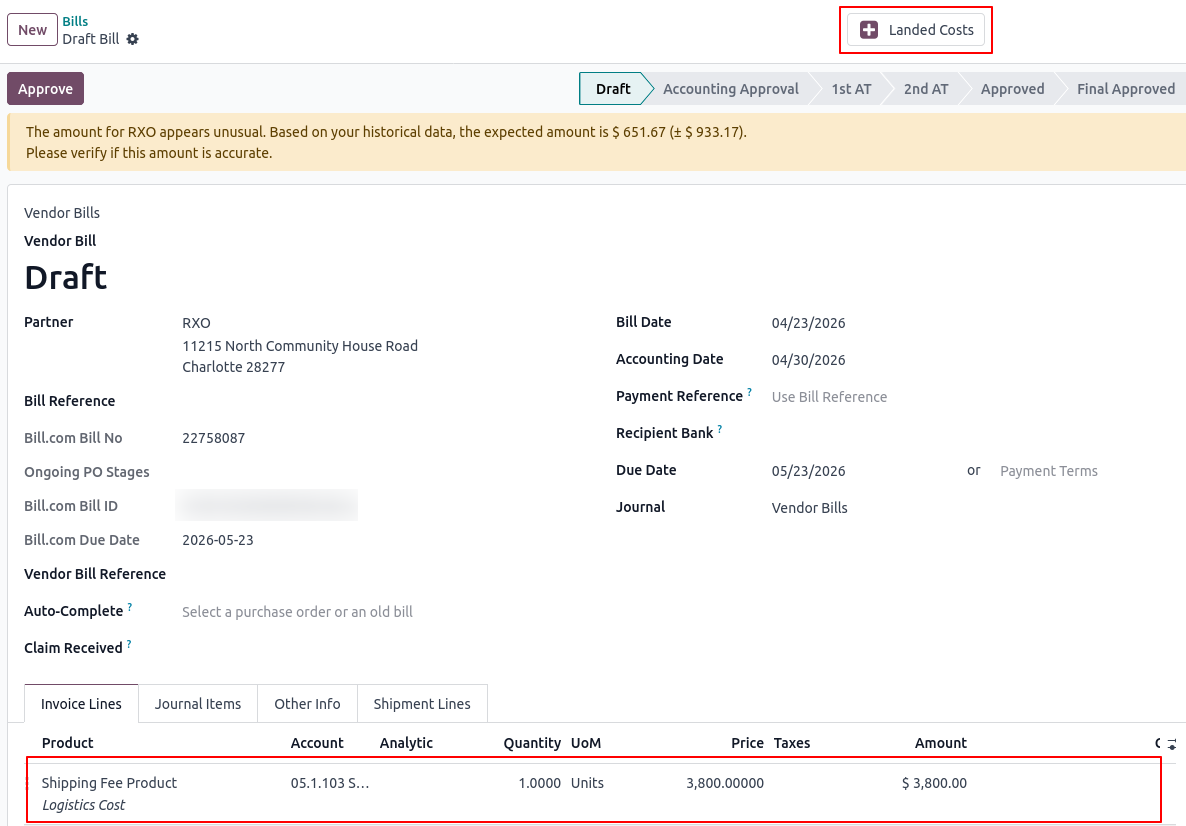
Line items with descriptions like Shipment Cost, Logistics Cost, Labour Cost, and Pallet Charges are treated separately as landed costs. The amounts are proportionally distributed across all linked bills using a ratio of each bill's total against the combined total — so shipping costs land accurately even when a single shipment covers multiple vendor bills.
After the landed cost lines are added, the system creates a landed cost record in Odoo and schedules a mail activity prompting the accounting team to validate it.
Step 5: Preventing Duplicate Bills
- This is a detail that matters a lot in any integration that runs on a schedule — you do not want 30 copies of the same bill appearing in your payables ledger.
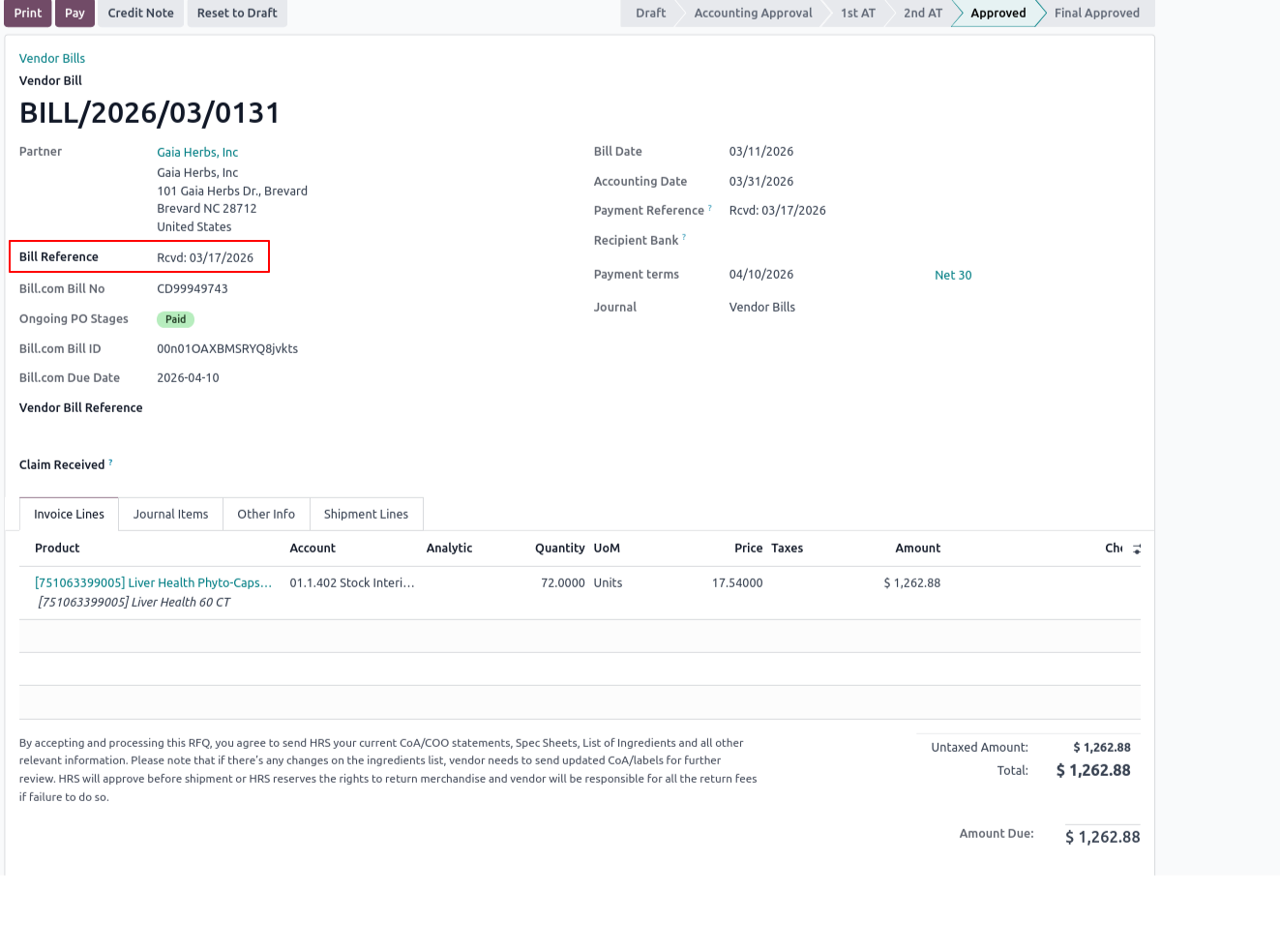
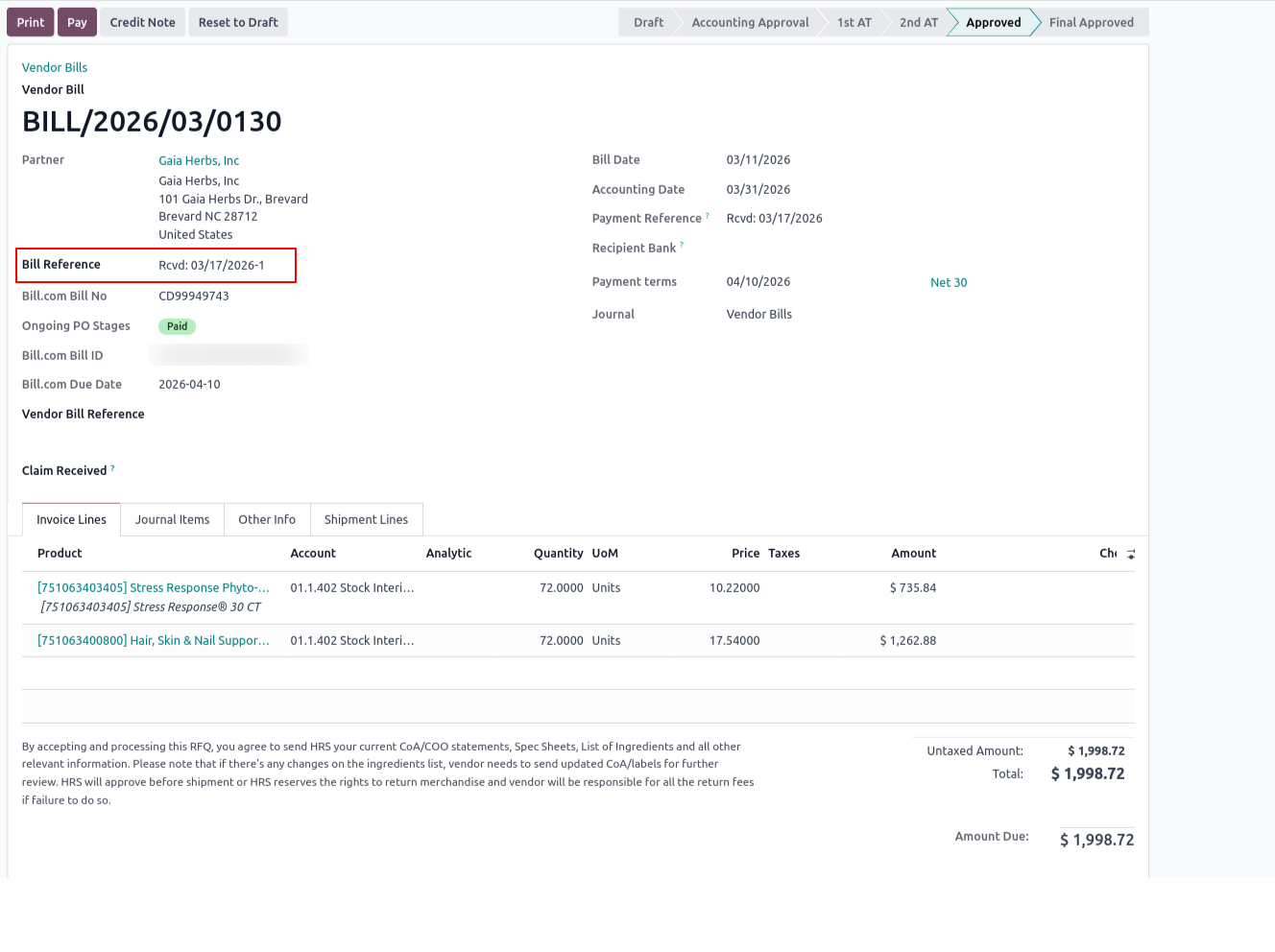
- Every time the sync runs, before creating a new bill, the system searches for an existing vendor bill that already has the matching Bill.com invoice number and bill ID combination. If a match is found, that bill is skipped entirely.
- There is also a second layer of protection: Odoo's duplicate supplier reference check has been extended to handle the case where Bill.com bills share a reference with non-Bill.com bills. Bill.com-sourced bills are checked separately so that legitimate Bill.com duplicates are caught without blocking other vendor bills that happen to share a similar reference number.
- The integration is safe to run continuously—whether triggered automatically by the 30-minute scheduled cron or executed manually from the Odoo backend—with zero risk of data duplication.
Step 6: Advance Payment Reconciliation
- In industries like healthcare distribution and manufacturing, it is common to pay a deposit or advance against a large vendor order before the full invoice arrives. The integration handles this cleanly.
- When a bill is imported and an advance payment already exists in Odoo for that vendor, the integration detects the relationship and creates the incoming bill with the correct residual amount not the total.
- The advance payment is reconciled against the new bill during the payment sync step. This means the accounts payable ledger shows only the true outstanding liability from the moment the bill is created, and no one has to manually reconcile anything.
Step 7: Real-Time Payment Status Synchronization
This is handled by a separate scheduled action that runs every 30 minutes. It targets only bills that are unpaid or partially paid in Odoo and have a linked Bill.com ID.
For each such bill, the integration calls Bill.com again with a filter on fully paid and partially paid statuses, narrowed to only the specific Bill.com IDs it is tracking. This keeps the API call tight and targeted rather than pulling everything.
Payment status synchronization breakdown:
- Fully paid in Bill.com: Trigger Odoo's payment register wizard, match the bank account, and reconcile the open payable entry.
- Partially paid: Calculate the delta (Bill.com Paid Amount – Odoo Paid Amount) and post an incremental partial payment.
- Already reconciled: Verify existing payment logs to bypass duplicate payment triggers and directly link open lines.

Conclusion
The Odoo–Bill.com integration addresses one of the most common pain points in accounts payable: the gap between where payments are managed and where they need to be recorded. By automating the full lifecycle — bill import, vendor matching, advance reconciliation, duplicate prevention, and payment status sync — your team no longer has to choose between using the tool they prefer and keeping the books accurate.
What this means in practice:
- Vendor bills approved in Bill.com appear in Odoo automatically — no manual data entry.
- Payment states in Odoo stay in sync with Bill.com every 30 minutes, without anyone having to trigger it.
- Advance payments are always reconciled correctly from day one, so your AP ledger reflects reality.
- Duplicate bills cannot be created, regardless of how often the sync runs.
- Landed costs — shipping, logistics, pallet charges — are distributed proportionally across bills and flagged for accounting review.
If your business is running both platforms and you are tired of keeping them in sync by hand, this integration is a solid foundation to build on. Reach out to our team and we can walk you through what it would take to adapt and deploy it for your setup.
FAQ
How does the integration authenticate with Bill.com?
It uses Bill.com's REST API with a session-based authentication method. Your organization developer token is stored in Odoo's company settings. On each sync run, the integration calls the login endpoint, receives a session ID, and appends both the dev key and session ID to every subsequent API request.
What happens if a vendor in Bill.com does not exist in Odoo?
The integration first looks up the vendor's details from Bill.com directly, then searches Odoo contacts by name. If no match is found, it creates a new vendor contact using the Bill.com data. Every bill will always have a linked vendor record before it is created.
How are duplicate bills prevented?
Each imported bill stores the Bill.com bill ID and invoice number directly on the Odoo vendor bill record. Before creating anything, the system checks for an existing record with the same combination. If found, the bill is skipped.
How does advance payment reconciliation work?
When a bill is imported from Bill.com, the integration checks whether an advance payment exists in Odoo for the same vendor. If it does, the new bill is created with the remaining payable amount. Reconciliation happens automatically during the next payment sync cycle.
What happens with shipping and logistics charges in the Bill.com line items?
Line items with descriptions like Shipment Cost, Logistics Cost, Labour Cost, or Pallet Charges are treated as landed costs. The amounts are proportionally distributed across all related vendor bills based on each bill's share of the total value. A landed cost record is created in Odoo and a mail activity is scheduled for the accounting team to review and validate it.