Odoo helps manage inventory easily from purchase to delivery. It links Purchase, Inventory, and Sales apps. You can see stock levels in real time for better control.
Let's examine the cycle in greater detail:
Purchase Management: Procuring Goods
When your company decides that stock replenishment is necessary, the cycle starts. Two choices are offered by Odoo:
Automated Reordering Rules: Set lead times, minimum stock levels, and preferred vendors. When stock drops below the set level, Odoo automatically creates a Request for Quotation.
Once a PO is confirmed, the next step begins: Incoming Shipments.
Inventory Receipt: Goods Enter the Warehouse
When the suppliers ship goods, Odoo creates an Incoming Shipment (Receipt) inside the Inventory application.
Batches or lot numbers can be tracked, which is useful for industries like electronics, food, and pharmaceuticals.
After validation, products are ready for manufacturing or sales, and stock levels are updated instantly.
Stock Management: Keeping Control in Real-Time
The inventory app in Odoo records and tracks all movements of goods.
Thus, businesses know exactly what is there, where it is located, and its financial valuation.
Putaway & Removal Strategies
These decide how products are stored and picked in the warehouse.
In Odoo, go to Inventory -> Configuration -> Product Categories to set this up. Benefits include better use of stock, less waste, and happy customers.
Inventory Valuation
This is how stock cost is calculated for accounting.
Go to Configuration -> Inventory -> Settings -> Odoo Product Categories to set costing methods. This helps keep financial reports and COGS correct. Automation saves time and reduces mistakes.
Sales and Delivery
Accounting Integration: Closing the Loop
Every movement in Odoo can be linked with accounting:
This gives inventory control a comprehensive financial overview.
Reporting and Forecasting
The reporting features in Odoo provide thoughtful information:
Example Flow: A Real-World Scenario
The low stock of "Laptops" is detected by the reordering rule.
For the selected supplier, Odoo automatically generates an RFQ.
The PO is confirmed ->Incoming shipment is created.
Warehouse validates receipts, and laptops move into stock.
A customer places an order for 5 laptops ->Delivery order is generated.
Warehouse staff pick, pack, and ship ->Stock updated in real-time.
Sales invoice generated and linked to delivery.
Accounting automatically records purchase, delivery, and sales entries.
Why Odoo for End-to-End Inventory?

Step-by-Step Setup in Odoo
Step 1: Install the Required Apps
Go to Apps ->Install:
Purchase
Inventory
Sales
Accounting (optional)
Step 2: Configure Warehouse
Inventory ->Configuration ->Warehouses ->Create
Name: Main Warehouse
Address: Warehouse location
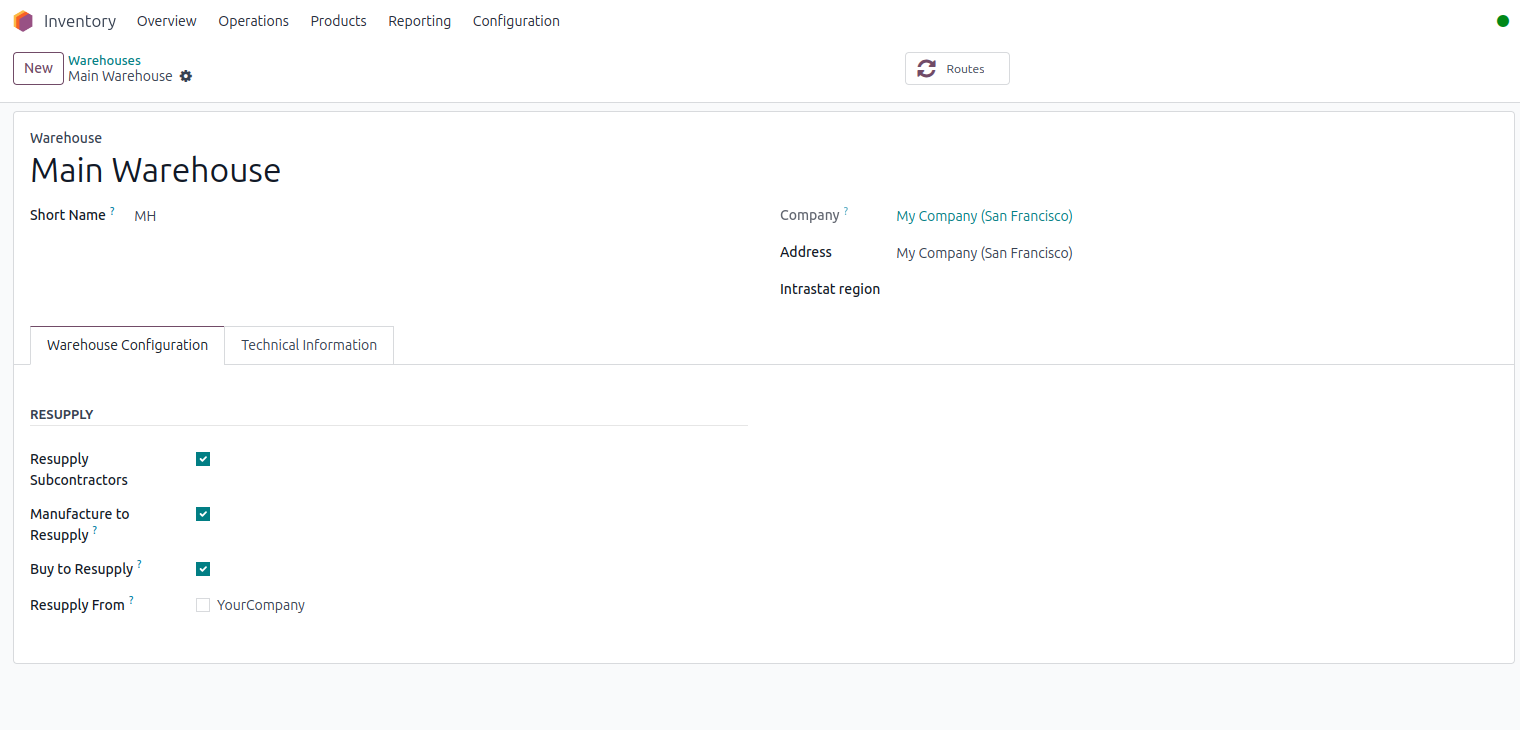
Go to Settings ->Inventory ->Multi-Step Routes
It will allow more option to configure in warehouses
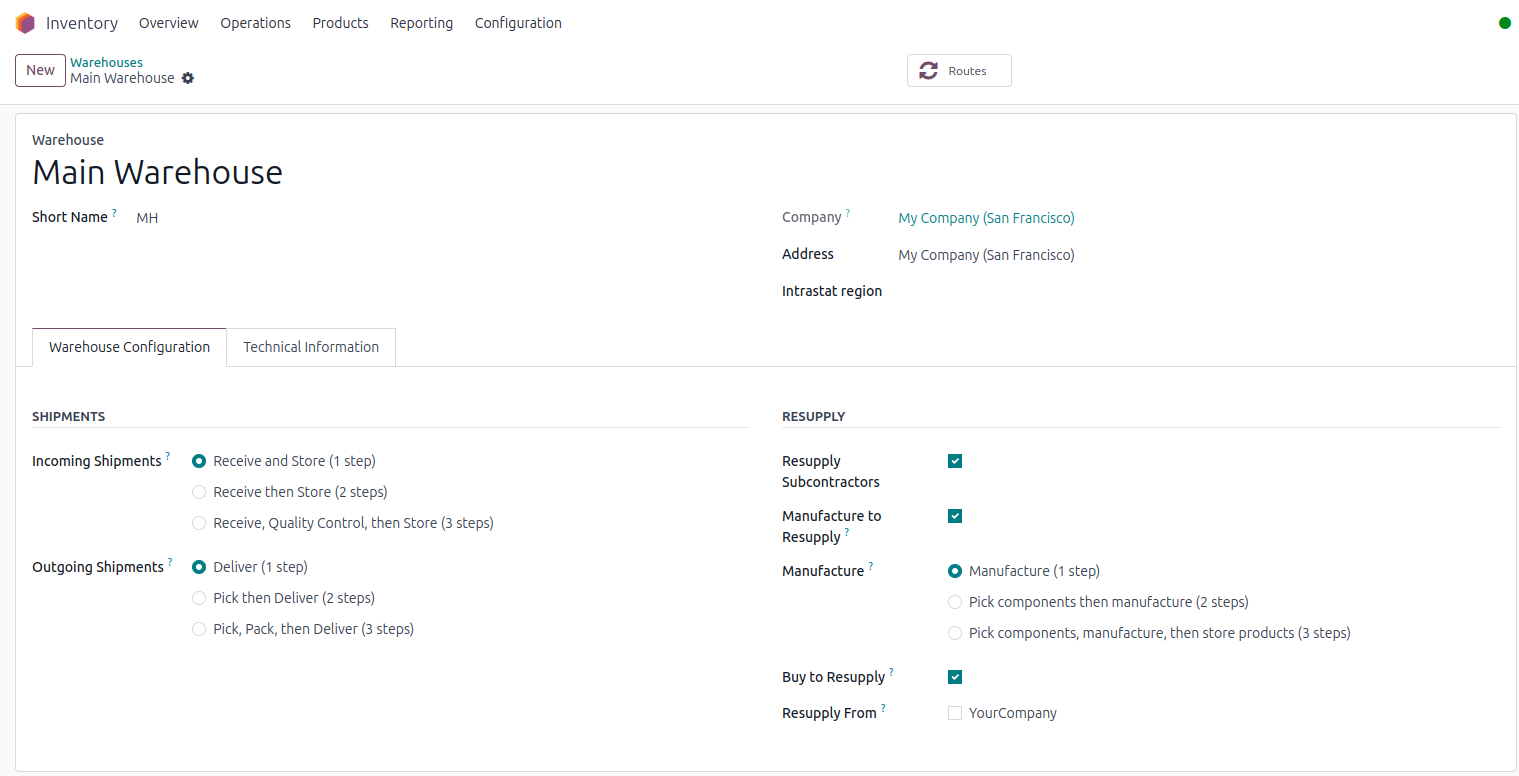
Incoming Shipments
When receiving products from vendors, Odoo lets you manage the process in 1, 2, or 3 steps:
Receive and Store (1 step): Products go directly from vendor to stock. Example: Vendor delivers 100 laptops ->confirm receipt ->stock updated.
Receive then Store (2 steps): Products first arrive at a receiving area, then moved to stock. Example: Laptops unloaded at the dock ->later stored on shelves.
Receive, Quality Control, and then Store (3-step process): In this warehouse operation, upon arrival, products pass through quality checks before entering into storage. It is necessary for any company dealing with pharmaceuticals, electronics, or food, amongst others.
Example: Laptops arrive ->inspected for defects ->approved units go to stock.
Outgoing Shipments
Odoo supports shipping methods all through 1, 2, or 3-step processes:
Deliver (1 step): Stock goes directly to the customer. Example: 10 laptops shipped directly from stock.
Pick then Deliver (2 steps): Products are picked and moved to a dispatch area before delivery. Example: Laptops picked from shelves ->moved to dispatch ->delivered.
Pick, Pack, and Deliver (3-step process): Products are picked, packed, and labeled for shipping. This is ideal for big warehouses or e-commerce. Example: Laptops picked ->packed in boxes with labels ->shipped to customer.
Step 3: Configure the Items
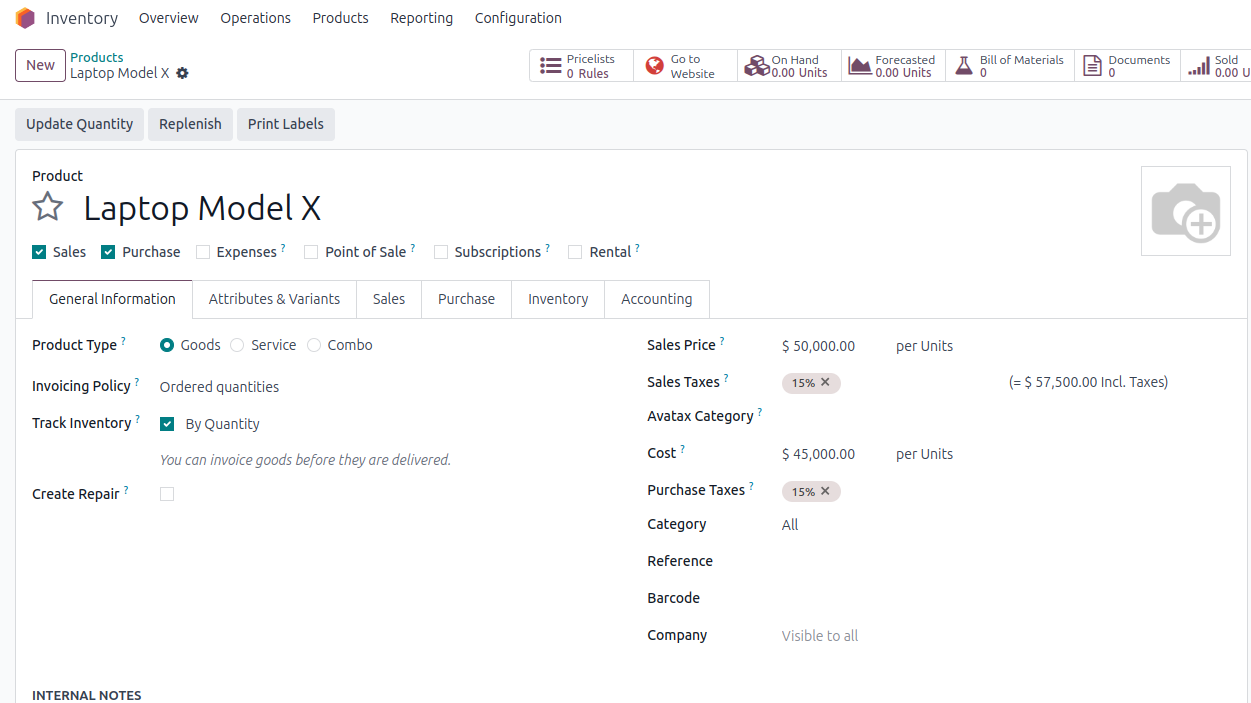
Products ->Inventory ->Name of creation: Laptop Model X
Type of Product: Stockable The item
₹50,000 is the sales price.
Price: 45,000
If necessary, enable tracking (lot/serial).
Step 4: Configure Vendors
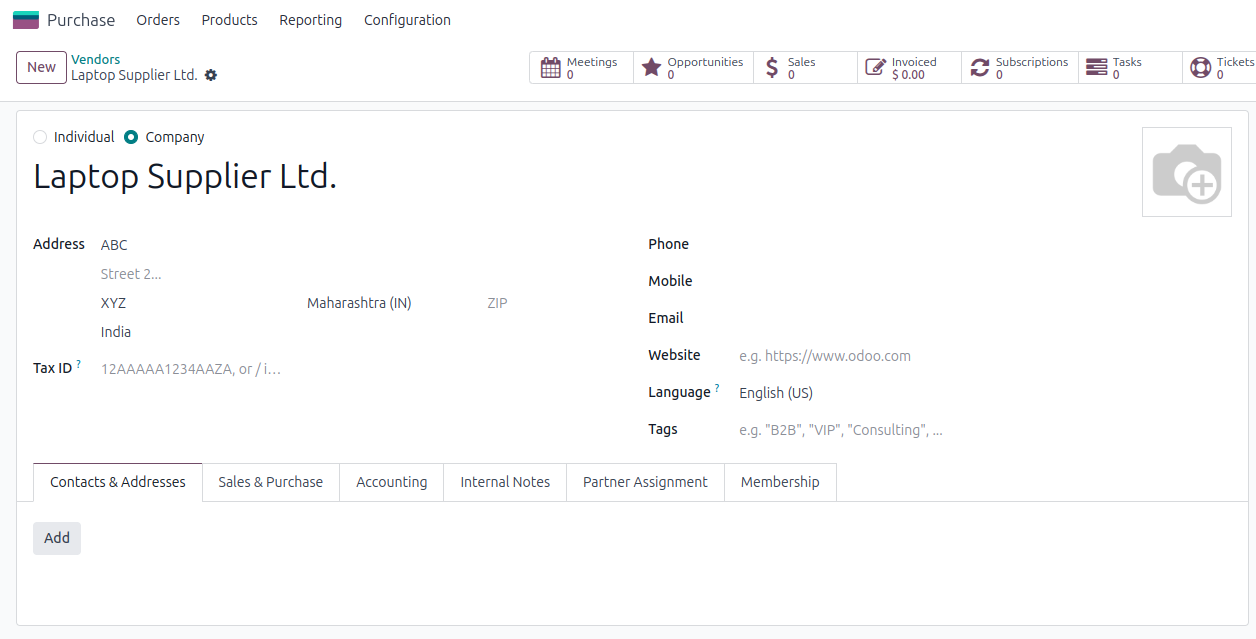
Purchase ->Vendors ->Create
Vendor: Laptop Supplier Ltd.
Inventory ->Product ->Inventory Tab
Product: Laptop Model X
Step 5: Set Reordering Rules (Optional)
Inventory ->Products ->Product ->Reordering Rules Smart Button->Add a line.
Minimum Quantity: 5
Maximum Quantity: 20
When stock levels are low, Odoo automatically generates RFQs.

Step 6: Make a Purchase Order
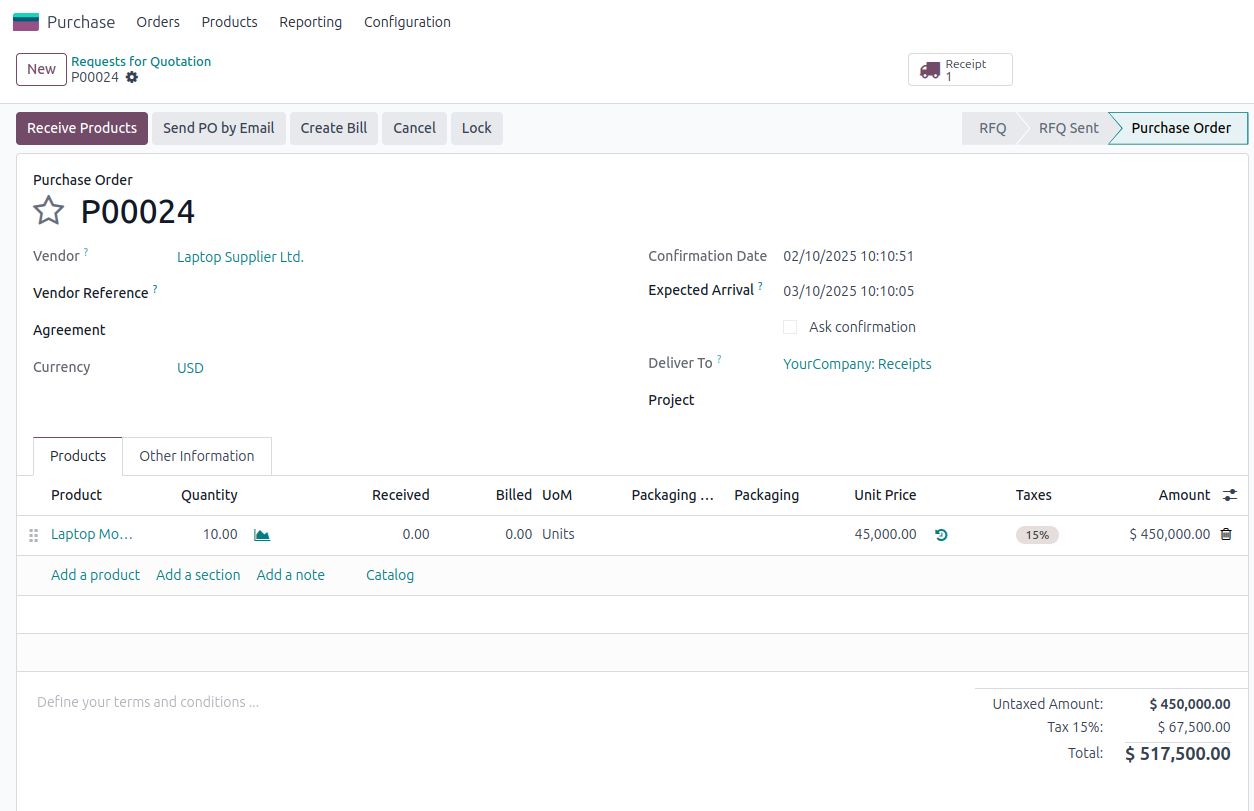
Purchase ->Orders ->RFQ ->Create
Vendor: Laptop Supplier Ltd.
Product: Laptop Model X
Confirm order ->triggers incoming shipment in Inventory
Step 7: Receive Products
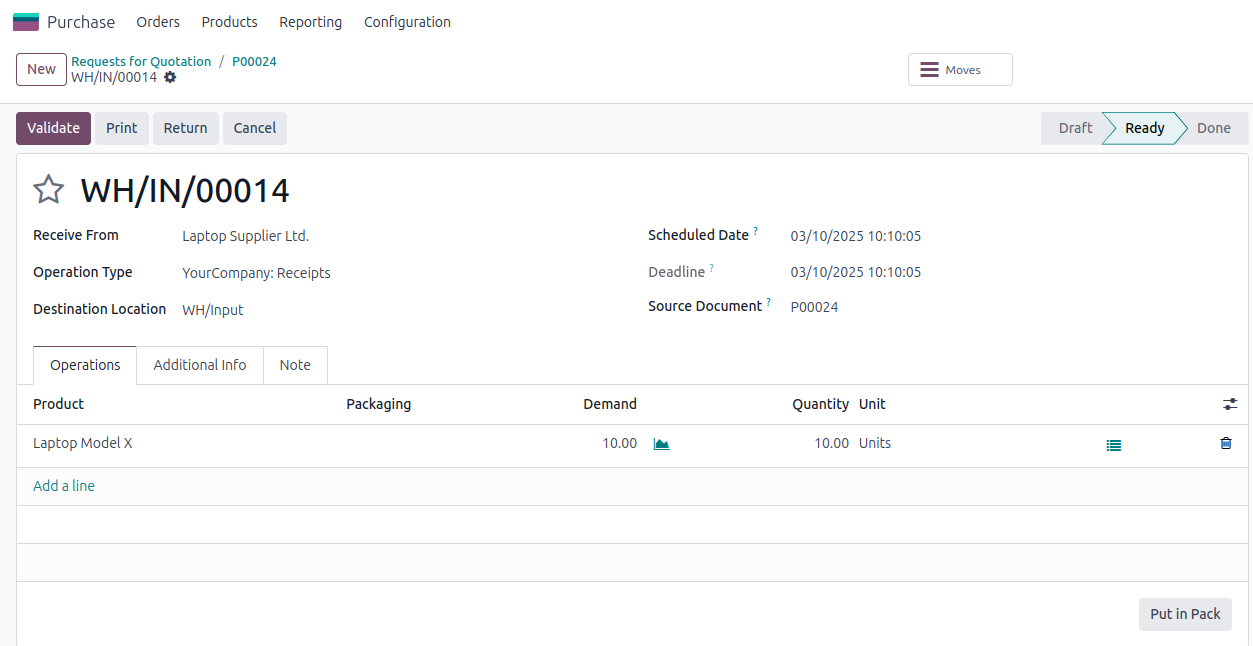
Inventory ->Operations ->Transfers ->Receipts
After the products are delivered, click Validate.
Automatic stock updates
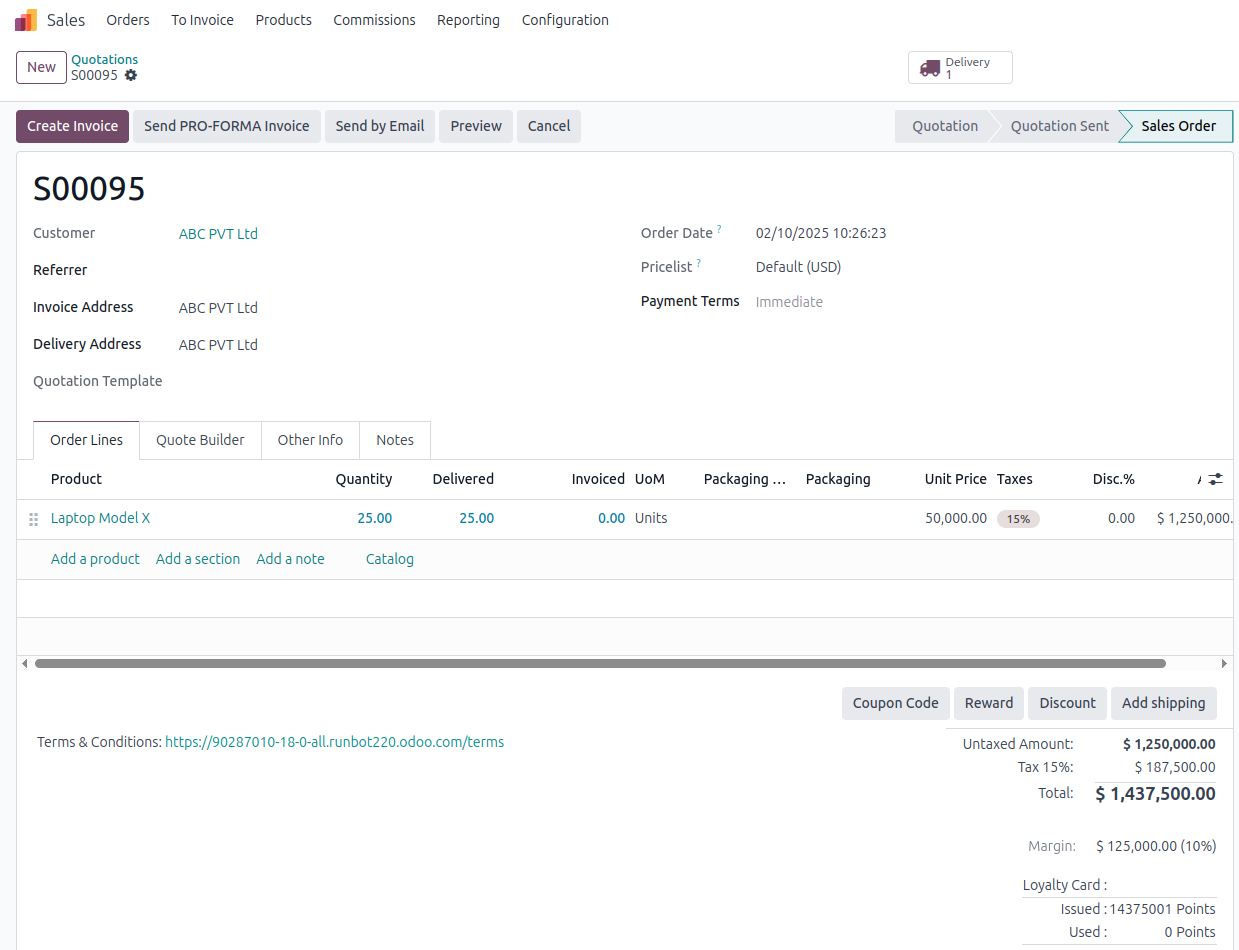
Step 8: Create a Sales Order
Sales -> Orders -> Create
Customer: ABC Pvt Ltd
Product: Laptop Model X
Verify -> Delivery Order automatically generated
Step 9: Deliver Product
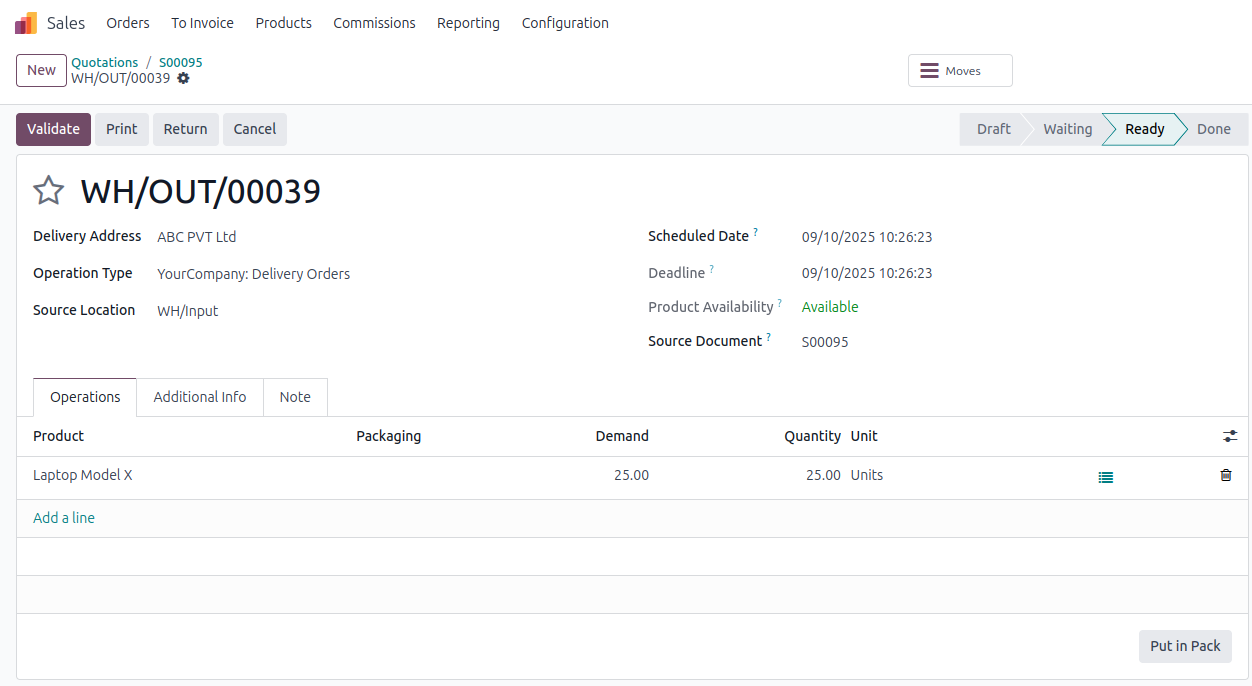
Inventory -> Operations -> Transfers -> Delivery Order
Select, package, and ship, then Verify
Stock levels drop, and an automated invoice is produced.
Step 10: Track Inventory & Reports
Inventory ->Reporting ->Inventory Valuation ->Track stock value

Conclusion
The software ensures that every process, from purchasing and warehouse management to inventory control and delivery, is seamlessly connected, automated, and completely transparent. By integrating these key operations, it minimizes manual intervention, reduces errors, and provides real time visibility into stock levels and movement. Odoo stands out as a powerful choice for modern inventory management systems, enabling businesses to achieve higher efficiency, better stock accuracy, faster order processing, and greater customer satisfaction.